LandOffer
Job search
TestGorilla Assessment Setup: Invitation Access, Device Permissions, and Candidate Profile
Prepare for a TestGorilla assessment by opening the employer’s invitation correctly, checking camera and microphone permissions, and separating the optional candidate profile from the assessment itself.
A TestGorilla assessment normally starts from a personal invitation link sent for a specific employer’s assessment. You do not need to create a TestGorilla account just to open that invitation. The separate Candidate Profile is optional: it can help you view assessment status or results, but it is not the same thing as the application invitation.
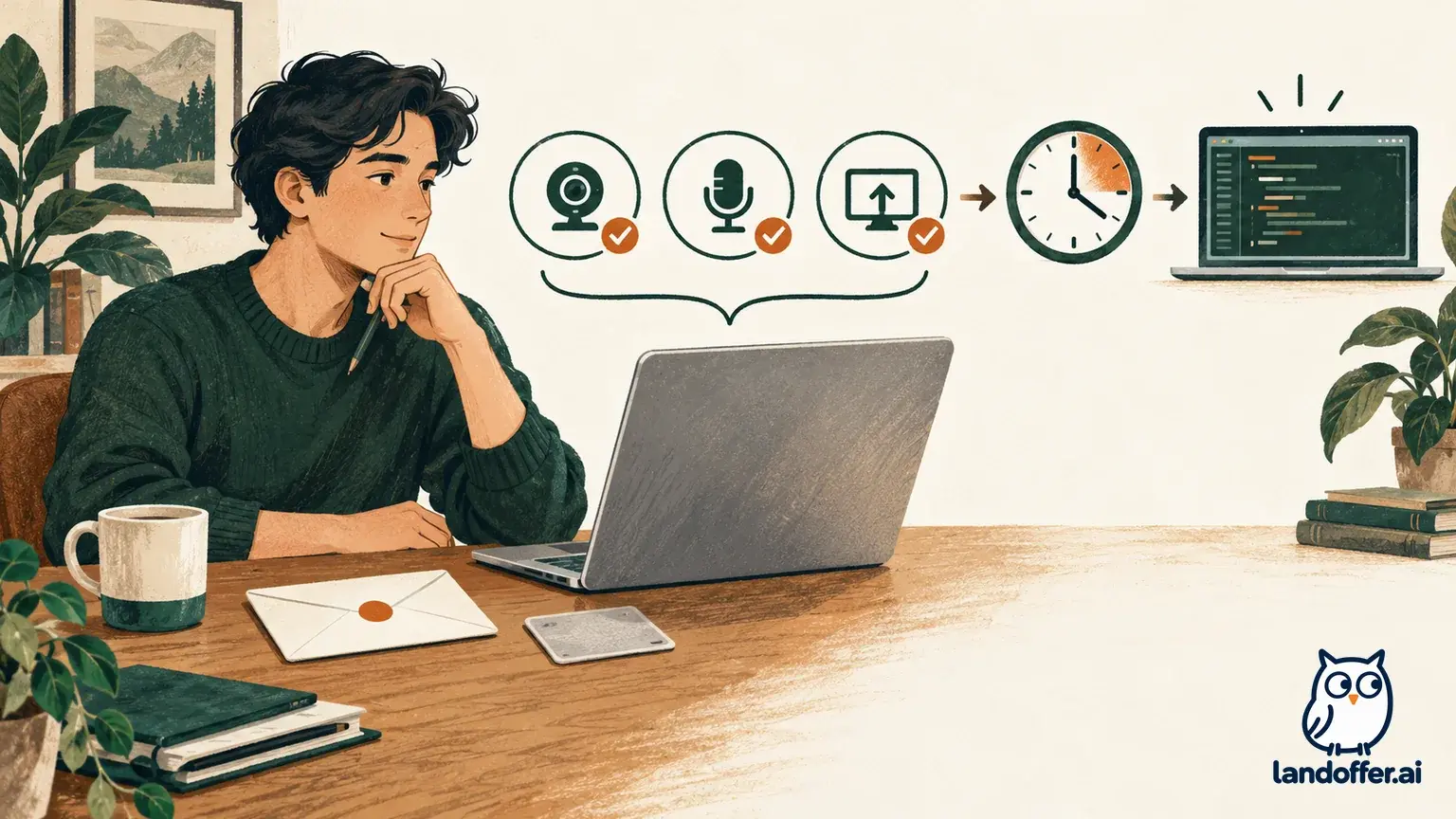
Before you begin, read the welcome screen for this particular assessment. TestGorilla’s candidate guides say that requirements can include a camera or microphone, timed tests, breaks between tests, and a display check. A laptop or desktop with a current browser is the safer setup; the employer’s invitation and on-screen instructions determine what applies to your assessment.

Browse recent roles on LandOffer.ai while you organize your applications and assessment invitations.
Separate the invite, the assessment, and the Candidate Profile
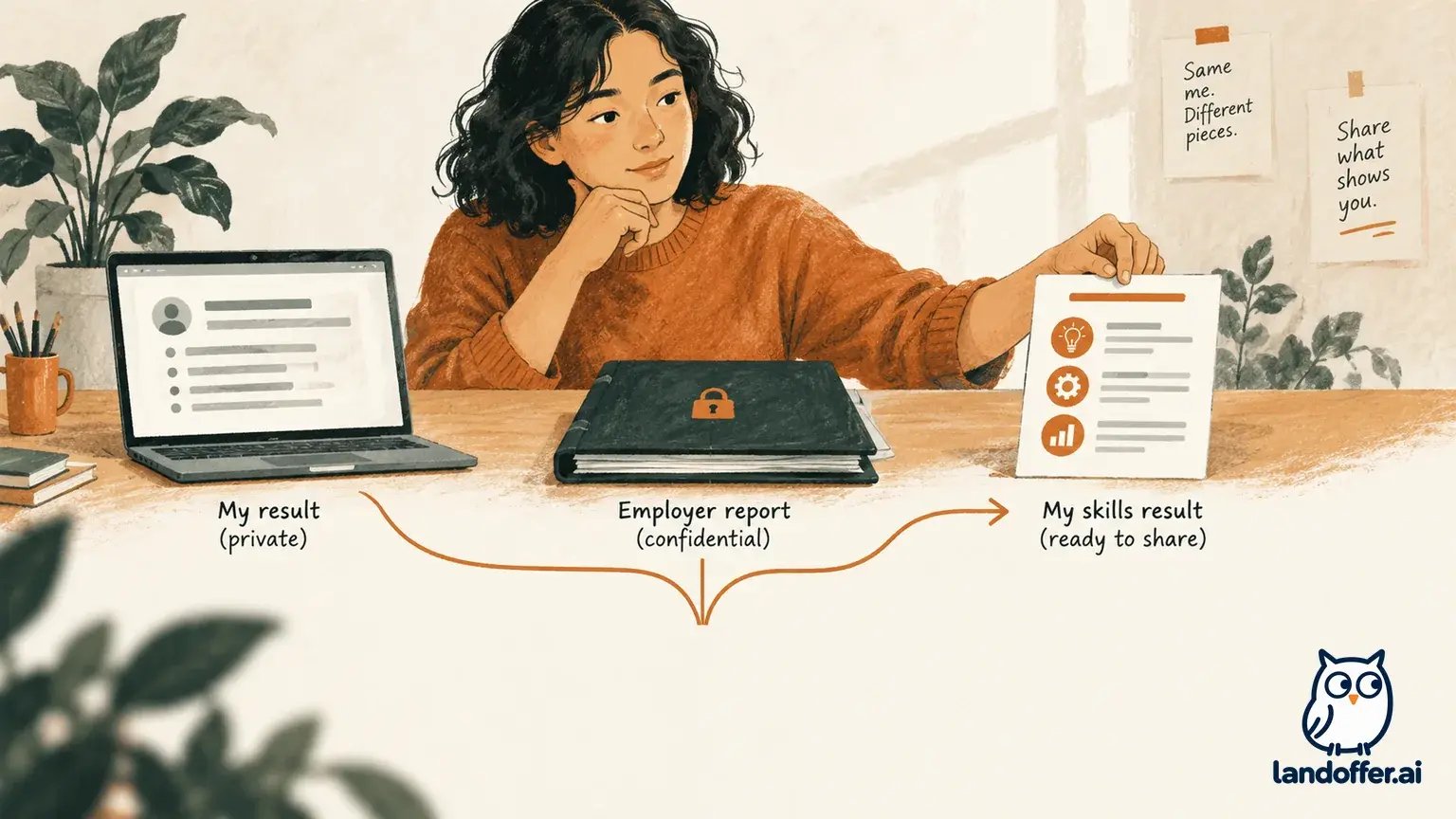
Three things can appear in the same TestGorilla experience, but they serve different purposes. The employer’s invitation gets you to a particular assessment. The assessment is the timed set of tests or questions the employer configured. A Candidate Profile is an optional account area that can help you track assessments and view results when those results are available to you.
TestGorilla says invited candidates do not need an account to start. If the email link opens a login page, return to the invitation and paste its link into the browser. If the same link still routes incorrectly, ask the employer before creating an account or trying another email.
A Candidate Profile can help you find status or results when they are shared, but it is not the employer’s application portal. TestGorilla says the employer controls result sharing and post-assessment profile redirects. If results are missing, check the employer’s instructions.
Find the correct invitation before changing device settings
Start with the invitation for the job you applied to. If you have several assessment emails, compare the employer, role, and date before opening a link. A personalized invitation for another role may not reach the expected test.
Search every inbox folder for “TestGorilla,” the employer name, and “assessment,” including Spam, Promotions, and work quarantine. TestGorilla says invitations can contain a personalized assessment link. Compare the message with the recruiter’s original instructions instead of relying only on its display name.
If the button will not open, copy the link from the email and paste it into a current browser. Keep the personal URL private. If it says unavailable, the employer may have closed the assessment; TestGorilla directs candidates to the hiring company about availability, deadlines, and application status.
A simple recovery path looks like this:
- Search all mail folders for the platform and employer.
- Match the role and assessment instructions to the application you expect.
- Open the personalized invitation on a laptop or desktop.
- If a login page appears, return to the email and paste the invitation URL into the address bar.
- If the link remains unavailable or appears to belong to a different role, contact the hiring company with the role and invitation date. Keep the personal link private.
Read the welcome screen before granting permissions
The welcome screen is the best guide to the employer’s setup. TestGorilla says it can list tests, timing, rules, and technical requirements. Depending on the assessment, you may see camera or microphone checks, video questions, snapshots, or a display check. Read what your screen says; do not assume every assessment uses the same rules.
If camera or microphone access is requested, test the hardware before the start time. The browser and operating system both need permission, and the setup screen should show the selected device. A camera icon set to Allow will not help if the browser chose a disconnected webcam or the microphone is muted.
TestGorilla’s published setup guide describes a single-display check in its flow. Follow a check shown in your assessment, but do not infer that every employer uses the same requirement. If it conflicts with accessibility needs, ask the employer before starting.
TestGorilla recommends a laptop or desktop and Chrome. Mobile is possible but discouraged, particularly for coding tests. If you only have mobile access, check with the hiring contact before the assessment.
Fix a blank camera preview in the right order
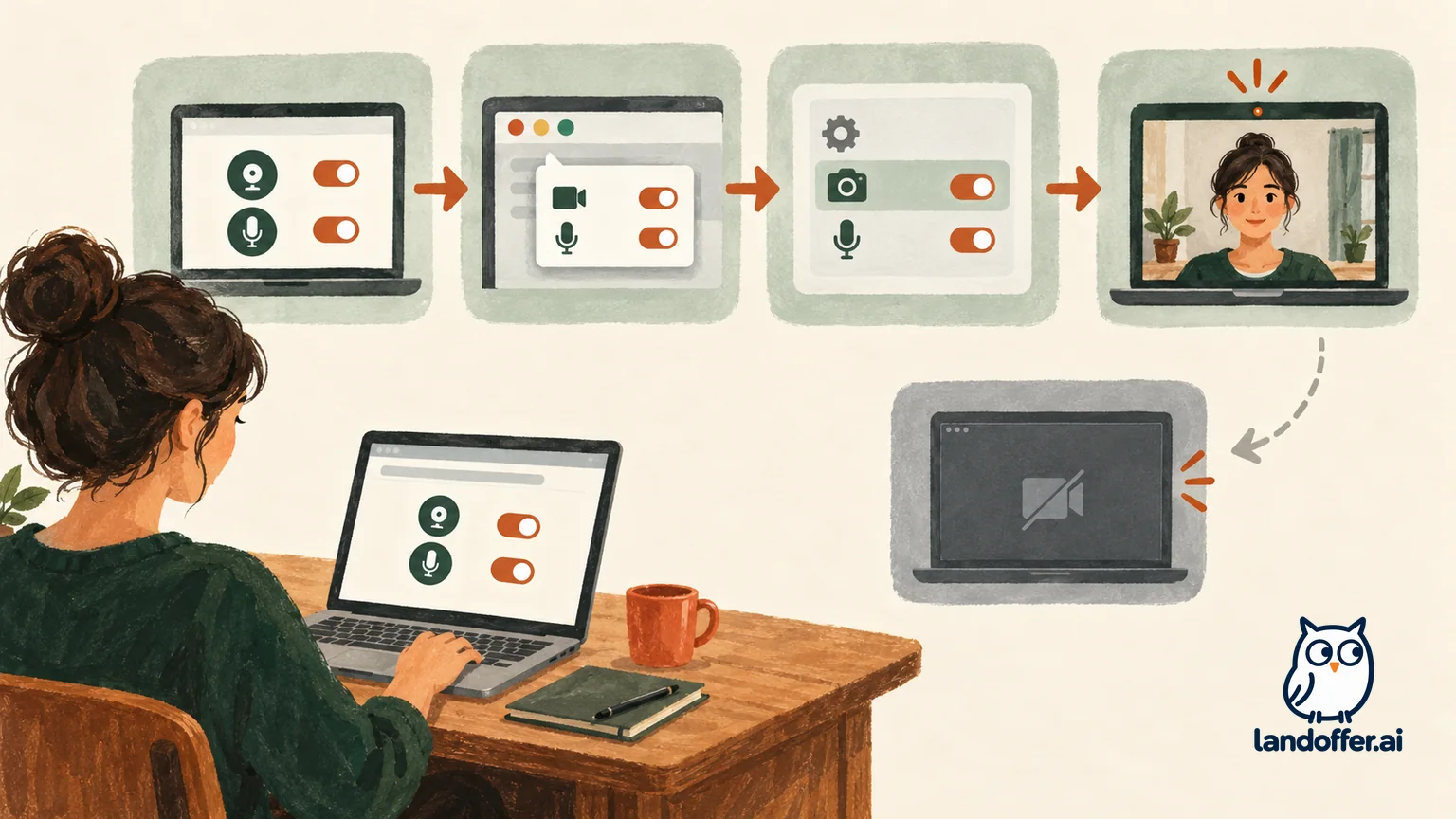
A black preview can come from multiple permission layers. Check the assessment page first, then the browser, device, and selected hardware:
- Check the assessment’s own setup screen. Confirm whether a camera is requested, which camera is selected, and whether the preview itself reports an error. If the test does not request camera access, do not grant extra permissions just because another assessment did.
- Check the site permission in the browser. Use the camera or site-controls icon near the address bar to see whether camera and microphone access are blocked for the assessment site. Allow only the permissions the assessment requests, then reload if the browser prompts you to do so.
- Check browser privacy settings. If the address-bar control does not resolve it, open the browser’s site settings and confirm that TestGorilla is not on a blocked list. TestGorilla’s equipment guide provides separate examples for Chrome, Edge, and Safari; the exact menu names can change across versions.
- Check operating-system privacy settings. Windows and macOS can prevent the browser from accessing the camera or microphone even when the site permission says Allow. Confirm that the browser itself is permitted under the device’s Camera and Microphone privacy controls.
- Select the right hardware. If the laptop has multiple cameras or microphones, choose the device you intend to use. Disconnecting an unused USB camera or choosing the built-in camera can help distinguish a device-selection issue from a site-permission issue.
- Close apps using the device. Video meeting software, recording tools, and other browser tabs may already be using the camera or microphone. Close them, return to the assessment, and check the preview again.
- Check whether the device is managed. A work computer or school device may have administrator restrictions. Do not try to bypass company controls. Contact IT or ask the hiring company which approved device or accommodation to use.
After changing a permission, return to the invitation as directed. Do not open multiple sessions to test the camera. If the assessment has started, avoid refreshing or switching devices until you understand the timer; TestGorilla warns that a timed test may continue after disconnection.
Example: the invite opens a login screen
Maya opens the TestGorilla link for a data analyst role and sees a login page. She returns to the email, copies its invitation URL, and pastes it into her browser. The expected welcome screen appears. She confirms the employer and role, then continues without creating a profile.
If the copied link still routed incorrectly, Maya would contact the hiring representative with the role and invitation date. She would not post the personal URL publicly. The invite gets her into the assessment; the optional profile is a separate place for profile details and results when shared.
Example: the camera is enabled but the preview stays black
Jordan’s assessment requests camera and microphone access, but the preview is black. The browser chose an unplugged USB camera, so Jordan selects the built-in camera and closes a video-call app. The preview now works.
If it did not, Jordan would check browser and system permissions and ask IT whether the device is managed. They would not grant unrelated permissions or open a second session. For a platform failure, they would use TestGorilla support; for a deadline or approved-device question, they would contact the employer. This example illustrates a diagnostic sequence, not a guaranteed fix.
Know who can resolve each problem
The employer controls assessment configuration, deadlines, and availability. TestGorilla support is for platform technical problems; IT can clarify device policies that block camera access.
| What happened | First check | Who can clarify it |
|---|---|---|
| Invitation never arrived | Spam, promotions, quarantine, employer address, and the right role | Employer if no invitation is present; TestGorilla for delivery troubleshooting |
| Link opens a login page | Return to the email and paste the personalized invitation link | Employer if the link still routes incorrectly |
| Assessment is unavailable | Invitation role, deadline, and whether the employer closed the assessment | Hiring company |
| Camera preview is blank | Selected device, browser site permission, OS privacy setting, and other apps | TestGorilla for platform issues; IT for managed-device controls |
| Candidate Profile has no results | Whether the employer shared results and whether profile redirect applies | Hiring company for sharing/application context; TestGorilla for profile access |
| Deadline or accommodation question | The invitation and employer policy | Hiring company |
Keep the personal invitation URL private. For technical support, share the exact error, browser/device type, and failed setup step; TestGorilla says an in-assessment support link may be available. The employer handles deadlines, availability, accommodations, and application questions.
Before you start: a short checklist
- Find the newest invitation for the correct employer and role.
- Use the personal link from that invitation; keep it private.
- Choose a laptop or desktop if available, especially for programming tests.
- Read the welcome screen’s stated timing, equipment, browser, camera, microphone, and display requirements.
- Confirm your camera and microphone in the actual assessment setup screen when it asks for them.
- Check both browser-level and operating-system permissions if the preview is blank.
- Close conferencing apps and confirm the correct camera or microphone is selected.
- Ask the employer about deadlines, a closed assessment, device restrictions, or accommodation needs before the timer starts.
- Treat the Candidate Profile as optional and separate from your job application.
Frequently asked questions
Do I need a TestGorilla account to take an employer’s assessment?
No. TestGorilla’s candidate guide says an invited candidate can start from the email invitation without creating an account. A Candidate Profile is optional. If the invitation link leads to a login screen, try copying the personal link from the email into the browser before you register.
Does every TestGorilla assessment require a camera?
Do not assume that every invitation uses the same setup. Read the assessment’s welcome screen for its camera, microphone, video, identity, or display instructions. TestGorilla’s equipment guide explains camera use for video responses and snapshots and recommends having the hardware available; the assessment’s own instructions tell you what it requests.
What if I cannot enable camera or microphone access on my work computer?
Check the browser and operating system settings, then contact your IT department if a managed-device policy blocks access. Ask the hiring company which approved device or accommodation to use. Do not bypass employer security controls or start a second assessment session without guidance.
Is Candidate Profile the same as the application portal?
No. The profile can help you track TestGorilla assessments and access results made available to you. The hiring company controls the job application, deadlines, and role-specific assessment status. Use the employer’s application system for application confirmation and follow-up.
Who should I contact if my invitation says the assessment is unavailable?
Contact the hiring company that sent the invitation. TestGorilla’s candidate guidance says the company controls whether an assessment is available. Include the role, invitation date, and the exact message; do not expose the private invitation URL publicly.
Prepare the assessment from the employer’s invite, then keep your broader search moving: browse recent roles on LandOffer.ai.
Sources and Further Reading
- TestGorilla Candidates: Common questions and troubleshooting
- TestGorilla Candidates: Before you start — The Assessment Equipment Guide
- TestGorilla Candidates: Getting set up for your assessment
- TestGorilla Candidates: Common questions about invitations and emails
- TestGorilla Candidates: Common questions about assessments and tests
- TestGorilla: Introducing TestGorilla Profiles
- TestGorilla: FAQ — Candidate related questions