LandOffer
Job search
TestGorilla Results: Find, Download, and Share the Right Skills Record
Find TestGorilla assessment results in the candidate profile, understand when a download is employer-side, and share an eligible individual skills result accurately.
After a TestGorilla assessment, start with the candidate profile tied to the same email address you used for the assessment. Open My jobs, select the completed assessment, and choose View results if that option is available. The result may not appear if the hiring company has not shared it with you, and your profile is not the employer’s application record.
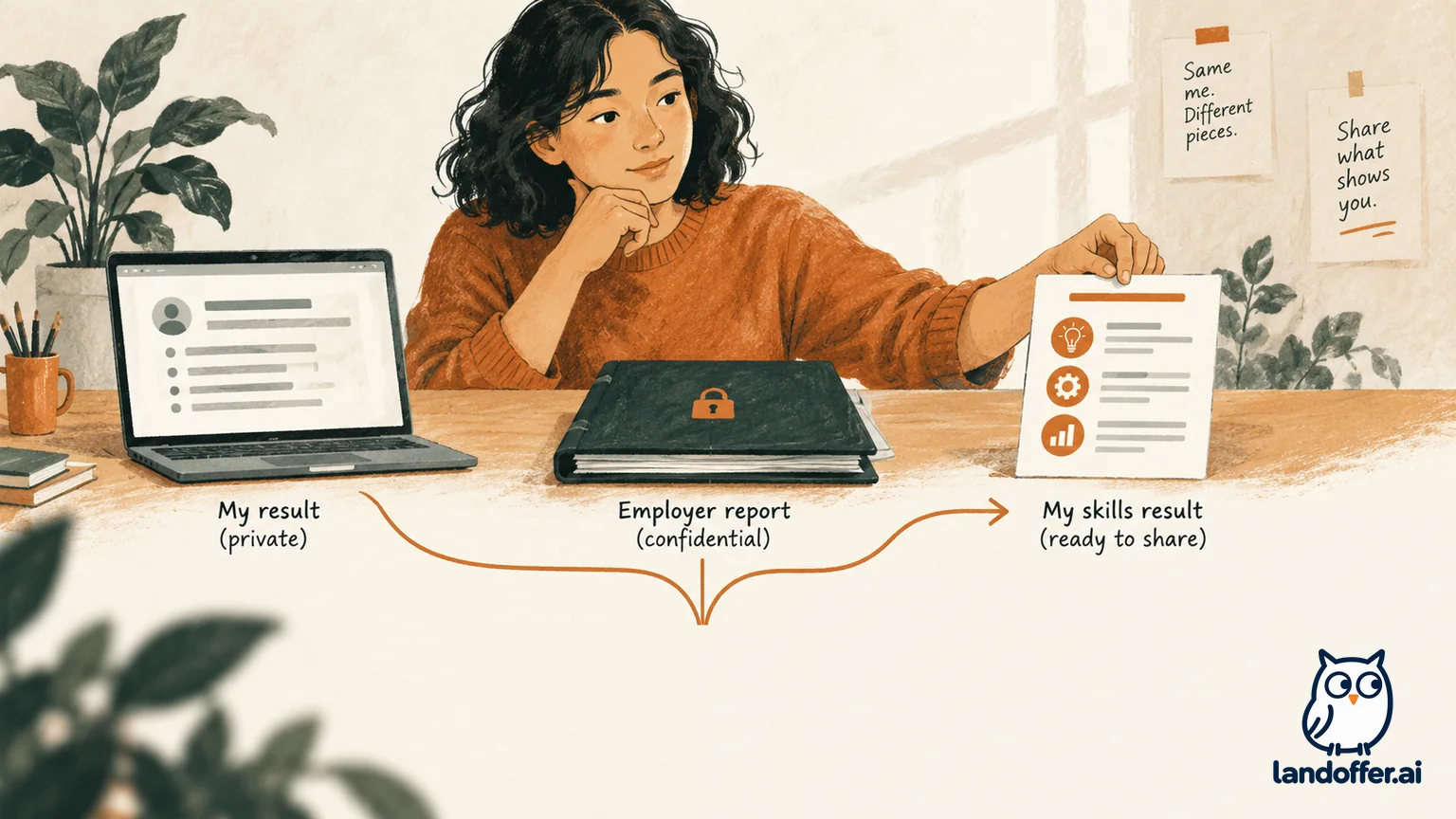
A download button is a separate question. TestGorilla’s published CSV, XLSX, and PDF report instructions describe tools for employer users reviewing candidates. They do not establish that every candidate can download a PDF report. If you want to share a single eligible test result, use the candidate-profile sharing option and check its consent screen before continuing.
Browse recent roles on LandOffer.ai while you keep your assessment records with the applications they belong to.
Find your candidate-facing result
The most useful first step is to return to the TestGorilla Profile created or used for the assessment. TestGorilla’s current candidate guide says an employer-invited profile is created after you finish the assessment. Use the same email address you used when registering for that assessment, because the results are linked to it. If you already have a profile under that email, sign in there rather than starting another profile under a second address.
From the profile, open My jobs. That area can show assessment invitations and completed assessments. For an item you have completed, select View results when the control is available. You may also be able to select an individual result and use Add to profile to share it to LinkedIn. The available buttons depend on the assessment, result type, employer sharing, and current product settings.
If you left the completion screen before setting up a profile, find the confirmation email with the subject “Your assessment was submitted, what’s next?” TestGorilla says that email includes a direct link to view or create the profile. If you cannot find it, search the email address used for the assessment for “TestGorilla,” the employer’s name, and “assessment.” Check Spam, Promotions, and any company quarantine folder too.
Keep the email account consistent. If you took the test using one address but later created a profile with another, the profile may not show the expected result. Sign out and try the address used for the invitation. If you are unsure which address the employer used, ask the recruiter to confirm the candidate email on the assessment record. Do not create duplicate profiles just to test addresses; that can make the records harder to reconcile.
Candidate results and employer downloads are different records
TestGorilla documents more than one type of result view. The candidate-facing profile is where you can review scores that are available to you and, for some tests, share a result. The employer’s assessment workspace contains the hiring team’s candidate information and report controls. A third-party audience such as LinkedIn may receive only the individual result you deliberately select.
| Surface | What it is for | Who controls access |
|---|---|---|
| Candidate Profile → My jobs → View results | Review results the employer has made available to you | You sign in; result visibility depends on employer settings and assessment availability |
| Employer’s candidate or assessment report | Help the hiring team review one candidate or the full assessment group | Employer-side TestGorilla users |
| Individual LinkedIn result | Present one supported test result on your profile | You choose the eligible result and confirm the sharing consent |
The official employer guide describes two downloadable reports: assessment results, a broader view of candidates in an assessment, and candidate results, a detailed view of one person. Employer users can choose CSV or XLSX, with PDF available on Core and Plus plans. These are employer workflow exports. The candidate-facing help describes viewing results in a profile and sharing eligible individual tests; it does not promise a candidate-side PDF download for every assessment.
That distinction matters if a recruiter says, “I can download your results.” They may mean a file available in the employer’s workspace, not an export button in your profile. If you need a portable record for your own files, first use any download or share action actually shown in your account. If there is no candidate download control, ask the hiring company whether it can share the candidate-facing results or clarify what it is permitted to provide. Do not ask someone to send a full internal report without understanding what else it contains.
Employer documentation says that the simplified results shared with a candidate include the tests they took, not the employer’s ratings, internal notes, or anti-cheating information. An employer report may include more context intended for hiring staff. Treat a recruiter-side spreadsheet or PDF as confidential unless the employer explicitly provides a candidate-safe copy. Redact personal details only when you are authorized to share a file and can do so without changing or misrepresenting the result.

If your result is missing
A completed assessment does not always mean the score will be visible to you. TestGorilla’s candidate guidance says that the employer can choose whether to share results. Availability can also differ by the assessment’s language and settings. Therefore, a blank results area does not by itself tell you that your submission failed or that the employer rejected you.
Check in this order:
- Confirm the assessment was submitted. Look for the completion confirmation screen or the “Your assessment was submitted, what’s next?” email. If neither is present, contact the hiring company and ask whether its system shows the assessment as completed.
- Use the assessment email address. Sign in to the TestGorilla Profile associated with the invitation. If the account was created under another address, ask the employer which address is on the candidate record before making another profile.
- Open the exact job item. In My jobs, select the employer and role you assessed for, then look for View results. A different completed test or a self-service profile test may not be the one tied to that job.
- Ask whether results were shared. Send the employer the role title, assessment date, and email address used. Ask whether candidate results are available for that specific assessment and whether it can enable or send the candidate-facing view.
- Separate a platform issue from an application question. If you cannot sign in, a link errors, or the profile will not load, contact TestGorilla support with the relevant details. For the employer’s assessment status, deadline, or hiring decision, contact the employer; TestGorilla says it does not have access to the company’s application decision.
Keep the request narrow. A useful note is: “I completed the assessment for [role] on [date] using [email]. Could you confirm whether it is marked complete and whether candidate results are available to view?” This asks for a record check without implying that the employer owes a particular score or decision.
Share an eligible result carefully
If your profile offers Add to profile for an individual test, read the consent dialog before proceeding. TestGorilla’s candidate instructions say the sharing flow can send your name, assessment title, and score to LinkedIn. The current help page describes sharing regular tests such as cognitive, language, role-specific, coding, or typing tests; personality and immersive or preference-style results are not available in the documented flow. Your own current result screen is the place to verify whether a specific test is eligible.
The flow may open LinkedIn’s “Add license or certification” form because that is the form LinkedIn provides for this type of item. The form label does not turn a skills test into an industry certification. TestGorilla itself distinguishes results from a professional license, academic degree, or regulated qualification. Review the title and description for accuracy before saving, and avoid a label such as “Certified Backend Engineer” unless you actually hold a separate certification with that name.
A clearer record can name the test and the date, for example: “Backend API Design skills test result — TestGorilla — completed [month year].” Include only the score and credential details that the share flow actually provides. A result describes one assessment at one point in time; it is not proof of every skill in a job description, a license to practice, or a guarantee of an interview. If the product’s sharing form does not let you describe the result accurately, skip that share and keep a private note instead.
Before sending the result anywhere, ask yourself: Is this the right test and employer? Does the recipient need the score? Does the consent screen say what will be sent? Is the result still useful and accurately labeled? Would a private record be enough? A resume or portfolio usually benefits more from a concrete project, shipped feature, or work sample than from an isolated assessment score, so include the score only when it adds relevant context and you are comfortable making it public.
Keep an accurate private record
You can keep a simple personal entry even when no download is offered. Record the assessment provider, employer and role, test name, date completed, status shown, and where the official result can be accessed. If you save a screenshot for your own reference, keep it private and include enough context to distinguish this test from other assessments. Do not edit the score image, remove identifying context and present it as a certificate, or publish a recruiter-only report.
For example, Elena completes an employer’s “Backend API Design” test in August. Her profile shows a result for that test, but the employer has not yet confirmed whether the job assessment is complete. She records the test name and date privately, checks My jobs, and asks the recruiter to confirm the application-side status. If she later chooses LinkedIn sharing and the test is eligible, she reviews the consent and uses a label such as “Backend API Design skills test result.” She does not call it a certification or infer the employer’s decision from the score.
Quick decision guide
| Your goal | Use this path | Avoid this assumption |
|---|---|---|
| See a score | Same-email TestGorilla Profile → My jobs → View results | Every completed assessment must be visible to the candidate |
| Get a file | Use a download action offered to you, or ask the employer what candidate-safe record it can provide | Employer CSV/XLSX/PDF controls automatically apply to candidates |
| Share one result | Select an eligible individual test and review the consent dialog | Every test type is shareable or the LinkedIn form makes it a certification |
| Check application status | Contact the hiring company with the role and completion date | A score alone reveals an interview or hiring decision |
| Fix profile access | Confirm the invitation email and contact TestGorilla for technical access trouble | A second profile will automatically merge the record |
Frequently asked questions
Can I download my TestGorilla results as a PDF?
TestGorilla documents CSV, XLSX, and PDF downloads for employer users reviewing candidate or assessment reports; PDF is listed for Core and Plus plans. The candidate documentation describes profile results and individual sharing, but it does not guarantee a candidate-side PDF export. Check the controls in your profile and ask the employer about a candidate-facing copy if no download is offered.
Why can the employer see my score when I cannot?
The employer’s workspace and candidate profile are different views. Candidate visibility depends on the employer’s result-sharing settings and the assessment’s current availability. Ask the employer whether it has shared candidate results for your assessment and confirm the email linked to your TestGorilla Profile.
Does a TestGorilla score mean I passed or failed?
Not necessarily. A score is a result from the tests included in that assessment. TestGorilla’s candidate guide says raw results do not show the employer’s decision. The employer decides how to use the assessment in its process, so ask the hiring team about next steps.
Is a TestGorilla result a certification?
No. TestGorilla describes a skills-test result as distinct from a professional license, academic degree, or regulated qualification. Call it a test result or skills result, name the test, and include the date when useful.
Can I share every result on LinkedIn?
No. The current candidate guide says only supported individual tests can be shared, and it excludes personality and immersive or preference results from the described flow. Confirm the option in your account and read the consent dialog to see which information will be sent.
Browse recent roles on LandOffer.ai as you keep assessment records connected to the opportunities you are pursuing.
Sources and Further Reading
- Guide to your TestGorilla Profile — candidate email, My jobs, and result access.
- Finishing your assessment and what happens next — completion email, candidate profile, and employer follow-up.
- Understanding your skills test results — individual result sharing and the distinction from formal credentials.
- Downloading and sharing results — employer-side report formats and sharing.
- Managing candidates and candidate communications — what employers can share with candidates.
Access, labels, plans, languages, and result-sharing controls can change; check the current view in your account. This guide covers candidate result access and sharing. It does not assess any individual candidate or predict an employer decision.