LandOffer
Job search
HackerEarth Smart Browser Setup: Launch the Invite and Check Required Permissions
Install HackerEarth SmartBrowser from the invitation, start the correct session, and resolve system permission checks without bypassing device controls.
If a HackerEarth assessment requires SmartBrowser, begin with the original invitation and the download or launch instructions attached to that test. Install the version and package linked for your operating system, open the invitation in a regular browser, and select its Start button so the session launches in SmartBrowser. Before the scheduled test, run the system check and grant only the camera, microphone, screen-recording, or other permissions that the current session requests.
HackerEarth’s candidate guide describes checks for permissions, camera, display, network, and system resources, but its public help pages do not all list the same supported operating systems. Follow the requirements shown in your invitation or current download page; if they conflict, ask HackerEarth support or the employer before changing devices or settings. If a managed computer blocks installation or a permission, ask the authorized IT team or recruiter for an approved path. Do not disable security tools to get around the block.

Browse recent roles on LandOffer.ai while you keep assessment invitations and setup notes organized.
Start with the invitation you received
SmartBrowser is a desktop application for HackerEarth tests and interviews. The candidate help guide recommends starting from the invitation: open its test link in your normal browser, choose Start, allow the browser to open SmartBrowser, and wait for the system checks. When those checks pass, the guide says the app displays “All System Checks Passed” and a Continue button.
Match the invite to the employer, role, and deadline before using it. Keep its session link private; do not post it publicly or send it to unrelated support.
Install early when the invitation allows it; the candidate guide recommends opening SmartBrowser once before the test. If installation requires administrator approval or is blocked by policy, contact IT. Do not bypass device controls or use an unapproved personal computer; ask the recruiter whether another device is permitted.
HackerEarth’s candidate guide lists Windows 10/11, Ubuntu 20.04/22.04/24.04, and macOS 13.5+ for Intel and Apple Silicon. Other support pages show different OS ranges, including one that says Linux is unsupported. Since these public pages conflict, use the invitation’s linked requirements for your test and ask support if your OS or processor is not clear.
Run the preflight before your session
SmartBrowser’s system check can look at permissions, camera access, display setup, network access, speed, available resources, and whether the computer is a physical machine. The invitation’s assessment settings determine which checks apply. A failed check should identify the category that needs attention; read that message before changing anything.
Use this preflight before test day:
| Check | What to confirm before launch | If it fails |
|---|---|---|
| Installer and version | Package came from your invitation or HackerEarth’s current download page | Confirm the OS package and supported version with support or the employer |
| Camera | Camera is connected, allowed for SmartBrowser, and not occupied by another app | Close video-call apps, enable system permission, then retry |
| Microphone or speakers | Allow and test them if the session requests audio checks | Select the intended device and follow the app’s meter or sound test |
| Screen and display | Use the display arrangement allowed by the invitation; the current candidate guide says one monitor | Disconnect extra displays only if required, then retry the check |
| Network | Keep a stable connection to the services used by the session | Record the exact error; ask authorized IT to review blocked domains or proxy rules |
| Managed-device controls | Confirm you have approval to install the app and grant requested permissions | Ask IT or the employer for an approved device or software deployment path |
The candidate guide lists extra displays, virtual cameras, blocked network access, and virtual machines among possible failed checks. Follow the current session instructions; if a check blocks your setup, use an approved fix or contact IT rather than disguising the environment.
Resource checks may work differently from required permission checks. The candidate guide says the minimum-requirements check can be optional in some flows and may offer “Continue Anyway.” Follow only the option displayed by the assessment. Do not assume an optional resource check means a missing camera or another required permission can be skipped.
Grant only the requested permissions
The candidate guide describes Camera, Microphone, Screen Recording, and Full Disk Access permissions on macOS. It directs candidates to System Settings → Privacy & Security, enable SmartBrowser for the permission named by the failed check, then return to the app and retry. Some permissions may require quitting and reopening SmartBrowser before the operating system applies them.
On Windows, the guide says to allow camera and microphone access for desktop apps in Settings → Privacy & security. If another program is using the camera, close that program before retrying. For an interview session, follow SmartBrowser’s microphone and speaker checks when they appear; the software may ask you to select a device and test audio before the session opens.
The troubleshooting documentation describes macOS Full Disk Access as an environment-permission gate and says SmartBrowser does not read or upload personal files. If you are uncomfortable with a request, ask the employer or support what the assessment requires. Confirm the app name before granting access.
When a permission prompt appears after the secure assessment has begun, do not experiment inside the test window. HackerEarth’s troubleshooting page says to grant permissions during the before-test system check where possible, because interacting with a system prompt during an assessment can close its window. If that happens, return through the invitation’s Start link and follow the current resume instructions. Avoid capturing or recording test content; the legacy setup FAQ says screenshots and recordings of the secured test window are restricted.
Launch from the invite and follow the checks
The usual path is:
- Open the original assessment invitation in a normal browser.
- Choose Start and allow the browser to open HackerEarth SmartBrowser.
- Let the app finish any update check, then complete the system and permission checks.
- Close only the applications the assessment identifies as restricted, using your operating system or the app’s permitted close action.
- Continue when the app shows the checks have passed and the assessment instructions allow you to proceed.
Some sessions add camera preview, audio checks, an open-applications check, or screen sharing. Follow the event’s instructions and keep required sharing active. Avoid opening other apps, switching windows, or connecting displays during the session.
If the invitation’s Start button does not open SmartBrowser, first confirm that the app is installed and has opened once. The current candidate guide documents an alternate route using a direct session link inside SmartBrowser, while a separate troubleshooting page describes returning to the invitation or using a resume flow. Because these instructions differ, use a manual-link or resume option only if the invitation or the current SmartBrowser screen offers it. If it does not, contact support rather than guessing which link to paste.
A completed example: managed work laptop
Suppose Jordan has an assessment tomorrow and opens the employer invitation on a company laptop. The download starts, but the operating system asks for administrator approval. Jordan records the exact prompt and checks the invitation’s deadline. Rather than trying to install from another source or disable a company security control, Jordan sends the approved IT contact the invitation’s software name, operating-system version, and exact installation message. Jordan also tells the recruiter that the required setup is blocked and asks whether IT can deploy the package or whether another device is allowed.
IT confirms it can install the approved SmartBrowser package. Jordan opens the invite link again, chooses Start, allows it to open the app, grants the requested camera and screen permissions, and completes the system check. The invitation launches the matching assessment. Jordan notes the result of the preflight and keeps the invitation email available. If IT cannot approve the install, Jordan waits for the employer to confirm an authorized alternative instead of using a personal device without permission.
This is a fictional workflow example, not a report from a candidate account. Its purpose is to show that installation permission and assessment access are separate questions: IT can control the device, while the employer controls which alternate route or deadline is allowed.
Fix common setup failures safely
The app says a permission is missing. Follow the operating-system path shown in the current candidate guide, allow SmartBrowser for that permission, and retry. If the app is not listed, the troubleshooting page says to open SmartBrowser and complete its permission wizard so the operating system registers it; then return to Privacy & Security or Windows Settings. Restart the app if the OS or app asks you to.
The camera will not start. Close video-call applications that may be using it, confirm the system permission is on, check the selected camera, and retry. If the camera remains unavailable, tell support whether it is a built-in or external camera and include the exact error. Do not install a virtual camera to stand in for a physical one; the candidate guide says virtual cameras are not allowed.
The app reports a display or network problem. If the event requires one display, disconnect the extra screens and retry. For a domain-resolution or connectivity error on a managed network, give IT the message and ask it to review whether the required HackerEarth services are blocked. Do not disable a firewall, VPN, endpoint security, or data-loss-prevention control yourself. If the assessment is soon, tell the recruiter at the same time so the employer can advise on timing.
A Windows installer asks for a required component. The candidate guide says SmartBrowser may need Microsoft Visual C++ Redistributable and that installation can require administrator rights. Ask IT to install the approved component or use its software deployment process. Do not download installers from unofficial sites.
The session link or app appears stuck. Return to the same invitation. Confirm the link belongs to the same assessment and follow the Start or resume option shown there. The public pages differ on whether manual session-link entry is available, so do not reuse an old link or invent a URL. If the app crashes or the error continues, contact HackerEarth support with the exact message and app version if visible.
A completed launch decision path
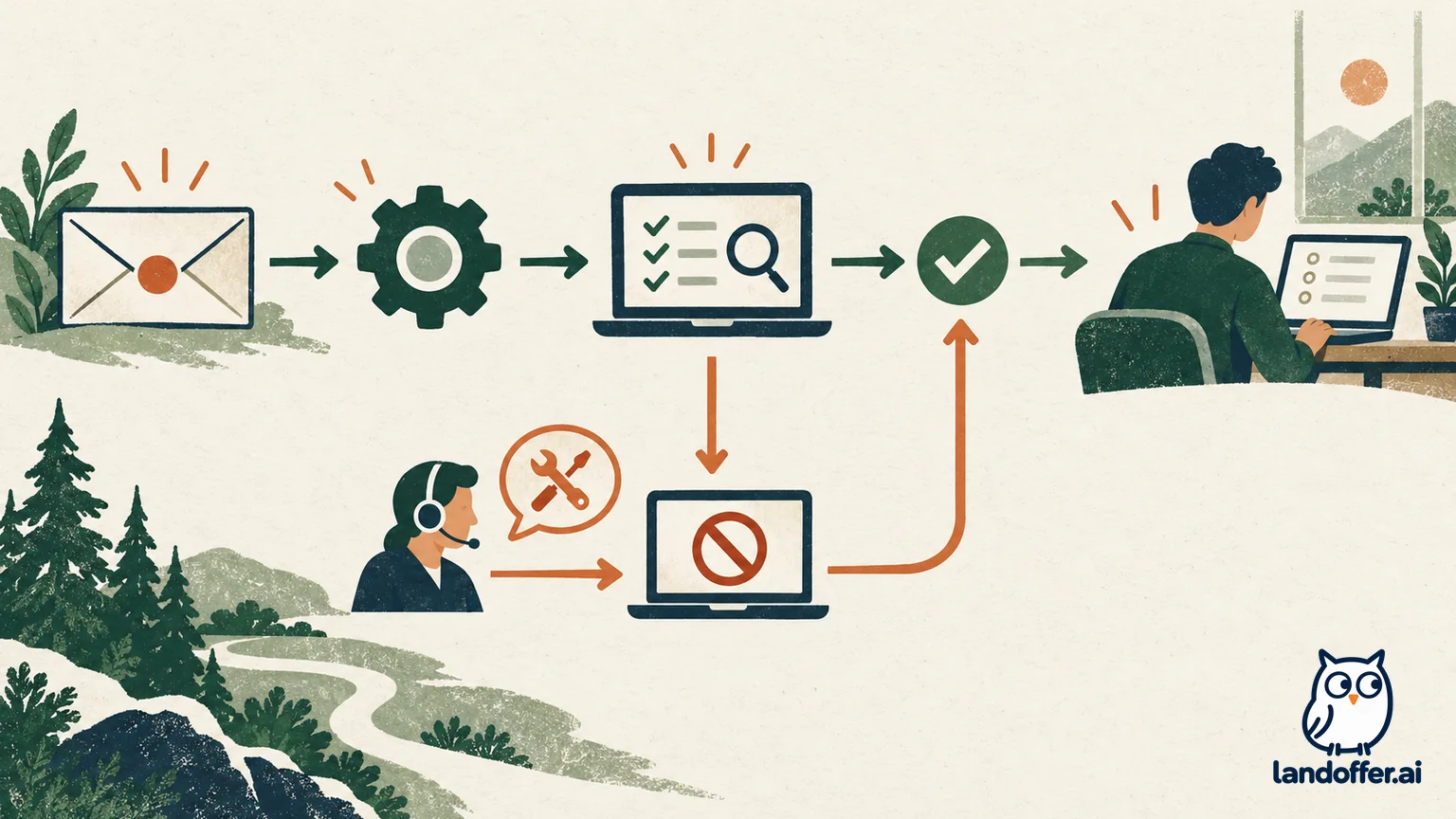
Use the first branch that matches what you see:
| What you see | Next step | Contact |
|---|---|---|
| Invitation offers a download and Start button | Install the linked OS package early; open the same invite and choose Start | Support for install or launch errors; employer for deadlines |
| System check names a missing permission | Grant that permission to SmartBrowser in the OS settings, then retry or reopen as directed | IT if settings are managed; support if the check still fails |
| Installer requires admin approval | Stop and request approved installation or deployment | Device administrator or employer |
| Display/camera/network check fails | Correct the named issue if permitted; keep security controls in place | Authorized IT for managed network/device; HackerEarth for app errors |
| Invitation and help pages disagree on OS support or manual launch | Do not guess or use an old package; ask which instructions apply to this assessment | HackerEarth support and the recruiter if timing is affected |
| You cannot start close to the deadline | Send the employer the error, OS, app version if known, and time you tried | Recruiter or assessment contact decides next steps or extensions |
What to include when asking for help
HackerEarth asks candidates to include the operating-system version, SmartBrowser version if shown, and a description of the problem. Add the exact step and error. For IT, include the installer or permission/network prompt; for the employer, include the job title and deadline.
Use HackerEarth’s listed support address, support@hackerearth.com, for technical problems. Contact the recruiter about deadlines, approved alternate devices, or application status. Never include passwords or test answers; capture an installation error only before the secure assessment and if the invitation allows it.
Your goal is to reach the session through the original invitation, complete the checks that apply to that event, and confirm that the assessment opens. Keep a note of any unresolved technical error and the time you contacted support or the employer. If you are also exploring other openings, browse recent roles on LandOffer.ai.
Sources and Further Reading
- SmartBrowser - Help Guide for Candidates — current candidate launch flow, system checks, permissions, and common errors.
- Troubleshoot Smart Browser issues — permission, managed-device, network, and support steps.
- Smart Browser Setup Guide & Troubleshooting FAQ — alternate and older setup instructions; its compatibility details differ from the candidate guide.
- How can I download Smart Browser? — download entry from the test invitation.