LandOffer
Job search
CodeSignal Proctoring Setup: Prepare ID, Permissions, and the Start-Time Check
Check whether your CodeSignal assessment is proctored, prepare an acceptable ID, enable the requested browser permissions, and know when the timer begins.
Before you start a CodeSignal assessment, check the invitation and assessment information page to see whether proctoring is required. If it is, have a valid, unexpired government-issued photo ID ready, allow the camera and microphone in your browser, and be prepared to share your screen. CodeSignal says the timer does not begin until you finish the setup steps; once you enter the timed assessment, expect to complete it in one sitting without pausing. Review the displayed duration and rules before selecting the control that starts the assessment.
Use an ID that shows your full name and photo, and make sure the name on your CodeSignal profile can be reconciled with it. CodeSignal says you may redact other ID details, request help with a preferred name, or contact support about an alternative ID accommodation. If a browser permission is blocked by a work device or you are not comfortable sharing an ID, ask CodeSignal support or the inviting company before starting. This guide uses public support instructions; it does not test a candidate account or promise that a requested accommodation will be approved.

Browse recent roles on LandOffer.ai while you keep assessment invitations and setup notes organized.
First check whether this assessment is proctored
CodeSignal says some assessments include remote proctoring and identity verification, while others do not. Its support article says candidates can see whether proctoring is required before taking the assessment. Open the invitation from the hiring company or CodeSignal, sign in to the account associated with that invitation, and review the assessment information page. The page should show the assessment’s duration and instructions; the exact setup depends on the assessment the employer sent.
Do not infer that a camera or ID is required just because a different CodeSignal assessment asked for one. When proctoring is enabled, CodeSignal’s current instructions say the setup can ask you to share your camera, microphone, and screen and show a government-issued photo ID. Follow the instructions displayed for your assessment. If a requested device is unavailable, stop before the timed evaluation and ask the inviting company about an approved alternative.
The distinction also helps with privacy decisions. CodeSignal’s public proctoring page says the information gathered for identity and proctoring is reviewed by CodeSignal’s verification team and is not shared with the company requesting the coding report. Its October 2026 article says the data is stored and deleted within 15 days. Treat that as CodeSignal’s published description of its proctoring flow, not as a statement about the employer’s separate systems or every product offering. If you need more detail before consenting, ask CodeSignal or the employer before starting.
Prepare the ID before opening the timed assessment
Use an unexpired, government-issued photo ID. CodeSignal says the submitted image needs to show your full name, photo, and expiration date. If the name and photo are on opposite sides of a card, the setup may let you add a second photo. If you cannot get a clear camera photo, CodeSignal’s instructions say an upload option may be available.
The support page says you may redact other information on the ID. Keep the name, photo, and expiration date visible, and cover unrelated numbers or details only if the assessment flow allows redaction. Do not send a photo of your ID through a recruiter’s ordinary email unless the employer explicitly provides a secure process and asks you to use it. CodeSignal’s proctoring setup is the place its public guidance describes for ID capture.
If you use a preferred name, or the name on the invitation differs from the one on your ID, contact CodeSignal support before the assessment. Its current proctoring instructions say preferred-name candidates should reach out to support to note this. Keep the message limited to the name discrepancy and assessment context; do not attach the full ID unless the official support process requests it. A note to support does not guarantee that verification will pass, so allow time for a response.
If you do not have a valid government ID or do not want to share it, do not upload a different document as a guess. CodeSignal’s support information says candidates can request a special accommodation to provide alternative photo ID; a separate page says to contact the company that invited you to explore alternatives. Ask support and the recruiter which route applies to your assessment before choosing a start time. An alternative is a request, not an automatic exception.
Grant camera, microphone, and screen permissions
For proctored assessments, the setup may ask you to enable your camera, microphone, and screen sharing. CodeSignal’s support guidance recommends a current version of Chrome or Firefox for certified assessments. If your invitation specifies a browser, use that instruction; otherwise, update Chrome or Firefox before test day and close other apps that may be using the camera or microphone.
When the browser asks for camera or microphone access, choose Allow if you are ready to continue with the proctored assessment. If the prompt does not appear, open the browser’s site permissions for CodeSignal and enable the requested device. The exact menu labels vary by browser and operating system. Return to the assessment page and retry the setup check. If the permission controls are locked by an employer-managed device, ask IT to approve access or the recruiter to provide an approved alternative. Do not disable company security settings or use another person’s device without permission.
When the browser asks you to share your screen, read the prompt and the assessment rules. CodeSignal’s support article describes selecting the entire screen in its screen-share prompt and says the browser should indicate that the CodeSignal site is sharing. Share only what the assessment requires. If the screen-share option is missing or blocked, check the browser’s screen-capture permission and contact support if it still fails. Do not try to hide another window, record the assessment, or work around the proctoring setup.
A camera or microphone failure may mean another application has exclusive access to the device. Close video-call apps, confirm the correct camera or microphone is selected, and retry the setup. For a screen-sharing failure, CodeSignal suggests refreshing the browser and retrying; the page may also run a network check before allowing the session. If your connection diagnostic reports a problem, use a stable network before starting rather than relying on the assessment to pause.
Know when the clock begins
CodeSignal’s current proctoring article says the assessment timer does not begin until all setup steps are complete. Its candidate assessment guide explains that the information page displays the custom time limit and that the countdown starts when you enter the assessment. Together, these instructions separate the identity and permission setup from the timed evaluation, but the exact sequence is specific to the assessment flow.
Before selecting Start, Done, or the control that advances from setup, check the duration, deadline, and rules shown on your page. Have your ID and devices ready, close unrelated apps if required, and make sure you have enough uninterrupted time. Once the evaluation begins, CodeSignal says it must be completed in one sitting; it cannot be paused and restarted. If you leave after starting, the timer may continue and the assessment can time out. Do not treat the setup period as a reason to click through the rules quickly.
Some employers also set an invitation expiration date. That date is different from the assessment timer: the invitation determines when you may access the test, while the duration governs the session after it begins. If you need more time before the invitation expires, CodeSignal’s support page directs candidates to the recruiter or team that sent the request. A new invitation is not guaranteed.
A completed example: preferred name and ID
Suppose Morgan’s invitation uses a shortened preferred name, while Morgan’s unexpired driver’s license shows a full legal name. Before the assessment, Morgan checks the proctoring requirement and sees that an ID photo is required. Instead of trying to edit the account profile or submitting an ID that appears to mismatch, Morgan contacts CodeSignal support with the invitation email address, assessment name, and a brief explanation of the preferred-name difference. Morgan asks whether the name can be noted and waits for guidance before choosing a start time.
The support instructions say preferred-name candidates should reach out, but Morgan does not assume that the note guarantees verification. If the response is delayed and the invitation is close to expiring, Morgan contacts the recruiter as well and asks whether the assessment deadline or identity route can be reviewed. Morgan keeps the ID image out of ordinary email unless an official secure process requests it. This is a fictional example of the documented support path, not an account outcome.
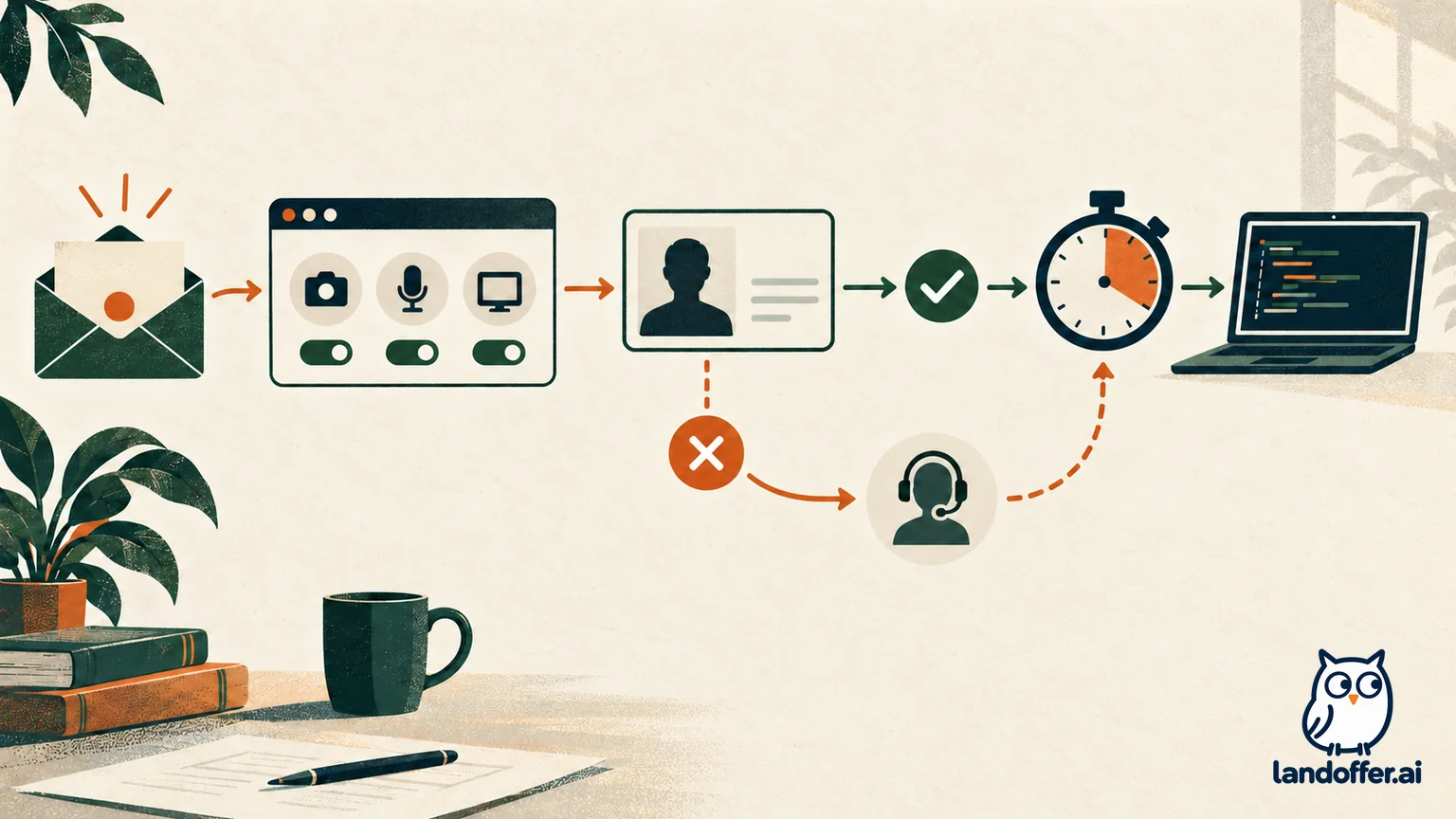
A completed example: screen permission is blocked
Now imagine Priya opens the assessment on a company laptop and the browser cannot share the screen. The assessment page has not advanced to the timed coding environment. Priya records the browser name, operating-system version, and exact permission message. She checks the browser’s CodeSignal site permissions and sees that screen sharing is controlled by the organization’s settings. She does not try to disable endpoint controls or switch to an unapproved personal laptop.
Priya contacts the company’s IT team to request the approved browser permission and tells the recruiter that setup is blocked. If IT cannot approve the permission, the employer can say whether a different device or a new invitation is acceptable. Priya confirms the displayed timer and expiration date only after the permission issue is resolved. This example shows how to resolve a setup blocker before entering the timed session; it does not imply that all proctored assessments have the same duration or rules.
Use the right contact for each problem
Contact CodeSignal support for a camera, microphone, browser, screen-sharing, or identity-verification problem. Include the assessment name, browser and operating-system versions, the step where setup stopped, and the exact error. Do not send your password, one-time code, test answers, or ID photo through an unverified channel. If the official support form or proctoring flow asks for a document, follow that secure process and its instructions.
Contact the recruiter or inviting company about the invitation’s expiration, permission to use another device, or whether an accommodation affects its hiring process. CodeSignal’s assessment guide says the inviting company decides whether to issue a new invitation when more time is needed. A recruiter can address the assessment request, but cannot change a browser permission that an organization’s IT team controls.
Use this final check before you start:
| Before the timed assessment | Confirm |
|---|---|
| Invitation | Correct employer, assessment, account, expiration date, and displayed duration |
| Proctoring | Whether this assessment requires it and which steps the page requests |
| ID | Valid government photo ID; full name, photo, and expiry visible; name discrepancy raised with support |
| Browser and devices | Current supported browser; camera and microphone available if requested |
| Screen | Screen-share permission works and the requested display is selected |
| Start time | Enough uninterrupted time remains; you understand the one-sitting instruction |
| Unresolved issue | Support or recruiter has the exact error and the right question |
When the checks are complete, follow the assessment’s own Start/Done flow and note when you enter the timed evaluation. If you have an unresolved identity, permission, or deadline question, get an answer before beginning rather than assuming the session can be paused or restarted. If you are also exploring other openings, browse recent roles on LandOffer.ai.
Sources and Further Reading
- What is proctoring and how does it work? — current setup, ID requirements, timer boundary, and data handling.
- Taking an assessment on CodeSignal — invitation access, displayed duration, and one-sitting assessment flow.
- I can’t connect my camera or microphone — browser permission troubleshooting.
- I can’t share my screen — screen-sharing and network checks.
- I don’t have a valid ID — contact the inviting company about alternatives.