LandOffer
Job search
How to Reset LinkedIn's Saved Application Answers Before Your Next Job Search
Clean up future application defaults source by source, then review the selected resume and each answer in the next unsubmitted form.
Before your next job search, review LinkedIn’s Job application settings, remove obsolete saved resumes, and decide whether you want the platform to keep saving application information. Then check the selected file and every prefilled answer in the next unsubmitted application. LinkedIn documents saved information as a source for future applications; cleaning it is not proof that an employer’s earlier submission changed.
Treat “reset” as a review of each saved source rather than a promise of one universal button that erases every answer everywhere. This guide uses official documentation checked on October 19, 2026, with fictional worked examples. No account settings, files, or applications were changed for the article. LandOffer publishes the guide and offers recent job listings; the application destination still determines what you need to review before submitting.
Identify what LinkedIn can remember
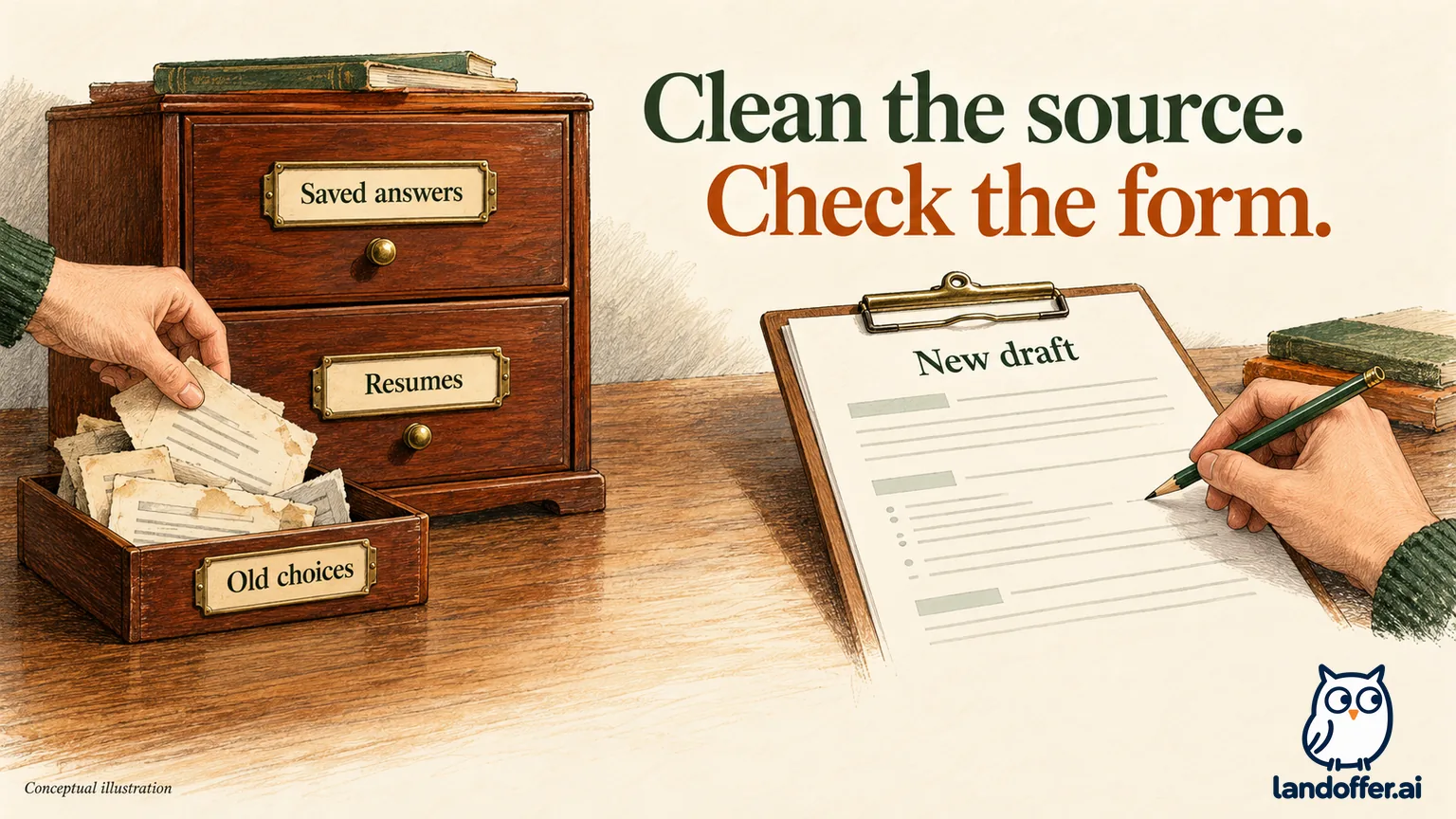
LinkedIn’s current application-information explanation describes saved screening answers and resumes as defaults for future applications. Previously answered screening questions can be prefilled, and the most recently used resume can be preselected. The page says you can save up to four resumes and opt out of saving application data.
A saved answer and a selected file can be wrong independently. An old answer about relocation can be inaccurate even when the selected resume is current. A truthful saved answer can accompany the wrong role-specific file. Review the answer store and resume choices separately instead of assuming that replacing one PDF refreshes the whole application.
The same page says an application includes the primary email associated with your account and your full LinkedIn profile, in addition to the information you enter. Check those profile and account details separately from the saved answer store. Clearing a saved answer should not be treated as an update to your profile location or primary account email.
This article focuses on ordinary application defaults. LinkedIn separately describes optional saving of US self-identification demographic information. Review those choices on their own terms rather than assuming a resume cleanup changes them. You do not need to copy sensitive disclosures into a general cleanup spreadsheet to decide which settings you want to inspect.
Open the application settings area
LinkedIn’s upload guide documents Jobs → Preferences → Resumes and application data. It also links the Job Application Settings page, where the Resume section has an Upload option. Use the application-settings area for future application material, not a public profile attachment that happens to contain your resume.
The recent-resume reuse guide says resumes can be uploaded or removed from that settings page. Keep a local copy of a version you still need before removing a saved choice. For example, a data analyst resume may remain useful even if you are now targeting data engineering; the problem is unwanted selection, not the mere existence of another accurate version.
For answers and saving preferences, inspect the controls currently shown in your account. LinkedIn’s direct-application guide says saved information can be reviewed, updated, or deleted before a new application. Its current public explanation also documents opting out of future saving. These descriptions do not establish a universally available button with a particular “clear all answers” label, so this guide does not invent one.
If you cannot confirm that an old answer was removed or updated, do not record it as cleared. You can still make the next application accurate by checking the question and entering the correct answer manually. Record the specific setting result you can see, and keep the form review as a separate required step.
Complete a cleanup decision for each source
Iris Vale is a fictional applicant who has moved from Boston to Chicago and is starting another search. Her old resume is Iris_Analyst_2024.pdf; her intended current file is Iris_Data_2026.pdf. A previously saved relocation answer says Yes, but she is not currently willing to relocate again. These facts are invented to demonstrate the review, not information taken from a real account.
Iris does not want to keep saving new screening answers during this search. The following completed decision list separates what she intends to change from what she still needs to verify. It is a written example, not an observation that LinkedIn controls were operated.
| Source Iris reviews | Completed cleanup decision | Evidence she needs before relying on it |
|---|---|---|
| Saved screening answers | Use the available settings to review old relocation information; choose to opt out of future saving | The setting’s current state and the relocation answer shown in each new form |
| Saved resume choices | Keep needed local copies, retire the obsolete 2024 choice from the saved list, retain relevant accurate versions | Remaining saved choices and the file selected for the new application |
| Profile and account details | Check Chicago location and the primary email separately | The current profile/account values, not a saved-answer deletion notice |
| An application already open | Review its current attachment and populated fields again | The unsubmitted form’s review screen and actual selected document |
Checking the open form catches old selections that a settings change has not visibly replaced. Do not assume an open draft has refreshed itself after you changed a preference elsewhere. Return to the draft and check what it currently contains.
Iris’s choice to stop future saving is a preference, not a rule every job seeker must follow. Someone who wants reusable defaults can keep saving and maintain accurate values. In either case, a saved answer remains a starting point for a particular question rather than a substitute for reading it.
Select the intended resume in the new draft
“Most recently used” does not mean “most recently edited on my laptop.” If you used an analyst resume for the previous application, that can be the next default even if your data engineering PDF has a newer date. Inspect the selected file before assuming the cleanup worked.
LinkedIn’s reuse guide describes selecting a recent resume or uploading one in the Easy Apply Resume section. Choose the intended document there and review its contents where a preview is available. Check more than the filename: the role summary, contact details, dates, and project wording should belong to that version.
For Iris, the current document includes her actual data work without changing the underlying employment history to suit the posting. She checks that the selected version is Iris_Data_2026.pdf. If the form still shows the old file, the next task is to correct that visible selection before submission, not to mark the application ready because the settings page looked clean.
A public profile resume is a separate item. The upload guide distinguishes material saved for applications from a resume displayed on a profile. Removing or replacing one should not be used as evidence that the other was changed. Name the location in your notes: “application saved resume removed” is clearer than “LinkedIn resume deleted.”
Verify the answers against the actual role
Iris is preparing an unsubmitted application for invented Northline Data role ND56 in Chicago. The posting’s office schedule fits her actual availability. She has also saved invented Pine Summit role PS18 in Denver, which requires relocation. The same current relocation answer can therefore support different decisions for the two jobs.
In ND56, Iris checks that the location is Chicago and changes the old saved relocation response from Yes to her current No. She separately answers a question about attending the local office according to the actual schedule. “I am not willing to relocate” and “I can attend this office” are different statements when she already lives in the city.
For PS18, she keeps No to relocation. Because the fictional posting requires moving to Denver, she stops that application rather than accepting the prefilled Yes to continue. Keeping her current answer accurate makes the relocation mismatch visible before she submits.
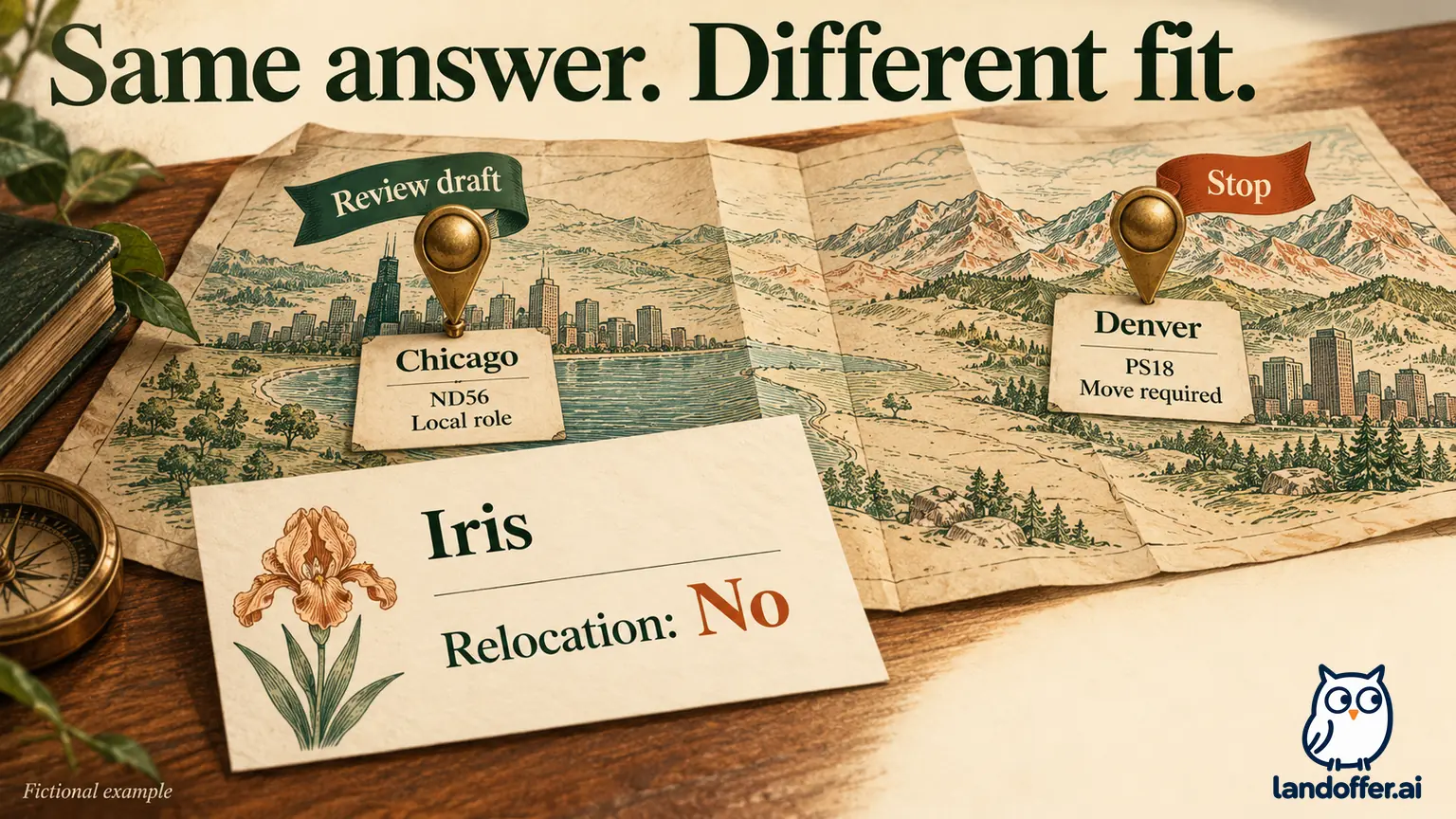
| Review item | ND56, Chicago | PS18, Denver |
|---|---|---|
| Current location | Chicago, checked separately from saved answers | Chicago remains the truthful current location |
| Willingness to relocate | No | No |
| Role-specific implication | No move needed for this local role | Required move conflicts with current willingness |
| Next decision | Finish reviewing the selected file and answers; draft remains unsubmitted | Stop this application unless the actual requirement changes |
This is a completed fictional review decision, not a live test of LinkedIn prefill or a report of successful submissions. ND56 still needs a final review of Iris_Data_2026.pdf and its answers; it has not been sent. PS18 is a mismatch, not a technical failure caused by the settings page.
Read every current question even when its wording looks familiar. A question about working remotely is not the same as a question about relocating, and a question about the role’s location is not necessarily asking where you currently live. Use the precise prompt to decide which fact belongs in the field.
Check external forms and old cover letters separately
LinkedIn’s recent-resume guide distinguishes Easy Apply from the route that sends you to a company website. It says a resume previously uploaded to LinkedIn cannot be reused through that external route in the same way. Finding the job on LinkedIn therefore does not establish that LinkedIn supplied every value on a later employer form.
Workable’s old-materials FAQ attributes old resumes and cover letters to Easy Apply reuse and points candidates to LinkedIn’s saving instructions. LinkedIn’s current explicit list of saved defaults names answers and resumes; it does not describe a universal cover-letter reset switch. If you see an old letter, inspect the actual text or attachment rather than assuming one resume removal cleared it.
For an external employer form, inspect its attachment, populated fields, and any source it identifies. A local file, employer profile, or other import can need attention independently. Trace the old value to its source before changing another platform’s settings. The useful boundary here is that a LinkedIn preference change is not evidence that another system’s draft updated.
Keep earlier submissions outside the reset claim
Cleaning future defaults is prevention. If an earlier Easy Apply application contained an important mistake, preserve its identifiers and pursue the relevant correction route separately. LinkedIn’s official application help says submitted applications cannot be edited or withdrawn through LinkedIn and directs changes to the job poster via InMail. Our Easy Apply route guide explains why the receiving destination matters.
Do not convert a “saving disabled” observation into “past answers deleted from employers.” The same applies to removing a saved file or correcting your profile. Record what you changed in the place where you changed it. An employer-held record requires its own evidence before you claim it was corrected or removed.
Workable’s short old-materials FAQ includes a withdrawal-and-resubmission suggestion. That is not a universal LinkedIn repair instruction. This article does not recommend withdrawing merely to reset saved information. If you need to repair an existing employer record, use that employer’s current instructions and consider any active hiring tasks separately from future defaults.
Before your next recent role on LandOffer, make a small source list: saved answers, saved resumes, profile/account details, and the new form. Inspect the relevant settings, choose the intended document, and read every answer before submitting. Record the setting or saved file you checked, then finish the new form’s review. A settings change alone does not make that application ready to submit.
Sources and Further Reading
- LinkedIn: How LinkedIn uses your job application information, saved answers, resume preselection, profile/account information, and saving preferences; checked October 19, 2026.
- LinkedIn: Apply to jobs directly on LinkedIn, managing saved information before new applications.
- LinkedIn: Upload your resume to LinkedIn, expanded application-settings instructions and the separate profile route.
- LinkedIn: Reuse a recently used resume, upload/removal and the Easy Apply versus company-site distinction.
- LinkedIn: Apply for jobs on LinkedIn, submitted-application correction limits.
- Workable: Why old resumes or cover letters appear, source-specific reuse explanation, not a universal reset procedure.