LandOffer
Job search
How to Email a Job Application with the Right Subject, Files, and Job ID
Prepare a job application email with the employer’s required subject, job ID and attachments, then review the complete unsent packet before sending.
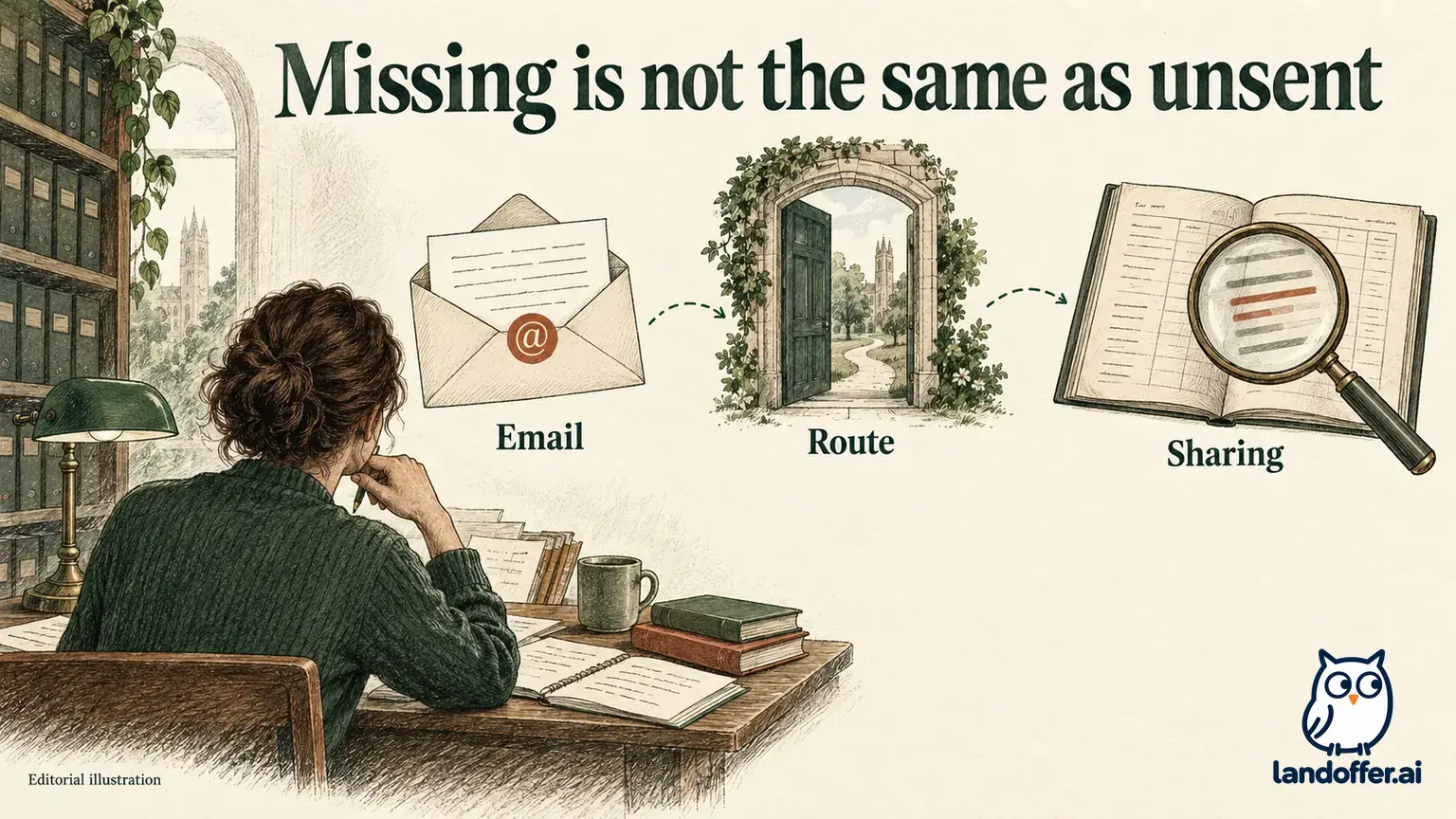
Email a job application only when the employer's instructions identify email as an accepted route. Copy the required recipient, subject wording and job identifier, prepare the requested files, and review the complete message with its attachments before sending. A polished introduction cannot fix a missing document or an application sent to a mailbox intended for questions. If the posting requires an online application, complete that process instead of assuming an email will substitute for it.
LandOffer publishes this guide and offers job-search tools. Public employer and Gmail instructions were reviewed on October 13, 2026. The worked application below is fictional and remains unsent; we did not open a mailbox, upload personal documents or apply to a job. As you find recent tech roles on LandOffer.ai, save the employer's application instructions alongside each role so the final email follows the right process.
Confirm that email is the application route
Read the employer's current posting, including its How to Apply section. Identify whether it asks for an emailed packet, an online form, or multiple required steps. A contact email can have a narrower purpose than accepting applications. Do not infer its purpose from the word careers in an address or from its location near a job description.
For example, Harvard's public application guidance directs candidates to submit through Careers@Harvard. It also lists an accommodation mailbox and explicitly restricts the purpose of messages handled there. That address is not a general application or status-inquiry channel. This illustrates why you should read what a mailbox is for before attaching your resume.
If a recruiter has given you different instructions, preserve the message and clarify any conflict with the posting. You need to know whether the email replaces the online step or supplements it. If the online step remains required, keep it pending in your record after emailing documents for review. Otherwise, your tracker can show a completed application while the employer is still missing its required form.
Extract the recipient, subject and required identifier
Build a small instruction record before composing. Copy the application address from the verified source, the job title, the required job or requisition number, the deadline, and the requested documents. Preserve any exact subject format. If no format is specified, a clear subject can identify the role, its ID and your name. That is an organizational choice, not a promise about an employer's sorting system.
Job sites can display more than one identifier. A site's listing number may differ from the employer's routing number. In the NYSED technical vacancy reviewed for this guide, the page shows Vacancy ID 226264, while the required Box number is PIMS-1171/00175. Its application instructions require the Box number in the email subject and cover letter, request a resume and letter of interest, and reject links to application materials. The listed deadline is October 19, 2026. These are that posting's rules; recheck the current vacancy before acting.
Do not replace a specifically required Box number with the site Vacancy ID because both look like job IDs. Likewise, preserve a location or department code if the employer requests it. When two sources disagree, keep the packet unsent while you resolve the relevant instruction rather than choosing whichever code is shorter.
Prepare exactly the document set requested
Turn the document instructions into an attachment list. Distinguish a resume, a letter of interest, an application form, a transcript and a work sample. A paragraph in the email does not necessarily satisfy a request for a separate letter. If the employer asks for one combined PDF, assemble that packet in the requested order. If it asks for separate files, retain separate files.
Use the required file format. PDF can preserve a finished layout, while DOCX provides an editable Word file, but neither is universally correct. The NYSED example establishes required materials and rejects links; it does not establish a universal PDF-only rule. If a posting specifies DOCX, send the requested Word document rather than converting everything to PDF by habit.
If the posting does not specify a format, look for its application guidance before deciding. Keep an editable source copy for yourself and inspect the file you intend to deliver. Do not attach both PDF and DOCX automatically if that leaves the reader choosing between versions. If a required form is supplied, check whether it needs completion or a signature instead of replacing it with your resume.
Choose recognizable filenames, such as your name, the document type and the role ID. Naming a file clearly does not verify its contents. Open each final file and check the actual employer name, title, dates, page order and contact details. Remove tracked edits or comments from the deliverable where appropriate, and make sure a conversion did not cut off a line or create a blank page.
Avoid adding an entire archive of supporting material just because you have it available. Include what the instructions request and what you deliberately choose to support this application. The NYSED posting mentions that a Social Security number may be needed to confirm eligibility; that statement does not itself instruct you to attach one to the initial email. If identity documents or other sensitive records are requested, verify the request and approved delivery route before providing them.
Keep attachments from turning into unaccepted links
Check what your mail client actually added. A file attachment and a cloud link are different delivery methods. The recipient might reject links even when the file behind the link is readable.
Gmail's official attachment guidance currently gives personal accounts a 25 MB limit and says work or school limits are set by the Workspace administrator. When the total exceeds the applicable limit, Gmail removes the attachment and adds a Google Drive link. Check the current limit for your account and the employer's separate requirements. The recipient's requirements can be stricter than your account's sending allowance. Do not treat a successful attachment selection as proof that the final message contains accepted files.
If the packet is too large, inspect its components. Remove unintended duplicate files or oversized images you do not need, while preserving legibility and the requested content. If you cannot meet a stated limit, ask about an accepted delivery method. Changing to a link is not a solution when links are explicitly disallowed. Wait for file uploads to finish and inspect the final attachment list before sending.
A completed unsent application packet
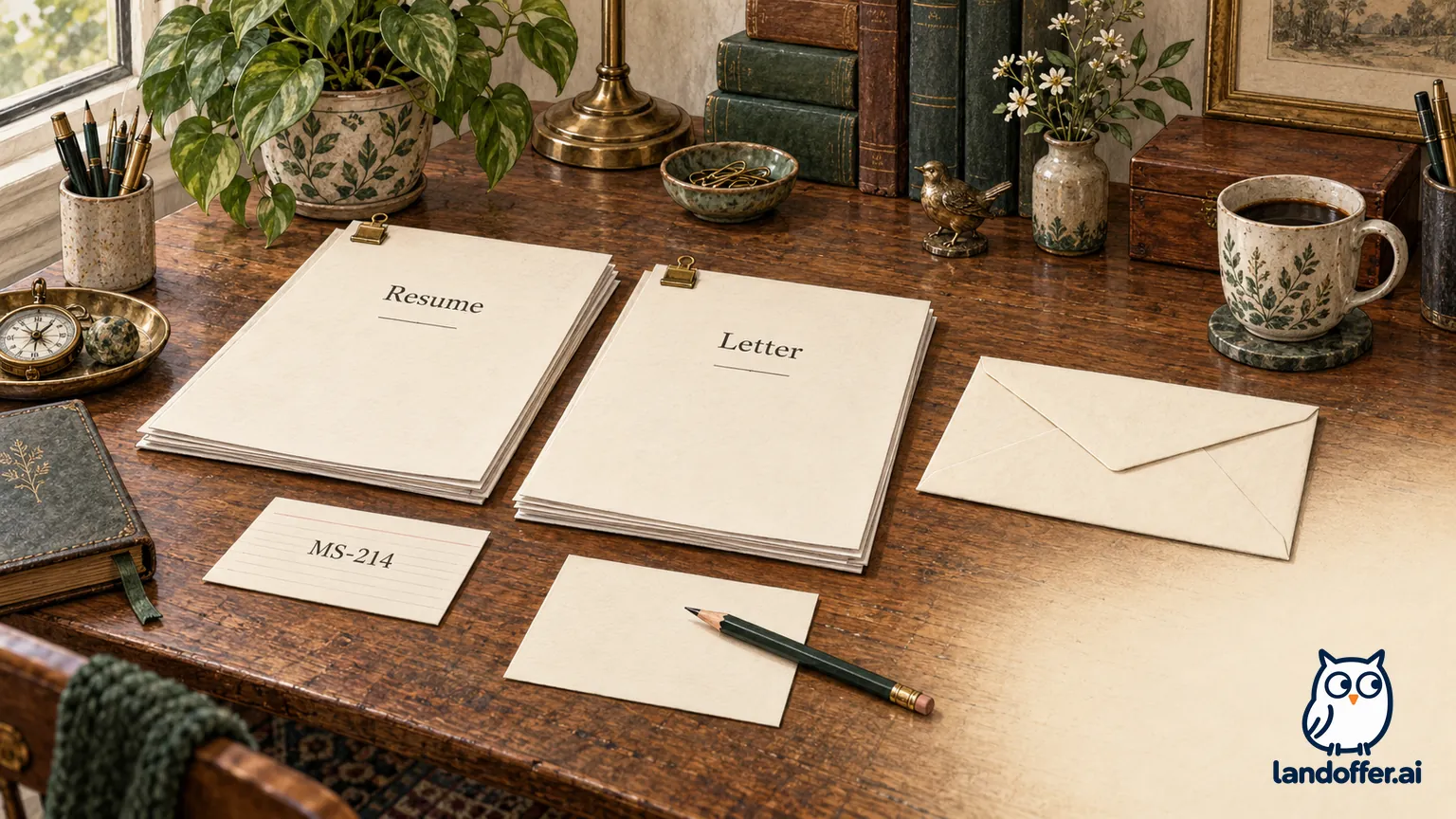
Rhea Chen is a fictional backend engineer applying to fictional MapleSignal role MS-214. The constructed posting accepts email applications at careers@example.com, requests a PDF resume and a separate PDF letter of interest, and requires MS-214 in the subject. Its example deadline is October 23, 2026, at 17:00 UTC. These instructions are invented for teaching and do not describe a real employer.
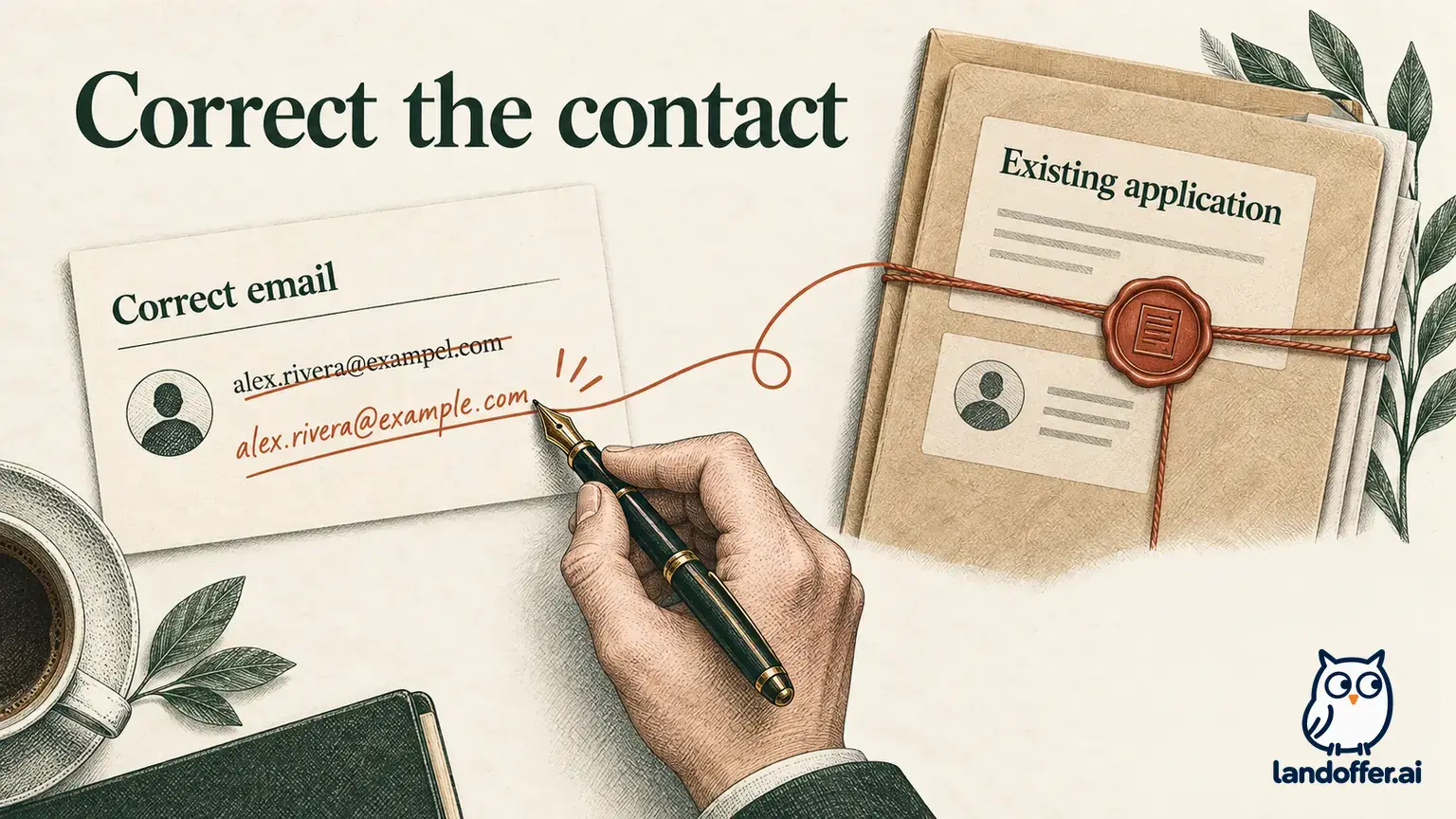
Rhea's initial draft has four problems: autocomplete selected questions@example.com, the subject says “Job application,” and the attached resume was prepared for MS-219. A cloud link stands in for the letter. She holds the message rather than treating its existence as a completed application.
She also distinguishes the stated deadline from her personal sending plan. In this constructed case the time zone is explicit. For a real posting that gives only a date, do not invent a midnight cutoff from your own location. Read the employer’s deadline guidance or ask when necessary, and allow time for preparing the files and resolving an upload problem. A scheduled message is still waiting to be sent until its actual sending event occurs.
Her corrected preparation record is:
| Item | Reviewed value | Decision |
|---|---|---|
| Recipient | careers@example.com from the constructed application instructions | Use the application mailbox; remove the questions address |
| Subject | Backend Engineer MS-214 — Rhea Chen | Include the required role identifier |
| Resume | Rhea_Chen_Resume_MS-214.pdf | Open and check the MS-214 version |
| Letter | Rhea_Chen_Letter_MS-214.pdf | Attach the separate PDF; remove the cloud link |
| Deadline | October 23, 2026, 17:00 UTC | Review against this role's instructions |
The fictional resume describes Rhea implementing Java API validation and writing SQL checks for a data migration. Her letter connects that experience to the role's API and data-quality work. It does not claim she led the migration, owned the entire platform or achieved a percentage improvement absent from her evidence.
Her complete unsent email reads:
Subject: Backend Engineer MS-214 — Rhea Chen
Dear MapleSignal hiring team,
I am applying for Backend Engineer MS-214. My experience implementing Java API validation and writing SQL migration checks relates to the API and data-quality work described in the posting.
I have attached my resume and letter of interest as separate PDFs, as requested. Thank you for considering my application. I would be glad to discuss this work and the role's requirements.
Best regards, Rhea Chen rhea@example.com
Attachments: Rhea_Chen_Resume_MS-214.pdf; Rhea_Chen_Letter_MS-214.pdf
All addresses use the reserved example.com domain. The displayed attachment names are part of the fictional example, not files uploaded to an employer. Rhea's packet is prepared for final review; it has not been sent, delivered or acknowledged.
Write a short message that agrees with the files
Identify the job, explain briefly how your experience relates to it, and name the requested materials. It can be short when the employer also requests a letter. Avoid copying the entire resume into the message or writing a second full cover letter unless the instructions call for it.
Use evidence you can support. For a software role, a brief statement about API validation, interface accessibility or incident response can be more useful than an unsupported claim to be the ideal candidate. Keep ownership, dates and qualifications consistent with the attachments. An AI draft that upgrades participation into leadership needs correction even if the sentence sounds confident.
Choose a salutation that fits what you know. If the posting names a hiring contact, check the spelling. If it does not, a straightforward hiring-team salutation avoids inventing a person. Include a professional signature and a reply address you monitor. Remove a copied signature referring to a different organization, old role or unrelated availability commitment.
Review one role and its actual attachments at a time
For multiple roles, prepare separate packets unless the employer explicitly requests a combined application. This is a practical way to preserve the right subject, evidence and documents for each role, not a claim that every employer prohibits one email covering several openings. If a posting gives a specific rule about separate applications, follow it.
Rhea also has an MS-219 data-role draft emphasizing analysis work. She opens the selected MS-214 resume and checks its Java API validation and SQL migration-check examples against the MS-214 letter. Renaming the MS-219 file would not complete this check. She keeps the two packets separate. She does not reply to that thread with the MS-214 documents simply because the application mailbox is the same. The MS-214 message now refers only to MS-214, and its two listed files match the two selected documents.
Do a final pass in the mail client: expand and read the recipient address, check the complete subject, read the message, and inspect every attachment. Confirm that autocomplete did not substitute an old contact and that a last-minute file selection did not add the wrong version. A saved attachment list elsewhere cannot establish what is in the actual outgoing message.

Record what happened without assuming receipt
Before sending, keep a record of the posting, instruction-review date, intended recipient, subject and exact document names. Mark the packet Prepared or Draft. If you later send it, record the actual sending time and retain the message and attachments. A draft, a Sent-folder entry and an employer acknowledgment represent different evidence. A Sent entry supports your sending record; it does not establish that the employer accepted every attachment or reviewed your application.
After sending, examine any delivery failure or employer response before taking another action. Do not immediately resend the same packet just because no acknowledgment arrived. If you discover a wrong file or address, identify the affected role and follow the employer's correction route. A later correction does not automatically erase an earlier email or replace materials already reviewed.
Rhea's MS-214 packet remains Prepared; Sent and Receipt are unconfirmed. As you review more recent LandOffer.ai roles, keep each role's prepared packet and subsequent sending or receipt evidence together.