LandOffer
Job search
An Extra Blank Page in Your Word Resume: Fix Paragraphs, Breaks, and Tables
Identify the formatting cause of an unwanted résumé page, preserve section layout, and verify the saved source and requested export.
Show Word’s formatting marks before trying to remove an extra blank résumé page. Empty paragraphs, a manual page break, a section break and the required final paragraph need different fixes. Remove only the item causing the unwanted space, then check that the résumé’s content, headers and intended layout remain intact.
Work on a copy so you can reverse a change that moves a section or loses formatting. If you are preparing an application now, browse recent roles on LandOffer.ai and confirm the employer’s requested document format before deciding which final file to export.
LandOffer publishes this guide. We checked Microsoft’s public instructions on October 23, 2026. We also created a harmless synthetic DOCX and compared its package structure and LibreOffice-rendered pages before and after removing a deliberate page break. That is a local fixture test, not a test inside Microsoft Word or a repair of anyone’s personal résumé. Other examples below are explicitly fictional.

Reveal what occupies the apparently blank page
Use Home → Show/Hide to display formatting marks. Microsoft’s blank-page instructions also give Ctrl+Shift+8 on Windows and Command+8 on Mac. Inspect the end of the last intended page and the beginning of the unwanted one. Keep the cursor in view and confirm the exact mark you selected.
An empty-looking page may contain paragraph marks or a labeled break. It may also be the result of a formatting rule that pushes a paragraph forward. Use the navigation pane to locate the unwanted page, then inspect formatting marks to identify its cause.
Start with a narrow selection. Do not select your whole résumé to change its font size or press Delete repeatedly while the cursor is out of sight. If the last intended bullet disappears, undo that change before investigating another cause. The goal is to remove unintended pagination while preserving the information you meant to send.
Check whether the page is genuinely empty of résumé content. A final skills line, a wrapped date or a contact detail may have moved there. That is a layout problem requiring a content-preserving decision, rather than permission to delete the entire page.
Distinguish empty paragraphs from manual page breaks
Microsoft’s Word for the web guidance describes deleting empty paragraphs and manual page breaks in Editing view. Select the specific unwanted item. A paragraph containing text is different from an empty separator you accidentally created by pressing Enter several times.
For a manual break, Microsoft’s page-break guide says to show marks, select the break and delete it. The same guide distinguishes manual breaks from automatic pagination. Word adds automatic page boundaries as text flows; you adjust the layout or paragraph rules rather than deleting an automatic boundary itself.
Imagine a résumé ending with Education and Skills, followed by an accidental manual break. The intended sections may already fit. Removing that particular break can address the extra page without changing the text’s size. Compare that with an education entry whose date has wrapped onto another page: removing a nonexistent manual break would not explain the overflow.
If you see no manual break, inspect the affected paragraph’s pagination settings. Microsoft’s Line and Page Breaks instructions describe Page break before, Keep with next and Keep lines together. These controls can preserve useful groupings. Change a setting only after deciding whether the heading or entry should remain attached to the following content.
Handle the final paragraph separately, especially after a table
A résumé template may place its visible content inside a table. At the end, check whether the only mark outside that table is the document’s final paragraph. Do not delete the table just because the empty page follows it, and do not assume every visible paragraph mark is optional.
Microsoft’s blank-final-page procedure explains that Word’s required end paragraph cannot simply be deleted. Its suggested fix is to select that paragraph mark and reduce its font size to 1 point so it can fit on the preceding page. Apply that change to the selected end mark, not the résumé body.
If the mark has Page break before enabled, review that setting as well. Make one targeted change, check the result and undo it if the intended content moves incorrectly. A compact end paragraph and a readable résumé body can coexist; you do not need to turn every experience bullet into tiny text.
Microsoft also describes reducing the bottom margin if the end paragraph still will not fit. Treat that as a separate layout decision. Inspect the whole page afterward, including contact details in a footer, rather than assuming any smaller margin is automatically suitable for your template.
If a table itself is too tall, the final paragraph may be only part of the problem. Review unnecessary row spacing or genuinely redundant content in the working copy. Retain required qualifications and readable text when deciding whether the layout needs more than a narrow blank-page fix.
Preserve section formatting when a break is involved
Section breaks can carry layout choices such as orientation, headers, footers and numbering. Microsoft’s section-break explanation distinguishes Next Page, Continuous, Odd Page and Even Page. The latter two intentionally start a section on a particular page parity, which can explain an unexpected intervening page.
A section break is therefore more consequential than an extra empty paragraph. Microsoft’s deletion warning says removing one combines the surrounding sections and uses formatting from the section that followed it. That can change a layout you intended to keep.
If the section boundary is useful but the new-page behavior is not, consider the documented Continuous option instead of removing the boundary. Inspect the result carefully. A different section type does not establish that every combination of columns, orientation or other settings will fit on the same page.
Record the changed break type, the name and contact details expected in the header or footer, and each section’s intended orientation before comparing the copy. If you cannot preserve those properties, undo and examine the section setup before trying broader changes.
Four completed diagnoses in a fictional résumé review
The following is a fictional teaching exercise. Each row starts with visible evidence, chooses a narrow correction and names a specific check. These are completed example decisions, not four Word account tests.
| Visible evidence in the example | Selected correction | Completed review result |
|---|---|---|
| Three empty paragraphs after the final skills line | Remove the unnecessary empty paragraphs | Skills line and all experience bullets retained; no body-font change |
| A labeled manual page break after Education | Delete that break only | Education remains in place; unrelated paragraph settings retained |
| A final paragraph mark outside a near-full table | Select the final mark and set it to 1 point | Table text remains readable; the end mark fits in this fictional outcome |
| A Next Page section boundary before an otherwise empty ending section | Retain the boundary but change its start behavior to Continuous | Header, footer and orientation checked against the preserved copy |
The third row would be the wrong fix for the second row: shrinking a paragraph does not remove a manual page break. The fourth would be a poor reason to delete every section boundary: a résumé may use sections deliberately. The diagnostic evidence determines which control deserves attention.
The fictional reviewer records the retained content as well as the removed space. A shorter document is not a successful repair if the final qualification, contact line or project link disappeared. When a result is uncertain, the review remains unfinished rather than being declared successful from the page count alone.
An executed synthetic DOCX check with a bounded result
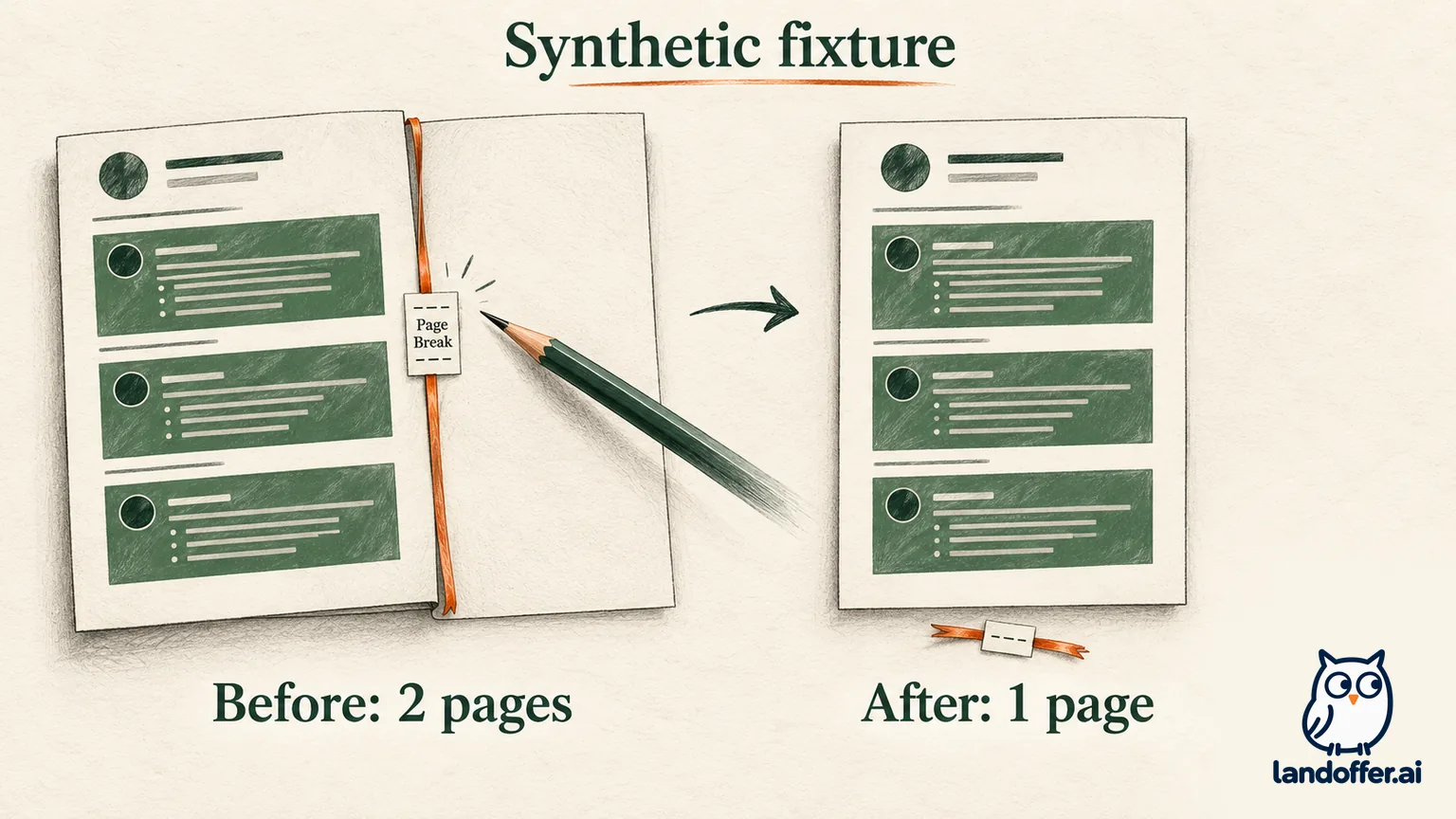
For an additional worked example, we created an original document named “Synthetic resume pagination fixture.” Its text explicitly identifies it as fictional teaching content. It contains Profile, Project and Skills headings, a short résumé-like body, a fixed header and a deliberately inserted manual page break followed by an empty paragraph.
We preserved that original and made a second DOCX by removing only the explicit page-break element. Package inspection confirmed one manual page break before and zero afterward. The body text, section properties and header content remained unchanged in that comparison.
We then rendered both files using the project’s bundled LibreOffice-based document renderer and inspected all three resulting page images. The original produced two pages; the second contained only the fixture header. The corrected copy produced one page containing the intended body and header. In this LibreOffice render, the extra page disappeared while the package comparison retained all synthetic skills and project text.
| Check | Original fixture | Corrected copy |
|---|---|---|
| Explicit manual page-break element | One | Zero |
| Rendered pages in this LibreOffice test | Two | One |
| Intended body text | Present | Unchanged |
| Section settings and header content | Original | Unchanged in the package comparison |
| Microsoft Word desktop rendering | Not tested | Not tested |
This result demonstrates a narrow repair in a controlled file. It does not validate the table-ending paragraph fix, section-break behavior or your own résumé in Word. LibreOffice and Word are different rendering engines. Open your actual outgoing copy in the application you will use and inspect its pages there.
The fixture also illustrates a useful stopping rule: when the unwanted cause is removed and the retained content checks pass, stop changing unrelated settings. We did not need to replace the template, rewrite the synthetic experience or reduce the entire document’s font size.
Check the saved file and its exported version
Save the corrected working copy, close it and reopen the same file. Confirm which filename you will attach. Reopening the exact attachment copy helps you avoid sending an older file that still contains the unwanted page.
If the employer requests PDF, export from the corrected document and inspect every PDF page. Confirm that the extra page is gone, the intended final line remains and any header or footer is visible where expected. A PDF page count alone will not reveal whether a line was clipped or a link stopped working.
If the employer requests DOCX, keep that requirement. Removing a PDF page in a separate editor would not repair the underlying Word document you are required to submit. Likewise, choosing a smaller page range during export can hide the symptom while leaving the source document unchanged.
Use a final reading pass rather than relying only on layout marks. Check dates, role names, contact details and the relationship between headings and their bullets. If a layout change caused a heading to detach from its entry, decide whether a paragraph grouping rule should be restored. An intentional second page with relevant experience is different from an unintended blank page.
Finish the diagnosis before making broader design changes
Word for the web and desktop Word do not expose all the same controls. Microsoft’s web-specific page directs section-break changes to the desktop application. If the needed control is absent, identify the application and version you have instead of hunting for a menu from a different platform.
Begin with the visible cause, make one targeted change and preserve the content you intended to send. Confirm the saved source and the requested delivery format before calling the repair complete. Then browse recent roles on LandOffer.ai and choose one suitable role, read its attachment requirements and select the checked file only if its format matches.
Sources and Further Reading
- Microsoft: Delete a page or remove a blank page in Word
- Microsoft: Remove a page break
- Microsoft: Use Line and Page Breaks settings
- Microsoft: Section types and their layout effects
- Microsoft: Delete a section break and preserve formatting decisions
- Microsoft: Remove a blank page in Word for the web