LandOffer
Job search
Resume a Harver Application: Use the Latest Magic Link and Save Completed Sections
Recover the intended Harver application through its current login route, then distinguish saved completed sections, unfinished work and submission status.
To resume a Harver application, return through the invitation for the same employer and role, using the identity you registered with. If that journey uses a Magic Link, open the latest matching email and follow the renewal prompt if it has expired. Once inside, check the completed sections before starting unfinished work. Plan breaks after a whole section, rather than assuming an interrupted section was saved.
This guide reviews public Harver candidate support and integration documentation checked on October 14, 2026. We did not access a candidate account, renew a real link or complete an assessment. The worked recovery records are fictional examples. They illustrate how to separate access, retained progress and submission without promising that missing answers can be restored.
LandOffer publishes this guide. If you are comparing opportunities, you can browse recent roles on LandOffer.ai. For an application already underway, first reconcile its existing invitation and progress; keep that task tied to the intended employer and requisition.
Match the application before choosing an email
The newest message in an inbox is not necessarily the invitation for the application you want to resume. Compare the employer, role and any requisition information in the message with your original application record. A reminder for a different opening may be newer and still be the wrong starting point.
Return with the email address or phone identity you used for that application, as the actual login page requires. In the email-link flow, that means the inbox used at registration. If you have several email accounts, check which one received the original invitation before requesting another message. Guessing among addresses makes it harder to understand whether the problem concerns delivery, identity or the intended application.
Keep a short private recovery note containing the employer, role, invitation date and last section you remember completing. That note can help you compare what appears after login. It is a record of context, not a substitute for the platform's current status, and it does not need assessment questions or answers.
Avoid beginning a second application merely because the first link fails. Before creating another account or role entry, establish whether the existing application is still accessible through its original invitation. Restoring access to the existing journey is the more useful first question when you are trying to continue work already done.
Use the current link and its actual expiry prompt
Harver's Magic Link help page describes passwordless candidate access through a link sent to the registration email. It states a 24-hour validity period. For an expired link, it describes entering the email at the login prompt and using the newly received message.
There is an important limit to that number. Harver's customer API documentation describes a one-hour Magic Link in its application-creation flow. These are public descriptions of different entry contexts; we did not test their expiry behavior. Follow the invitation and the prompt in your actual journey instead of assuming that every Harver link lasts exactly 24 hours.
The practical action is to use the most recent link for the matched application promptly. Check which message was received after your renewal request. Do not keep alternating among older invitations while trying to work out whether the new one arrived. That adds ambiguity without establishing which session you reached.
A link's validity is separate from the employer's application deadline. A newly delivered access message does not, by itself, establish more time to finish. If a deadline is approaching, keep the renewal time and the deadline in the same note so you can describe the sequence accurately if support is needed.
A completed invitation comparison
Consider Mira, a fictional candidate returning to Northbridge's N47 role. “Inbox A” is an abstract label for her registered inbox, not a real address. The times and results below are stipulated teaching facts, not a tested Harver journey.
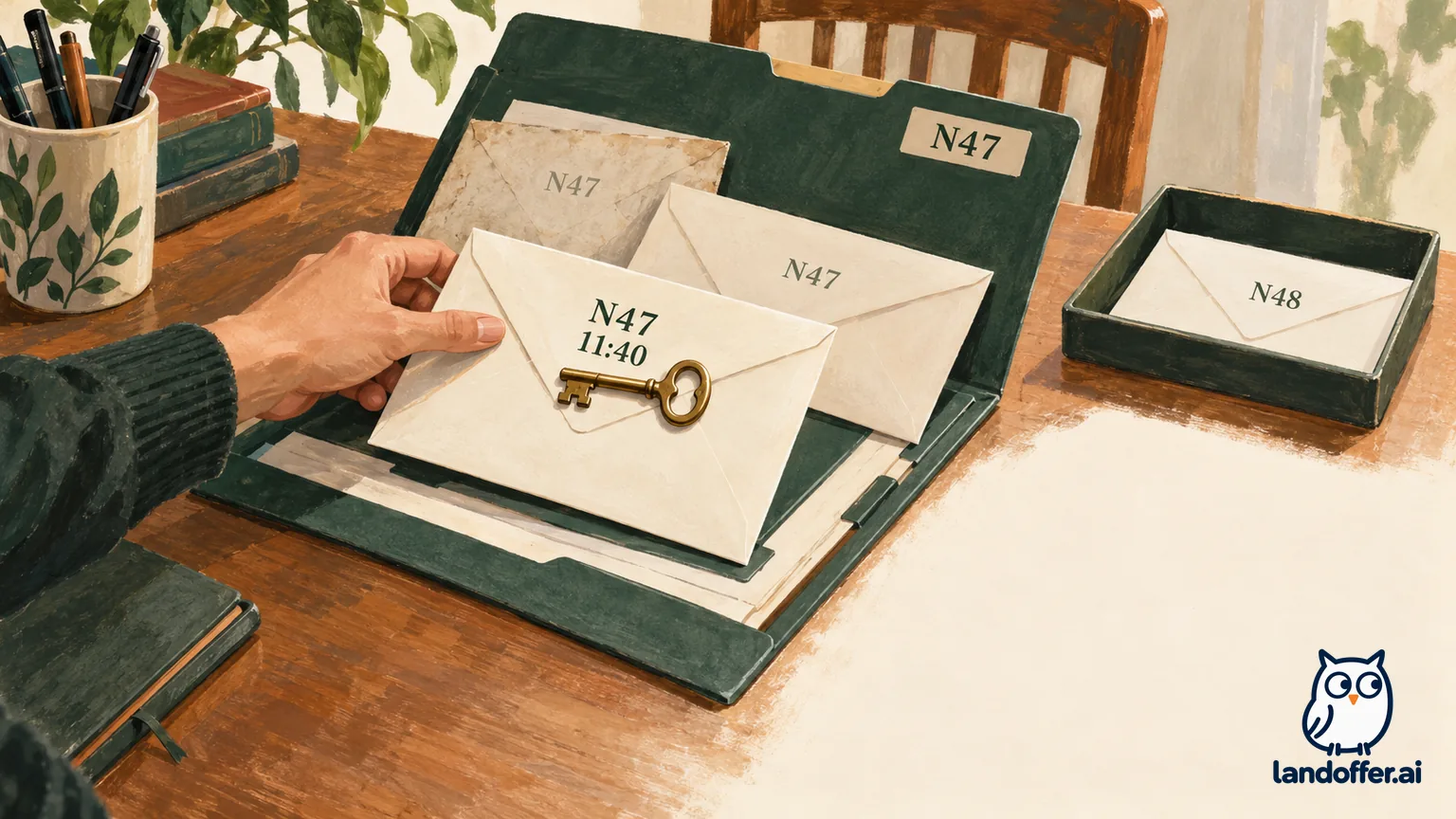
Mira sees three messages. An older N47 invitation leads to an expiry prompt. After following that prompt, a newer N47 message arrives. Another invitation for N48 is the newest message overall. Mira compares the role references before selecting the renewal for N47.
| Message in Inbox A | Fictional record | Mira's completed decision |
|---|---|---|
| N47 invitation, 09:10 | Its link shows an expiry prompt | Keep it as context for the earlier access attempt |
| N47 renewal, 11:40 | Arrived after the request for the intended journey | Use this matching renewal to return to N47 |
| N48 invitation, 11:45 | A different role despite being newest overall | Keep it separate from the N47 recovery |
In this fictional outcome, the selected renewal opens a journey labeled N47; no real renewal or account access was tested. Mira has resolved the routing question. She has not yet established which work remains or whether the application is submitted. Those questions need the status shown inside the matched journey.
Her private note now reads: “N47, Inbox A, matching renewal received 11:40; N47 visible after entry; next check retained sections.” The note gives Mira a clear next task: inspect N47’s recorded progress now that its identity is visible. It contains no reusable login URL or token.
The comparison also explains why sorting by date alone was insufficient. Mira needed both recency and application identity. Nothing in this example proves that requesting a renewal invalidates every older link, or that one link can be reused indefinitely. The observed prompt in your own journey should guide the next action.
Recognize the login route you actually have
Harver also documents email-and-password sign-in and SMS authentication. The password instructions describe a Forgot password route; the SMS guide describes a phone-number choice with a one-time code. These alternatives do not establish that every employer journey offers every method.
If your page asks for a password, follow that page's sign-in or recovery instructions. If it offers the phone identity you used, follow the corresponding phone route. A password reset and a Magic Link renewal are different actions. Choose the one that matches the actual prompt rather than forcing an instruction from another help page onto it.
For an email delivery problem, check the address you entered and the expected inbox, including spam or junk where appropriate. Keep the request time so you can distinguish a newly delivered message from a previous one. You do not need to send a password, one-time code or complete login link to a recruiter to explain that access failed.
If the screen and invitation seem to refer to different journeys, stop at that discrepancy and describe it. A screenshot of the employer or role label and the error can be more useful than repeatedly starting over under another identity. Redact access links and personal information before sharing such evidence.
Check whole-section progress before continuing
Harver's break guidance says a completed section is saved, while logging out midway through a section loses that section's progress and requires restarting it. This is a whole-section boundary, not a promise of continuous saving for each answer.
After entry, compare the current journey with your private note. Look at the section information actually provided: which parts are shown as complete, which remain unfinished and where the flow places you. Labels and layout may differ; this guide does not invent a universal button or dashboard.
If the current page offers a section instruction, read it before starting. Establish whether you have the time and conditions it requests. The general ability to return to an application does not establish that an active timed section can be paused without consequence.
If a part you remember finishing appears unfinished, preserve that discrepancy in your note. Remembered completion and recorded completion are different evidence. Ask for help identifying the application and retained progress rather than claiming the interface must be wrong or silently repeating every completed assessment.
A filled progress reconciliation
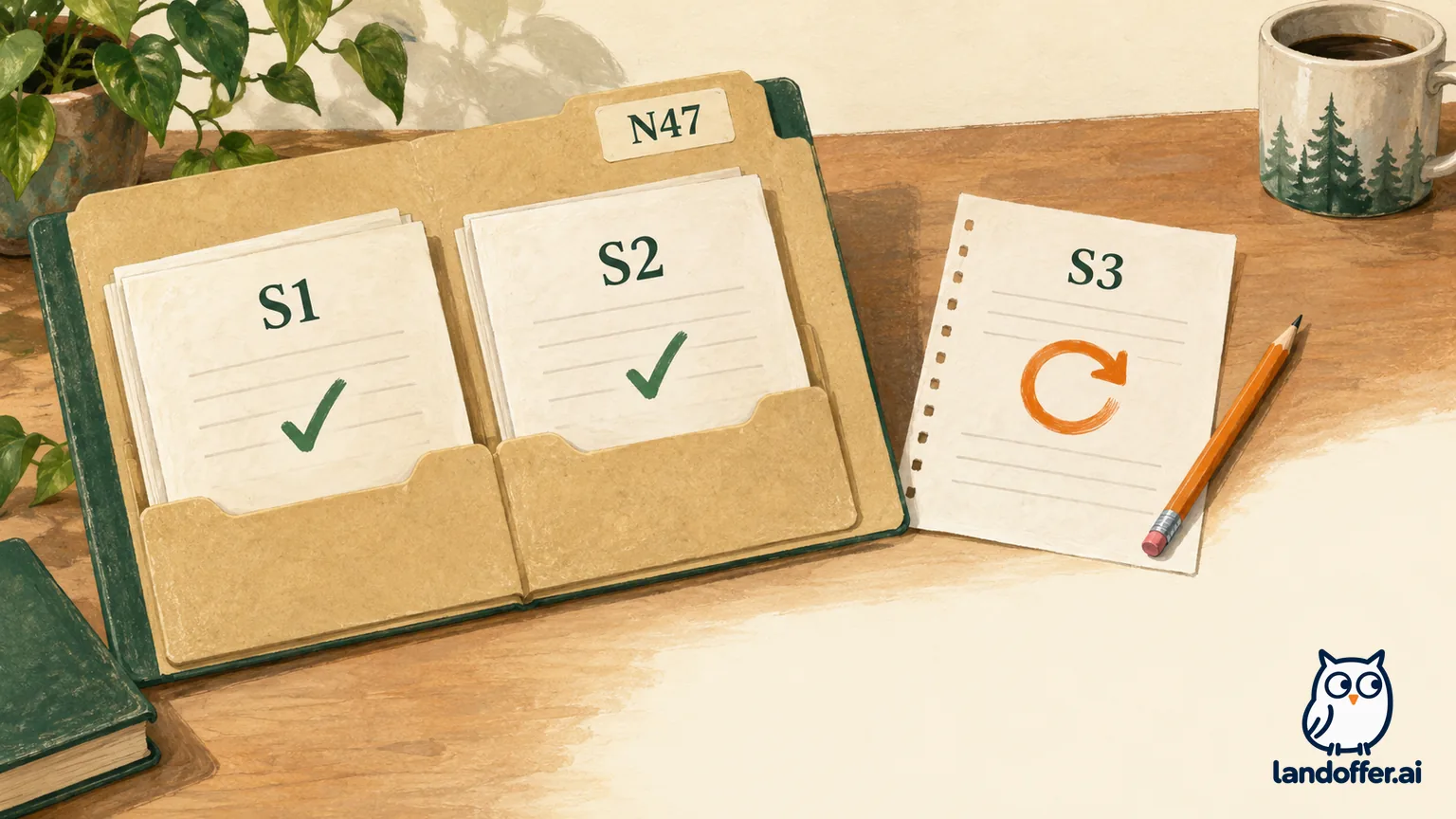
Continue Mira's fictional N47 case. Before the interruption, her note identifies S1 and S2 as complete and S3 as in progress. After returning through the matched renewal, the assumed journey shows S1 and S2 complete, with S3 requiring a fresh start. These are invented section labels and statuses, not a Harver screenshot or a candidate report.
| Part of N47 | Note before interruption | Assumed state after return | Reconciled action |
|---|---|---|---|
| S1 | Complete | Complete | Leave the recorded result in place |
| S2 | Complete | Complete | Leave the recorded result in place |
| S3 | Started, interrupted | Requires starting again | Read its instructions and complete the unfinished section when ready |
| Whole journey | Not yet finished | Still unfinished | Do not describe access recovery as submission |
Mira's completed reconciliation keeps the two retained sections separate from the interrupted work. She now knows which part needs attention in this assumed record. Her earlier note did not preserve S3's answers, and opening the correct link did not reconstruct them.
Change one fact and the next action changes. If the reopened journey showed S1 unfinished despite her earlier note, she would have a retained-progress discrepancy to raise. If the role label showed N48, she would have an application-routing discrepancy. Neither case is resolved by assuming that every section should be attempted again.
Keep the record limited to identifiers and status. A recovery note is not a reason to capture assessment content, store answer keys or copy a proctored session. The useful evidence here is the application context and the point where the expected continuation differs from what the page presents.
Resume work without treating it as a retake
Harver's application-change guidance distinguishes saved completed steps from changing answers or resubmitting an assessment. For a mistake, it asks candidates to contact support with the step and reason; the request is reviewed with the employer. That is a request for review, not a guaranteed reset.
Describe the problem accurately. “I cannot reopen the intended journey” is an access issue. “A previously completed part now appears unfinished” is a progress discrepancy. “I want to correct an answer” is a change request. Combining them into “please restart everything” leaves support with less information and may ask for an action you do not need.
Similarly, do not use cancellation as an access-recovery shortcut. The goal in this article is to identify and continue the existing application. If you intend to withdraw or change it, that is a separate decision with its own instructions. A failed login does not make a new application or a different email the correct remedy.
When you reach the end, read the confirmation and instructions presented there. A completed section, an accessible account and a finished application are separate states. Record the completion wording actually displayed for the matched role. If it leaves submission unclear, ask the hiring contact to verify that state.
Send a useful access or progress question
Harver's Magic Link page suggests checking the correct inbox and an updated Chrome browser, then refreshing or clearing cache for a login loop. Use those suggestions in the access context. They are not evidence that refreshing an active assessment is harmless or that a browser cleanup restores unsaved work.
If the issue persists, prepare a short factual request through the official support route. Include the employer, role reference, error wording, attempt time, browser/device and the last whole section you believe you completed. Explain whether you are trying to regain access or reconcile progress. Keep credentials and assessment content out of the request.
A finished fictional request based on the S1 discrepancy would read: “I am returning to Northbridge N47 through the renewal received at 11:40 in my registered inbox. The page shows N47, but S1 appears unfinished although my earlier note records completion. Chrome on a laptop shows no other error. Could you verify the application and retained section status before I continue?” No message was sent for this guide.
The request names a particular discrepancy and asks for verification. It does not demand that support recreate answers, waive a deadline or alter a score. If a deadline is close, report the unresolved access or progress issue and ask the employer about that deadline; a new link does not establish an extension.
Return through the matched invitation, follow its login route and compare the recorded sections with your earlier note before continuing. Browse recent roles on LandOffer.ai when comparing your next opportunity; keep this application's recovery note tied to its existing employer and role.
Sources and Further Reading
- Harver: Using the Magic Link — candidate email-link renewal and login-loop guidance.
- Harver: Can I take a break during my application? — whole-section saving and interrupted-section limits.
- Harver: Can I change my application? — support review of changes and resubmission requests.
- Harver: How to Sign in and Reset your password — the documented password route.
- Harver: SMS Authentication — phone-based entry where offered.
- Harver: Public API documentation — customer integration context and its separately documented link validity.