LandOffer
Job search
Markdown Resume with Pandoc: Generate PDF and DOCX Without Losing Structure
Build a repeatable Markdown resume workflow with Pandoc, then compare the exact DOCX and PDF files for content, layout, and links.
title: "Markdown Resume with Pandoc: Generate PDF and DOCX Without Losing Structure" description: "Build a Markdown resume with Pandoc, record the PDF engine, and inspect the exact DOCX and PDF exports for content, layout, and links." slug: "markdown-resume-pandoc-pdf-docx" category: "Career Materials / Practical Guide" featuredImage: "hero.webp"
A Markdown file can be a simple source of truth for a resume: it is readable as plain text, easy to version, and straightforward to edit in many tools. Pandoc can convert that source to Word DOCX and PDF, but the two outputs use different formatting paths. A successful command does not prove that the files have matching content, clean page breaks, or working links.
Use a small, repeatable build and review the exact files you plan to submit. Keep the source, any style reference, and exported files together, then record the Pandoc version and PDF engine so you can reproduce a change later.
This guide is for candidates comfortable editing plain text. It does not promise universal ATS parsing or identical DOCX and PDF layout. For a role to tailor your resume toward, browse recent roles on LandOffer.ai.
Choose a Markdown workflow that fits your editing habits
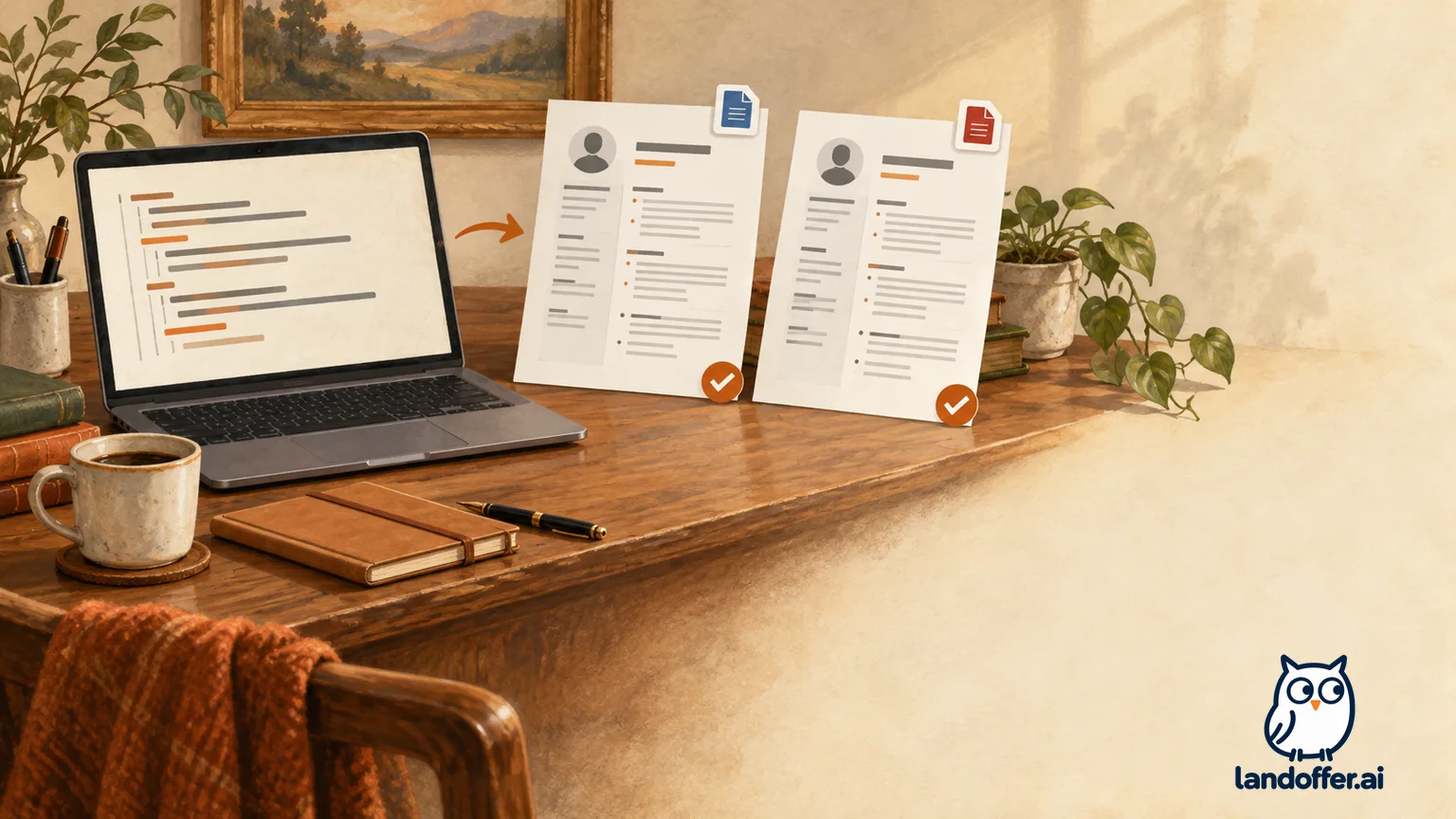
Markdown is useful when you want readable source and are comfortable checking headings, lists, links, and emphasis in text. It is not a visual page editor. If you routinely move individual lines to control page breaks, prefer working in a word processor and treat Markdown as an optional source format rather than a requirement.
Before you convert a full resume, build a short sample with one role, an education entry, a skill list, and a portfolio link. Confirm that the source can express the information you need without adding complicated markup. Avoid relying on advanced tables, multi-column layout, floating elements, or unusual Unicode icons until you see how both output formats render them.
Markdown flavors differ. Pandoc's manual documents its own Markdown format and extensions, while the gfm reader targets GitHub-Flavored Markdown. Choose the reader deliberately with --from; if the source uses a feature from a specific flavor, do not assume every writer will preserve it the same way. Keep formatting simple when the final files will be read in multiple applications.
Organize a reproducible project folder
Start with a small directory so you can tell which files produced the application copy:
resume-project/
  resume.md
  reference.docx        # optional styling source for DOCX
  assets/
  output/
    resume.docx
    resume.pdf
  build-notes.txt
Keep the master source clean and store role-specific copies separately. A filename such as resume-platform-engineer-2026-10.md tells you which version you tailored; a dated output folder helps you avoid uploading an old export after an edit. If you reuse a single resume.md, compare it with your baseline before replacing the previous version.
Record the tool version and engine at the time of export:
pandoc --version
xelatex --version
The exact version commands vary by PDF engine. If you use a different engine, record that executable's version instead. The official Pandoc release page changes over time; the current version shown there is not automatically the version you have installed or the version your build needs. Reproducibility comes from capturing your actual setup, including theme/reference files and dependencies, rather than copying a “latest” label into your notes.
Write source content for document structure
Use headings for resume sections and list items for bullets. Keep the hierarchy consistent: one top-level name, section headings, then role or project subheadings where helpful. Use meaningful link text instead of a raw long URL, and keep email addresses and profile URLs visible in the final file in a way a reader can identify.
A compact excerpt might look like this:
# Alex Example

Software Engineer · alex@example.com · [Portfolio](https://example.com)

## Experience

### Example Systems — Software Engineer
*March 2022–August 2025*

- Reduced a recurring batch job from 90 minutes to 22 minutes by replacing a serial step with bounded parallel workers.
- Added runbook checks that helped the on-call engineer identify incomplete input files before a retry.

## Education

### Example State University
Bachelor's degree in Computer Science · May 2021
The example is fictional. Use wording and dates that match your actual experience. Avoid relying on visual tricks such as multiple spaces to align dates; spacing may collapse or wrap in another output. If you need dates aligned to a column, test the same source in both output formats or use a simple table only after checking how it behaves in Word and in your PDF.
Review your Markdown before conversion. Check that every heading is in the correct order, every list item is a separate bullet, and links point to the intended destinations. Plain text can make inconsistencies easier to see, but it will not catch a mistaken date or unsupported accomplishment for you.
Generate the DOCX and control its styles
Pandoc can write a DOCX from Markdown. A basic command is:
pandoc resume.md --from=gfm --to=docx --output=output/resume.docx
Choose --from to match the syntax you actually used. If you wrote Pandoc Markdown rather than GFM, use the corresponding reader, or omit the reader only when the default is the intended one. Do not change formats merely to silence a conversion warning; first determine whether the source feature is supported by the chosen reader and writer.
For a custom DOCX appearance, use a reference DOCX:
pandoc -o reference.docx --print-default-data-file reference.docx
Open that copy in Word or LibreOffice and adjust the styles and document properties you need, then build with it:
pandoc resume.md --from=gfm --to=docx \
  --reference-doc=reference.docx \
  --output=output/resume.docx
Pandoc's manual says the reference file supplies styles and properties such as margins, page size, headers, and footers; its sample document contents are ignored. Keep edits focused on the styles used by Pandoc, and keep the reference file beside the source. A reference DOCX is a layout input, not proof that the output will look the same in every Word-compatible editor.
Open the generated DOCX in the editor you expect to use for final review. Check heading levels, bullet indentation, line spacing, page count, and any manual page breaks. If the document changes after opening in another editor, save a separate reviewed copy and confirm the final saved file is the one you intend to upload.
Build PDF with an explicit engine
Pandoc can create PDF, but PDF generation relies on a PDF engine. The manual explains that the default route uses LaTeX and requires an installed LaTeX engine; other supported engines and intermediate formats can be selected. The right command depends on what is installed and how you want to style the result.
For example, if XeLaTeX is installed and is the engine you choose:
pandoc resume.md --from=gfm --pdf-engine=xelatex \
  --output=output/resume.pdf
This command is illustrative. Check the current manual and your environment for engine-specific installation and font requirements. If you use an HTML intermediary with a browser-based PDF engine, styling may come from CSS. If you use LaTeX, its template and font setup govern much of the page layout. Do not assume a PDF option will work just because pandoc --version succeeds.
Save the command and engine details in build-notes.txt:
Pandoc: [version from pandoc --version]
Input reader: gfm
DOCX: reference.docx, reviewed in [editor and version]
PDF engine: xelatex [version]
Source revision: [date or commit]
Record the actual versions rather than leaving bracketed placeholders in a shared build log. If your environment cannot provide a needed PDF engine, the DOCX build may still work; resolve the PDF dependency separately instead of claiming the build is complete.
Compare the DOCX and PDF content
A conversion can finish even when an important bullet, character, or link is missing. Compare the source with each output independently. The DOCX may reflow after editing, while a PDF preserves fixed pages from the export moment. The formats are not guaranteed to have identical visual layout.
Check content in this order:
- Confirm the name, contact details, headings, roles, employers, and dates.
- Compare every bullet against the source, especially the last line of each section and any wrapped sentence.
- Check punctuation, apostrophes, dashes, symbols, and accented characters.
- Confirm portfolio and profile links still point to the right destination.
- Verify the education and experience order has not shifted.
For DOCX, reopen the actual file and use Find for a distinctive phrase near the end of the source. This can catch a missing final section. For PDF, select and copy a few lines into a plain-text editor, then compare the extracted order with the page. Text selection helps identify missing or scrambled text, but it does not tell you what an employer's application software will do.
Inspect pagination, readability, and links
Review the PDF page by page at normal zoom. Look for an accidental blank page, a section heading at the bottom with its bullets on the next page, a date separated from its role, clipped margins, or a final bullet cut off at the page boundary. Check that body text remains readable without zooming in excessively. A one-page resume is not automatically better; follow the employer's instructions and keep the experience that supports your fit.
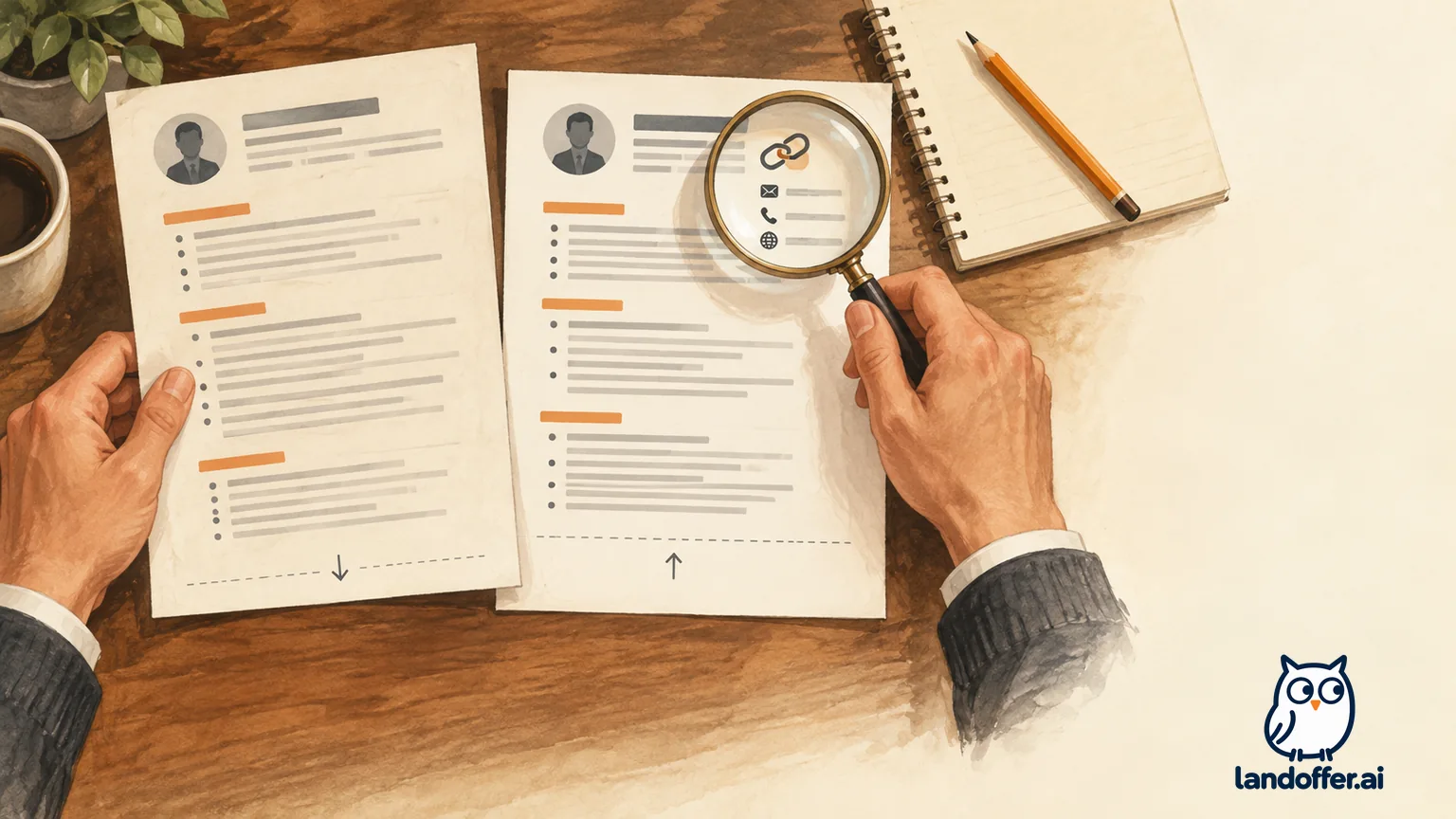
Inspect links in both formats. In the PDF, click email and portfolio links and confirm their visible labels make sense. In the DOCX, use the link controls or open each link from the document. If a hyperlink exports as a bare address or loses its target, change the Markdown link and rebuild. Do not infer that a displayed URL is clickable just because the text looks like a URL.
Keep a short before/after checklist for each build. After any wording or style change, regenerate both requested files from the same source. Do not edit the PDF manually after export or patch one format independently without recording that difference. If the employer asks for DOCX, submit the reviewed DOCX; if the employer asks for PDF, submit the reviewed PDF. A carefully reviewed file can still be rejected if it violates the portal's file-type, size, or naming instructions.
Make updates without losing the known-good copy
Before editing the master, save a dated backup or create a version-control commit. After tailoring a bullet, rebuild both outputs and compare them with the saved baseline. Keep a small change note such as “shortened project summary; rebuilt DOCX and PDF; checked links and two-page pagination.” That record makes it easier to tell whether a formatting difference came from the content edit, a reference file, or an engine update.
If you change Pandoc versions, PDF engines, fonts, or the reference DOCX, treat that as a new build setup. Regenerate both files and inspect them again. A version bump can affect defaults or dependencies. Do not replace the last reviewed application copy until the new exports pass your own content and layout checks.
For sensitive career information, store the source and exports in a location you control. A Markdown file can be opened by many plain-text editors, which is useful for portability, but it also means a copy can be easy to sync or share accidentally. Keep private contact information and references out of examples and public repositories unless you deliberately intend to share them.
Final pre-application check
Before submitting, confirm:
- The source is the tailored version you intended to send.
- The Pandoc reader and PDF engine are recorded with their versions.
- Both requested exports were generated from the same source revision.
- Names, dates, bullets, special characters, and links survived in each file.
- The DOCX and PDF open and display readable sections with no unexpected pagination issues.
- The upload matches the employer's file type, size, and naming instructions.
Pandoc can provide a repeatable conversion path for a resume maintained in Markdown. Your review of the actual output remains the quality check: the employer receives the DOCX or PDF you choose, not your build command or source folder. When you are ready to tailor a checked copy, browse recent roles on LandOffer.ai.