LandOffer
Job search
Applying for Jobs on Your Phone: Check Upload Sources, Saved Drafts, and Handoff to Desktop
Compare documented upload and profile capabilities, prepare an accessible file source, and verify what survives a device change. A worked handoff shows saved answers and a reselected attachment.
You can apply for jobs on your phone when the employer's form works with your browser, you can select the correct documents, and you can review every required answer. Before switching to a computer, verify what was saved. A job bookmark, a reusable candidate profile, and a saved application draft preserve different information; none alone proves submission.
LandOffer publishes this guide. If you find a recent role on LandOffer.ai, keep its employer application link and job reference together. This article uses current public documentation and a fictional handoff example, not a signed-in mobile application test. It does not assume a desktop extension works on your phone.
Check the application route before choosing a device
Read the employer's instructions and identify the place where the actual application happens. A job board may let you save a listing while directing you elsewhere to apply. The employer site may then use another system for documents or questions. Keep track of those transitions rather than treating every Apply button as the same event.
In-app browsers can have a different session from Safari or Chrome. If a form opened inside a messaging app behaves poorly, use the app's normal option to open the link in your browser. Verify the employer and role again after the move. Do not assume previously entered answers or a signed-in session will follow.
A phone is a reasonable choice when you can inspect the document, operate the form comfortably, and finish without rushing. A desktop handoff is useful when a large comparison, several attachments, or an awkward control makes review harder. Choose the device that lets you review accurately; this guide provides no evidence that employers favor computer-submitted applications.
If an assessment has its own device requirements, follow those separately. A mobile-friendly application page does not establish that a later video interview, coding task, or proctored assessment supports the same device. Save the invitation and check its instructions before starting that stage.
What three application services actually document
Public help pages provide a starting point, but they do not establish every employer's mobile configuration. The table distinguishes documented capabilities from the checks you still need to make on the form you are using.
| Service | Publicly documented capability | What to verify on your phone |
|---|---|---|
| Workable | Its application guide describes desktop, mobile and tablet support; its import guide lists local files, Dropbox and Google Drive | Whether the displayed import option reaches the intended file and the extracted fields are correct |
| MyGreenhouse | A reusable profile can store application details and a resume; Quick Apply fills supported fields | Which details appear in this application, which questions remain, and whether a role-specific draft exists |
| USAJOBS | A profile can store resumes and documents; the application process can continue to the hiring agency's system | Which documents transfer and whether the agency requires additional uploads or questions |
Workable's application guide, MyGreenhouse's candidate FAQ, and USAJOBS' application overview support those descriptions. Only the Workable source here explicitly describes mobile support. This table is not a test of mobile feature parity or draft synchronization across these services.
The most useful comparison is the point where you need to check something. Workable's documented cloud import routes do not mean every file in your cloud account is the right version. MyGreenhouse's reusable profile is not evidence that every unfinished answer was saved. USAJOBS' profile storage is not the end of an agency application.
The USAJOBS documents also have role-specific requirements you should read directly. Its resume upload guidance currently specifies a resume of two pages or fewer and a file no larger than 5 MB, while noting that an agency can require uploads in its own system. Do not transfer that rule to private-sector forms.
Make the file available before opening the picker
Start in the document app or file manager, not in the application form. Open the exact export you intend to submit. Check the name, contact information, dates, page count and final page. If you updated the source document after exporting, create and inspect a new export; the old PDF will not update merely because its source changed.
Keep a recognizable filename such as Rina_Resume_DataPlatform_v3.pdf. A date or role label can help you distinguish versions, but avoid confidential identifiers. Save the export in a location you can find from the phone's file picker. Do not substitute a screenshot from Photos for a requested document because it is easier to locate.
On an iPhone, Apple documents adding cloud services to Files: install and set up the provider's app, then enable it in Files under Browse and the location-editing controls. This makes a supported storage location available in Files; it does not guarantee that every employer upload control exposes the same choices. If a provider is missing, check its setup rather than assuming the resume has vanished.
On any phone, allow the selected file to finish downloading if it is stored remotely. Open it before returning to the application. A visible filename or thumbnail may help locate a document without proving that the correct contents are ready for upload. If you cannot inspect the file reliably, hand off the inspected export to a computer you control.
Distinguish a cloud link from a file. A box requesting a document usually expects an upload; a portfolio URL box expects a link. Pasting a Drive sharing URL into an unrelated text field does not establish that the employer received your resume. Follow the specific field and access instructions rather than granting broad public access as a workaround.
Check selection, upload and extracted fields separately
After choosing the document, wait for the form's own result. Look for its filename, preview or attachment confirmation, then inspect any populated fields. If the form reads the resume into employment entries, compare those entries with the file you opened. Check that the file arrived and that the form read it correctly.
Workable's resume-import guidance lists PDF, DOC, DOCX, ODT and RTF files up to 5 MB. It also allows manual form entry with a resume upload where requested. Treat that as Workable's documented guidance and still read the current employer field; it is not a universal format list.
If upload fails, record whether the picker could not reach the file, the form rejected it, or the attachment appeared but extracted information was wrong. Those observations lead to different repairs. The separate resume upload guide covers file-focused troubleshooting in more detail.
On the phone's smaller screen, inspect the beginning and end of text fields after pasting. Dismiss the keyboard if needed, then check month/year fields and the selected location and role options. If the last line is hidden behind the keyboard, move the view or switch devices rather than assuming it was saved correctly. Keep factual declarations based on your own records.
Establish what “saved” means before leaving
There are at least three useful states to distinguish. A saved job preserves a way back to the listing. A saved profile preserves reusable information about you. A saved application preserves some employer-specific work, according to that site's behavior. Record which one the interface actually names so you know whether you can return to the listing, reuse your details, or continue this specific form.
Use Save or Save and exit if the form offers it, and wait for the result. If the site provides a draft list, confirm the intended job appears there. Avoid testing persistence by closing your only copy before preserving the answers independently. A screenshot of a completed step can document the state but is not an editable backup of a long answer.
If no save feature is visible, plan as though unsubmitted work might need to be entered again. Keep your own answer text privately, the job reference, the verified application URL, the file version, the last completed section, and the next unanswered question. Do not record passwords, session cookies or one-time sign-in codes in the handoff note.
Close competing editing sessions only after the destination is verified. Editing the same draft on two devices can make it difficult to tell which version you are reviewing, even when a site supports synchronization. Work from one device at a time and recheck the final state after a switch.
A completed phone-to-desktop handoff
Rina and the employer North Quay Analytics are fictional. In this example, role NQ-642 has four short questions and a resume attachment. The invented form saves question responses to the candidate account but does not retain the unsubmitted attachment across devices. These are explicit example assumptions, not claims about Workable, Greenhouse or USAJOBS.
Rina starts on her phone with resume version 3 stored in her private cloud folder. She checks its two pages, fills the four questions, and selects Save and exit. The form reports a saved draft. Before changing devices, she copies her answer text to a private note and records “NQ-642; questions 1–4 saved; v3 selected; not submitted.”
On her computer, Rina opens the original application route, signs into the same candidate account and chooses NQ-642 from the draft list. She compares the four answers with her note. They match. The attachment area is empty, so she selects the inspected v3 export again and checks its preview. She then reviews the complete application without submitting in this example.
| Handoff item | Phone state | Desktop recheck | Completed result |
|---|---|---|---|
| Employer and role | North Quay Analytics, NQ-642 | Same role in draft list | Identity matched |
| Candidate account | Rina's intended application email | Same email shown after sign-in | Account matched |
| Questions 1–4 | Save confirmation and private text copy | All four compared with the copy | Answers retained |
| Resume | v3 selected on phone | Attachment area empty | v3 reselected and preview checked |
| Submission | Submit not pressed | Review complete; Submit not pressed | Reviewed draft only |
The outcome is useful precisely because it is limited. Rina preserved the answers and repaired a missing attachment before submitting. She did not prove that everything always transfers, and she did not create a second application to avoid checking the first.
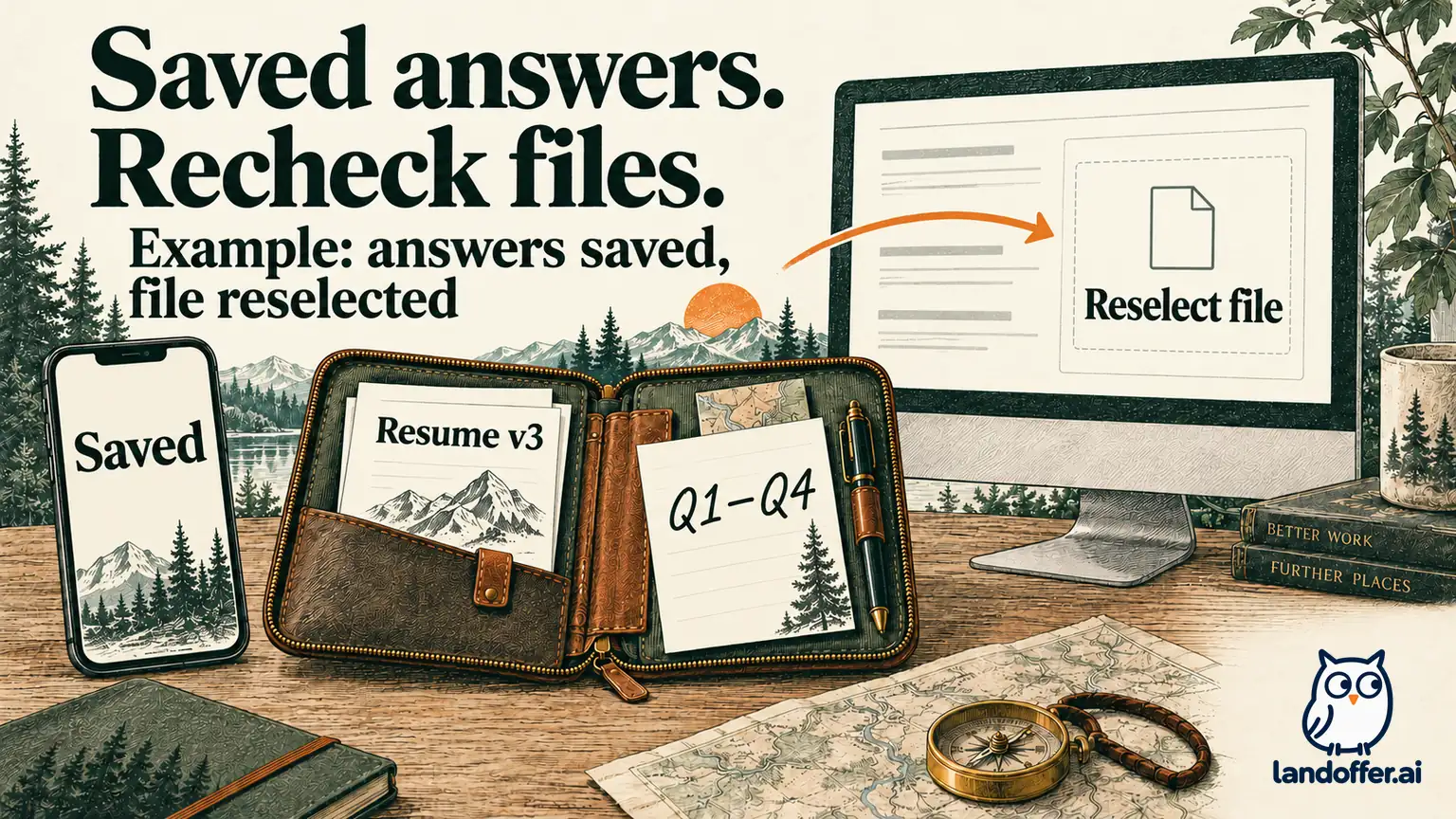
If the desktop had shown no draft, Rina's private copy would still help her recover. Her next step would be to check the account and role, then follow the site's recovery instructions. If she had already attempted submission, she would check receipt before starting another application. The correct branch depends on the last action, not simply on an empty page.
Keep desktop extension claims separate
Do not assume a browser extension's desktop instructions describe phone behavior. Google's Chrome extension guidance describes customization on desktop. Its phone flow uses Add to desktop, with installation noticed the next time Chrome opens on the computer. That is different from running the extension inside the phone's application page.
Read the tool's current device requirements before planning a workflow around it. A mobile website, a native phone app, a browser extension and a cloud application agent can have different capabilities and submission boundaries. This guide has not tested LandOffer's application-assistance features on mobile, and using the jobs page is not evidence of extension compatibility.
Finish with one application and a clear receipt
When you are ready to submit, work from the device holding the reviewed version. Confirm the role, current document and required answers once more. After the final action, keep the confirmation page, application reference or acknowledgment actually provided. A saved draft should remain labeled a draft until submission is supported by evidence.
If the result is unclear, pause and check the employer's application record before repeating the final action on the other device. A device switch is a way to continue work; it is not a reason to reset the application's history.
For your next application, choose a recent role on LandOffer.ai, prepare an inspected file, and decide where you can review the form comfortably. Before switching devices, save the job and account details, your answers and the document version; verify each on the destination device.