LandOffer
Job search
Workable Application Won't Submit: Unsaved Sections, Uploads, and Verification Errors
Find a Workable submission blocker by checking unsaved sections, required answers, file uploads, and Turnstile errors before retrying or contacting support.
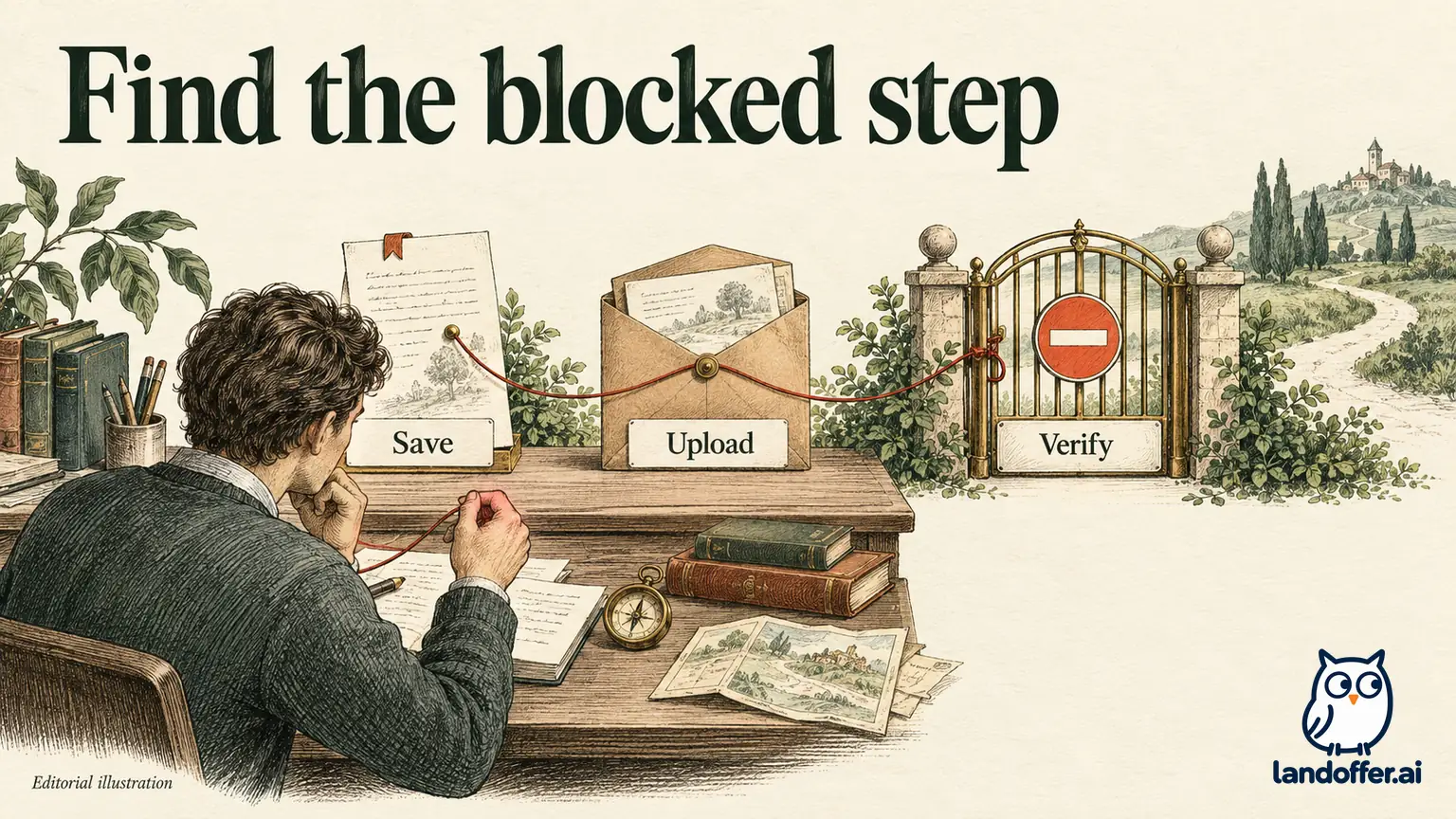
When a Workable application will not submit, separate four possible blockers: a section still awaiting Save, an invalid required answer, an unfinished upload, and a verification error. Preserve your entered material, inspect the specific error, and change one thing at a time. If a previous attempt may already have succeeded, check for a matching confirmation before making another application. A spinning button alone does not establish either receipt or rejection.
LandOffer publishes this guide and offers job-search tools. You can browse recent roles on LandOffer, then follow the employer's actual application route. We checked Workable's candidate help on October 12, 2026, including its October 2 troubleshooting update. We did not submit a real application or reproduce these errors in a private employer form; the recovery records below are fictional worked examples.
Preserve the application before changing the session
Start by recording the employer, title, requisition, current application URL, and email address used. Note the attempt time with time zone and copy the exact visible error, such as “Turnstile 600010.” This identity record matters if you later need help distinguishing an incomplete form from an application already received.
Keep a private copy of longer answers and verify which resume file you selected. A refresh or new browser session can lose unsaved work. Visible text may still be unsaved. A stored profile is also distinct from a submitted application.
If the screen has a confirmation message, capture it before navigating away. If an email arrives, match it to the same employer and role. A generic account-creation email does not answer the submission question. Likewise, an old confirmation for another requisition should not become evidence for this one.
Workable's candidate troubleshooting guide recommends refreshing, checking required fields, and trying another browser or network. Preserve your material before following those steps so that troubleshooting does not create a second problem.
Match the symptom to the next useful check
Start with the visible error and preserve the form before changing settings. Identify the narrowest visible failure and make a change that could explain it.
| Symptom | First check | What the check can establish |
|---|---|---|
| Education or Experience remains editable with a Save button | Save that section and inspect its resulting state | Whether the section now holds the intended entry |
| Required field is highlighted | Read the field's exact validation message | Which value or format still needs correction |
| Resume upload never completes | Check the displayed filename, size, type, and upload error | Whether the selected document has reached an accepted state |
| Cloudflare Turnstile error appears | Preserve the code and isolate browser or network conditions | Whether the verification issue changes under a specific condition |
Workable explicitly documents unsaved sections and Turnstile failures as separate scenarios. An editable section can need saving even if its text looks complete. A verification error concerns the security check; it does not establish that your resume content caused the failure.
Keep the result of each check in a short log. “Education saved; error 600010 remains” is more informative than “The application is broken.” It tells you which problem was resolved and prevents you from repeatedly retyping correct material.
If you find multiple visible errors, fix and verify them separately. A form can have more than one blocker. Removing the first may reveal the next without indicating that the earlier repair failed.
Save an entry without changing its meaning
For a section with its own Save control, inspect the content before selecting it. Confirm that the institution or employer, title, dates, and other required details match your source resume. Saving an incorrectly imported entry makes the error persistent; it does not make it accurate.
Workable says an unsaved Education or Experience section may remain editable until you select Save. After saving, read the displayed summary. It should contain the intended entry, with dates attached to the correct role. If it collapses or locks, that is a section-state observation, not yet a submission receipt.
Consider an imported experience entry with the correct employer but the wrong end date. Correct the date, save the section, and check the summary again. Avoid changing your resume to match a mistaken import merely to make the form look consistent. The verified experience is the reference.
If the same correction disappears after saving, note the exact field and behavior. That is useful evidence for support. Repeatedly filling all sections through an extension may overwrite other correct answers and make the source of the disappearing value harder to identify.
Competing autofill sources need a separate check: browser-saved data, an extension profile, and the uploaded resume can each supply a different value. For this Workable problem, the immediate question is whether the form's own section has retained the accurate entry.
Check an upload as a separate operation
Workable's file-upload help lists a 20 MB limit for application-question uploads and accepted formats including PDF, DOC, and DOCX. Follow any more specific instructions displayed by the employer's field. A general platform list is not permission to ignore a request for one particular document type.
Check the actual local file rather than its appearance in a folder. Make sure it opens, contains the intended resume version, and has the expected extension. Renaming an unsupported file to .pdf does not convert it into a valid PDF. Export it from the document editor in the requested format.
Wait for the upload's own visible result before interpreting the final Submit button. A filename can identify what you selected without proving that delivery completed. Look for an accepted attachment state or a specific error, using the form's available feedback.
Some employer-configured questions request document information through a text field rather than an attachment control. Read the instruction and field type. If a link is explicitly appropriate, verify its access settings and share only the intended material. Do not make an entire private folder public to satisfy one application question.
If your own upload succeeds on a personal network after failing on a restricted workplace network, record that limited result. It supports using the working route for this task; it does not prove that every workplace connection blocks Workable or that the original file was defective.
Complete a recovery log with two different blockers
Dev, a fictional frontend engineer, is applying to role W-472. His resume is a 640 KB PDF, and the form contains an Education entry plus several screening questions. He presses Submit and sees no confirmation. On inspection, Education is still editable and has a Save button.
Dev completes this record instead of starting a second application:
| Checkpoint | Finding in this example | Action and resulting state |
|---|---|---|
| Application identity | Employer and W-472 match the intended role | Preserve URL, email, answers, and attempt time |
| Education | Degree and dates are correct but unsaved | Select Save; read the retained summary |
| Attachment | Intended PDF is accepted; no file error visible | Keep the file and avoid unnecessary re-export |
| Next attempt | Turnstile error 600010 appears | Record the code; stop treating Education as the remaining cause |
| Isolated session change | A current alternate browser on a personal network completes verification in the example | Recheck all fields and submit once |
| Receipt | A role-specific confirmation page appears | Save the receipt and stop retrying |
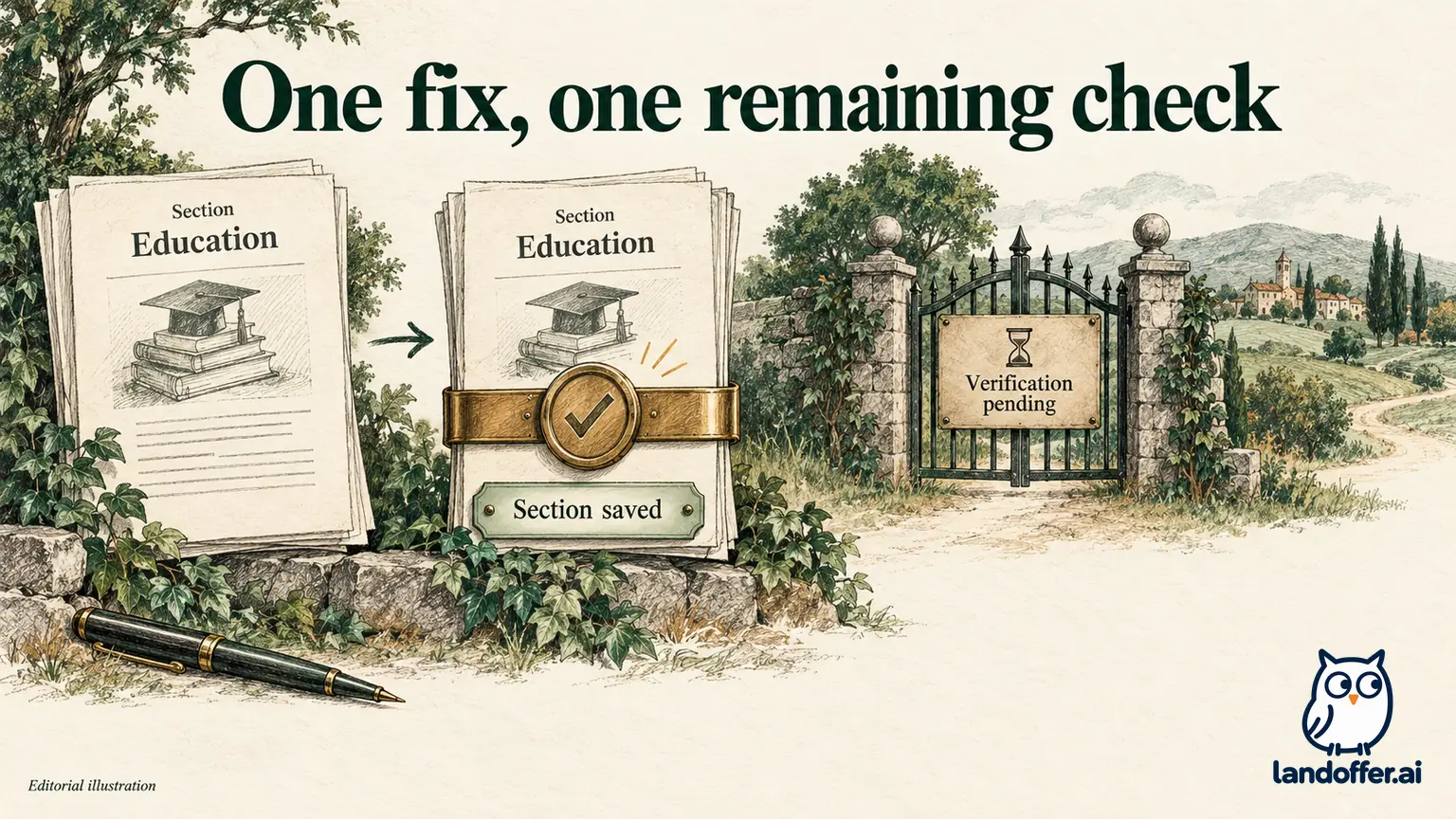
This case has two separate repairs. Saving Education resolves a section-state problem. The later verification result concerns a different step. The record prevents Dev from concluding that the degree wording, PDF, and browser all failed together.
The fictional outcome also does not establish a guaranteed workaround. In your own session, a different browser might leave the error unchanged. Record what actually happens, and preserve the application identity when escalating.
Treat verification errors as evidence, not instructions to bypass
Workable identifies Cloudflare Turnstile as its background visitor-verification check and names error 600010 as an example. Its candidate guidance suggests checking VPN, network, browser, and device conditions. Follow the applicable guidance on a connection and device you are permitted to use.
Do not attempt to bypass a verification challenge or automate around it. If your environment requires a VPN or managed security settings, use an approved alternative or contact support rather than weakening protections you do not control. The application deadline does not explain the technical cause of the error.
Change one condition and inspect the result. For example, try a current alternate browser while keeping the same file and accurate answers. If the message persists, retain the code and move to the next relevant documented check. Changing the document, profile, browser, and network together produces a less useful diagnosis.
An alternate session may require re-entering material. Reconcile it with your saved answers before submitting. Troubleshooting is not complete if the form finally sends with an old resume or a mistaken screening response.
You can also consult Workable's status page for a reported service incident. The absence of a listed incident does not establish that your individual form is working, and a listed incident does not by itself prove it caused your exact error.
Handle a deadline without misreporting submission
If the deadline is near, preserve a dated record of the unresolved error and use the employer's stated contact route to ask whether an alternative submission is available. State that the form has not produced a matching confirmation. An email asking for help is not itself an accepted application, and only the employer can decide whether another route or an extension is available.
For example, a candidate with a portfolio upload blocked at 5:40 p.m. should identify the role and exact upload message rather than sending several unsolicited versions to different employees. If the employer supplies an alternative, follow its instructions and keep the response with the application record. If it does not, retain the unresolved status instead of marking the role Submitted to make the tracker look complete. This keeps later follow-up accurate and prevents a technical problem from becoming a misleading account of what you sent.
Know when to stop and ask for help
Escalate when the same specific blocker remains after the relevant documented checks, the form no longer offers a usable route, or an earlier submission's outcome remains ambiguous. Avoid repeated fresh applications while you are still trying to establish receipt.
A useful support request includes the role identity, URL, attempt time with time zone, exact error, browser, and checks already performed. Share a minimal screenshot that omits unnecessary personal answers. Keep passwords, verification codes, and unrelated private browser data out of the support request.
Here is a completed, unsent example Dev could adapt if the verification issue had continued:
I am applying for Frontend Engineer, reference W-472, through the employer's Workable page. At 4:20 p.m. Pacific on October 12, the form displayed Turnstile error 600010 after Submit. Education is saved and the intended 640 KB PDF shows an accepted attachment state. The same error remained in a current alternate browser on my personal network. I have no role-specific submission confirmation. Could you advise on the verification error and whether an application was received? I have preserved the form and have not created another application.
That request gives support a specific problem and states the uncertainty. It does not claim that Workable lost the application or demand that the employer accept an unverified submission.
Before your next attempt, open the intended role on LandOffer, confirm the employer destination, and record each recovery step until you have a matching receipt or a specific next action from support.