LandOffer
Job search
Taleo Submission Status: Separate Draft, Complete, and Employer Workflow Labels
Separate completion, vacancy status and employer workflow; inspect relevant files and the final submission result.
A Taleo submission marked Complete or Completed can establish application completion without telling you whether a recruiter has reviewed it. First distinguish your submission from the job's status, then read any employer-specific explanation. Oracle's versioned documentation separates default completion labels from customized workflow labels; a label alone is not a universal hiring-stage dictionary.
If the record still says Draft, check the unfinished application, its selected attachments and its final submission step. If it is complete, preserve the evidence and follow the employer's stated next steps. LandOffer publishes this guide; its recent job listings can support your continuing search, but LandOffer cannot inspect or change an employer's Taleo record. The examples below are documentation-based guidance, not tests inside a candidate account.

Read default and customized labels differently
Oracle's Taleo Enterprise 21D status documentation defines three default labels: Draft for an unfinished application, Complete for a completed application, and Withdraw for a candidate-withdrawn application. It also describes customized labels associated with candidate-selection workflow steps and usage context, with configurable explanatory descriptions.
That is a documented configuration model, not proof of the settings at your employer. The source is version 21D, not a newly verified release specification. Keep the exact wording from your portal, including any description beside it.
| What you are reading | What the documentation supports | What remains unresolved |
|---|---|---|
| Default Draft | Application completion is outstanding | Which required step remains |
| Default Complete | The application is completed | Review, shortlist or hiring decision |
| Default Withdraw | Candidate withdrawal is recorded | Whether another application remains active |
| Employer-customized label | Its meaning depends on the configured workflow and description | A universal translation into recruiter activity |
Application completion tells you that the application process was finished. An individual decision tells you the employer's stated outcome for that application. Someone may have finished an application that has not yet received a decision. Equally, a completed application does not become an interview invitation simply because the wording sounds positive. Read a direct invitation or decision as its own event, with the vacancy reference attached.
If an employer explains its labels in a candidate FAQ, use that explanation for that employer. Another candidate may describe a useful experience, but their employer's wording does not define yours. Even an identical phrase needs the surrounding job, date and message context before it becomes useful evidence.
Identify the object before interpreting the status
A candidate profile describes you. A submission connects you to a particular vacancy. A job or requisition describes the opening. Write down which of these objects the page names before assigning a meaning to a status. A page can contain more than one of them at once.
Suppose a fictional candidate, Daria Sol, has two Lakehaven Labs applications: LL58 for a data-platform role and LL73 for a support-engineering role. She must not transfer an LL58 confirmation to LL73 because both appear under her name. Nor should she interpret a change to LL73's job status as a change to every application in her account.
Use these four checks when the page seems to imply more than it actually says:
- LL58 says Completed, with no review message. Record completion; leave recruiter review unknown. The label does not supply a reviewer, review date or shortlist decision.
- LL73's job status says Filled. Record that job-level wording. Without an individual decision, do not invent who was hired or why Daria was not selected. Follow an explicit employer instruction if one accompanies it.
- A Withdraw action has disappeared. Record the missing control if it affects something you need to do. Its absence alone does not establish rejection, selection or the reason the control changed. Do not click other consequential actions as a diagnostic experiment.
- An update leaves an old signature date visible. Check the employer's update rules and the application content. WHO's current-linked guide explicitly says its initial signature and submission date persist after updates; an unchanged date is not sufficient evidence that an edit failed.
Keep the original label and your interpretation in separate tracker fields. If the page changes from Completed to a custom phrase, preserve both dated observations rather than overwriting the first with a guessed decision. An explicit assessment invitation still deserves attention even if the status field stays unchanged. Conversely, a new status timestamp supplies no assessment deadline by itself. Daria would put an actual LL58 invitation and its deadline beside LL58, while leaving LL73's unfinished work visible. That prevents a status change from erasing a task she still needs to complete.
These checks produce usable notes rather than predictions. “LL58: Completed; no individual decision shown” identifies the evidence and the remaining question. “Rejected because the button disappeared” turns an observation into an unsupported conclusion. Keep the uncertainty visible so a confusing control does not become a decision in your notes.
Check which files belong to this submission
A file stored in a profile is not enough evidence that it accompanies the vacancy you intend. Oracle-authored Career Section application-flow help describes an Attachments block that can list uploaded and profile files. In that documented flow, Relevant Files selects files for a job submission; a separate Resume designation identifies a resume. Attachment requirements are configurable.
The help identifies itself as Release 22. Its hosting URL contains “2026,” which does not establish a 2026 documentation release. Use these controls when your employer exposes them; do not search indefinitely for columns absent from a differently configured application. The source does not establish that WHO uses this attachment screen.
Before continuing, inspect the actual files and the application association:
- Match the vacancy reference at the top of the form to your intended role.
- Open the intended resume and check its contents, rather than relying on a familiar filename.
- Where offered, select its inclusion for this submission and check its resume designation separately.
- Include the role's requested supporting documents and exclude irrelevant versions from this submission.
- Read the file-format, size and required-document instructions shown by that employer.
- Review the application summary and any remaining validation messages before signing or submitting.
An old file need not be deleted from the whole account to keep it out of one application. First use the submission's own selection controls where available. Account-wide deletion is a larger change and may not answer which documents were associated with an earlier submission. If a completed application cannot be inspected, describe that limit instead of asserting which file the employer received.
Complete Daria's LL58 application without changing LL73
This is a fictional teaching case, with invented names, files and vacancy references. Assume Lakehaven's LL58 draft exposes the documented Relevant Files and Resume columns. The example demonstrates a selection check; it is not a replica of a real employer's interface.
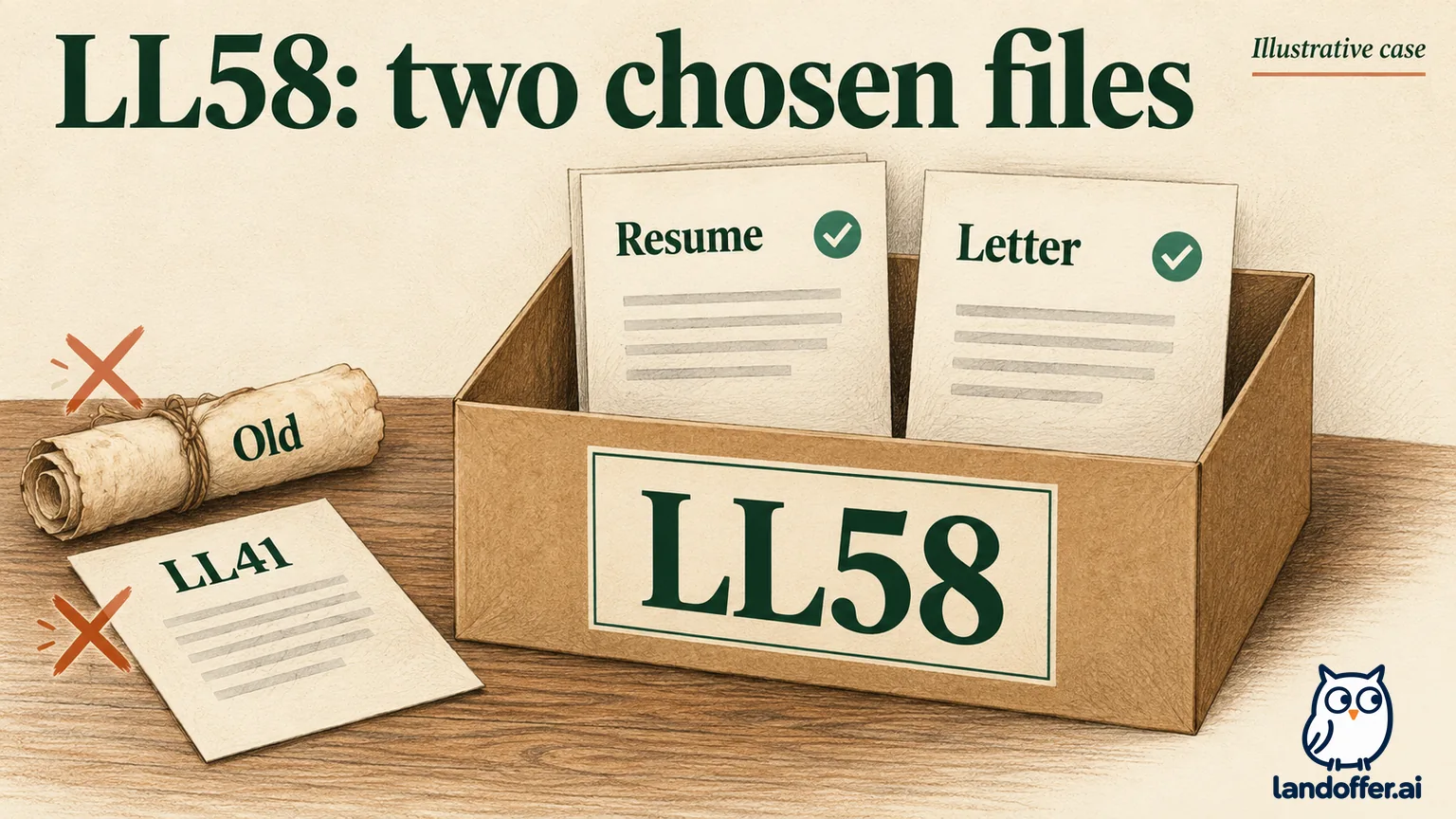
Daria begins with four documents visible. ResumeGeneral.pdf is an older broad resume; DariaSolLL58.pdf emphasizes the data checks and platform work relevant to LL58. LL58Letter.pdf addresses that opening, while LL41Letter.pdf belongs to an earlier role. She opens each intended file before selecting it.
| Visible file | Include for LL58? | Resume designation in this example |
|---|---|---|
| ResumeGeneral.pdf | No | Existing resume flag does not make it the selected LL58 file |
| DariaSolLL58.pdf | Yes | Yes |
| LL58Letter.pdf | Yes | No; it is the supporting letter |
| LL41Letter.pdf | No | No |
The resulting LL58 set contains exactly two files: DariaSolLL58.pdf and LL58Letter.pdf. The older resume's existing flag is not a substitute for selecting the correct file for this vacancy. Daria also checks the letter's recipient and role reference; a document can have a plausible filename while containing the wrong application text.
She then reviews the required questions and corrects a missing availability answer. In this fictional case, she can work Monday through Friday and needs two weeks' notice; she enters those actual constraints instead of choosing unrestricted availability to clear the question. At the certification page, she reads the statement and signs as instructed. She has completed that step, but she has not yet established final submission. She continues through the remaining review screen and uses the final submission action specified by this fictional employer.
In the completed example, the resulting confirmation names LL58, and LL58 appears under completed submissions. Daria saves that confirmation and the selected filenames. Her note reads: “LL58 submitted; two intended documents selected; completion confirmed; selection decision unknown.” LL73 remains a draft because she has not finished it.
The check succeeds because its output matches its input: one vacancy, its two intended documents and its completion evidence. It does not establish that a recruiter read either document, that an assessment is complete, or that Daria will receive an interview. Any separate task or invitation still needs its own instructions and deadline.
If the final screen instead shows an error, the example's outcome changes. Daria should retain the error wording and return through the permitted recovery route. She should not write “Submitted” merely because she intended to finish, or start another account to make the uncertainty disappear.
Use an employer's current guide for the final steps
WHO's current application page links to Stellis and a September 29, 2025 guide, checked October 19, 2026. Its older sample screenshots are illustrations of the instructions, not current account observations.
Signing and submitting are separate
The guide distinguishes eSignature from final Review and submit. It tells applicants to check the vacancy number in the confirmation. This supports checking the final result, rather than treating a signature as a receipt.
History and job status answer different questions
WHO describes draft, completed and withdrawn submissions separately from selection-process statuses such as In progress, Filled and Cancelled. Its guide allows finishing drafts before closing and describes application updates up to the closing date. Those are WHO instructions, not a promise about every Taleo employer.
General profile changes have a narrower scope
The guide says updating General Profile job number 1700001 does not change earlier submitted or draft applications. It also says updates do not generate another initial-submission acknowledgment email. Check the specific application when assessing an edit.
Ask about the unresolved record, not a guessed outcome
Contact the employer through the support route in its current careers instructions when you cannot finish a draft, cannot establish submission, or need clarification of an individual message. Include the role reference, exact wording and the step where the problem occurred. This gives the recipient something concrete to investigate.
For Daria, a useful unsent request would be: “I am checking my LL58 application. It appears in completed submissions, but I cannot verify which supporting files are associated with it. Could you advise how to inspect the submitted documents or provide a correction through your process?” She is asking about a document association, not demanding an explanation for an imagined rejection.
If a deadline is close, include the displayed closing date and time zone, plus the approximate time of the failed attempt. Preserve any confirmation already received. A support request does not extend a deadline or substitute for a required submission. Follow instructions actually supplied by the employer, and keep passwords and authentication codes out of the request.
Keep the next action tied to evidence
For a draft, identify and complete the missing required steps. For a completed submission, preserve the vacancy-specific confirmation and respond to explicit tasks or messages. For a customized status you cannot interpret, consult that employer's explanation before changing your own tracker.
Continue your search through LandOffer's recent jobs while keeping LL58 and LL73 separate. Choose one exact application and record its label, selected documents and final result, plus any explicit task still due. If a field cannot be verified, leave it unknown and ask the employer about that field. A completed application can be recorded accurately while the hiring decision remains unknown.