LandOffer
Job search
SHL Test Complete but Not Linked to Your Application: Check Practice Site and Login
Separate SHL Direct practice results from employer assessments, recover the right invitation login, and ask the hiring team to verify completion.
If you finished an SHL test but your job application still looks incomplete, first check which test you finished. SHL Direct is a practice site; SHL says results from its practice tests are not shared with the company running your actual assessment. For an employer assessment, reopen the original invitation from the company and use its assessment link. If you registered more than once and have already completed tests under different usernames, contact the employer and explain which username completed each one.
A “Completed” label applies to one assessment in one SHL flow. It does not by itself confirm that the employer matched the result to the right application, that the application checklist refreshed, or that a recruiter reviewed your file. Trace the route and login identity before trying anything again; this check helps locate the record, but it cannot prove what the employer’s system received. This guide follows SHL’s current public candidate-support instructions; it does not test a signed-in candidate account or any employer portal.

Browse recent roles on LandOffer.ai while you keep the employer, invite email, and assessment status together in your job-search notes.
Start by separating practice from the employer’s assessment
SHL Direct and an employer assessment can both involve SHL tests, but they serve different purposes. SHL describes SHL Direct as a practice website. It says results from tests completed there are not shared with the company for which you are taking the actual test. A practice report may help you understand your own practice activity; it is not proof that you completed the employer’s requested assessment.
If the only completed item is on SHL Direct, go back to the company’s invitation email or career site and start from the original assessment link. Do not assume that signing in to a practice account will carry a score over to the employer flow. SHL’s public guidance does not describe a way to transfer or attach a practice result to an employer application.
Use the invitation’s context to identify the actual assessment: which company sent it, which role or application it names, what deadline it gives, and whether it links directly to an SHL page or starts from the company’s career profile. When a pending status is already worrying you, first match the invitation to the specific job before entering credentials. That keeps a completed task from being confused with a similar assessment for another role. SHL says candidates may need different sites depending on the assessment type, so a general SHL sign-in page may not show every task.
Before you risk starting another assessment, compare the route you used with the route in the employer invitation:
| What you completed | What it establishes | Next step |
|---|---|---|
| A test opened from SHL Direct’s practice area | You completed practice activity in that practice flow | Open the employer’s original invitation and complete the assessment it requests |
| An assessment opened from a company invitation or career profile | The task may belong to that employer’s assessment process | Return through the same invitation or career profile and check its status |
| A test is marked complete in one SHL account, but the application is still pending | The platform recorded completion in that account; the application display may be separate | Confirm the right employer and username, then ask the employer to verify receipt and application status |
These are route checks, not a prediction about how a particular employer configures its application system.
Return through the original invitation
If you signed in at SHL and cannot find the requested assessment, locate the original email from the employer and open the assessment link from there. SHL’s candidate-support guidance specifically says that the original invitation should contain the assessment link, and that different assessment types may use different sites. If the employer directed you to begin on its career site, sign back in to that same profile and reopen the task there.
Before you click through, compare the company name, role, and any assessment label with the application where the task appears missing. Save the invitation email and note its sender, date, subject, and deadline. If the link says it has expired, has already been submitted, or belongs to a different application, stop and contact the recruiter rather than trying to locate an unrelated assessment by searching for an SHL login page.
If you have more than one active employer invitation, keep them separate. An SHL assessment associated with Company A is not evidence that you completed Company B’s assessment, even if the tests look similar. The employer’s invitation determines which assessment you were asked to take. Do not forward a private invitation link to another person or paste it into a public troubleshooting forum; it may contain a candidate-specific token.
Check which username SHL created
Some SHL flows ask for personal details the first time you open an employer assessment, then send a username for later tests. SHL instructs candidates in this flow to use the username sent after that first registration when continuing with the remaining tests. Check the email account that received the invitation and search for messages from SHL around the registration date. Look for the username and the employer assessment link rather than relying on a browser’s saved login alone.
SHL also says that receiving multiple emails with different usernames likely means you registered more than once. That clue matters because you may be looking at one account while the employer assessment is recorded in another. It does not mean that the accounts are automatically linked, and the public support guidance does not promise a self-service merge.
If you have not started the remaining employer tests, SHL’s guidance is to log out and back in with the first username it sent. Then reopen the original employer link and confirm that you see the expected task before beginning. If you are uncertain which username is first, compare the message timestamps and use the one associated with the initial registration. Avoid creating another account to test the theory; that can create another separate record.
If you already completed an employer assessment while signed into multiple usernames, stop before retaking it. SHL says to tell the company if you completed the remaining tests using more than one username. Send the recruiter the usernames and the assessment names you completed under each one, with approximate completion dates. Ask them to confirm which record is attached to your application and whether they need you to take any further action. Do not send passwords, verification codes, or full assessment answers.
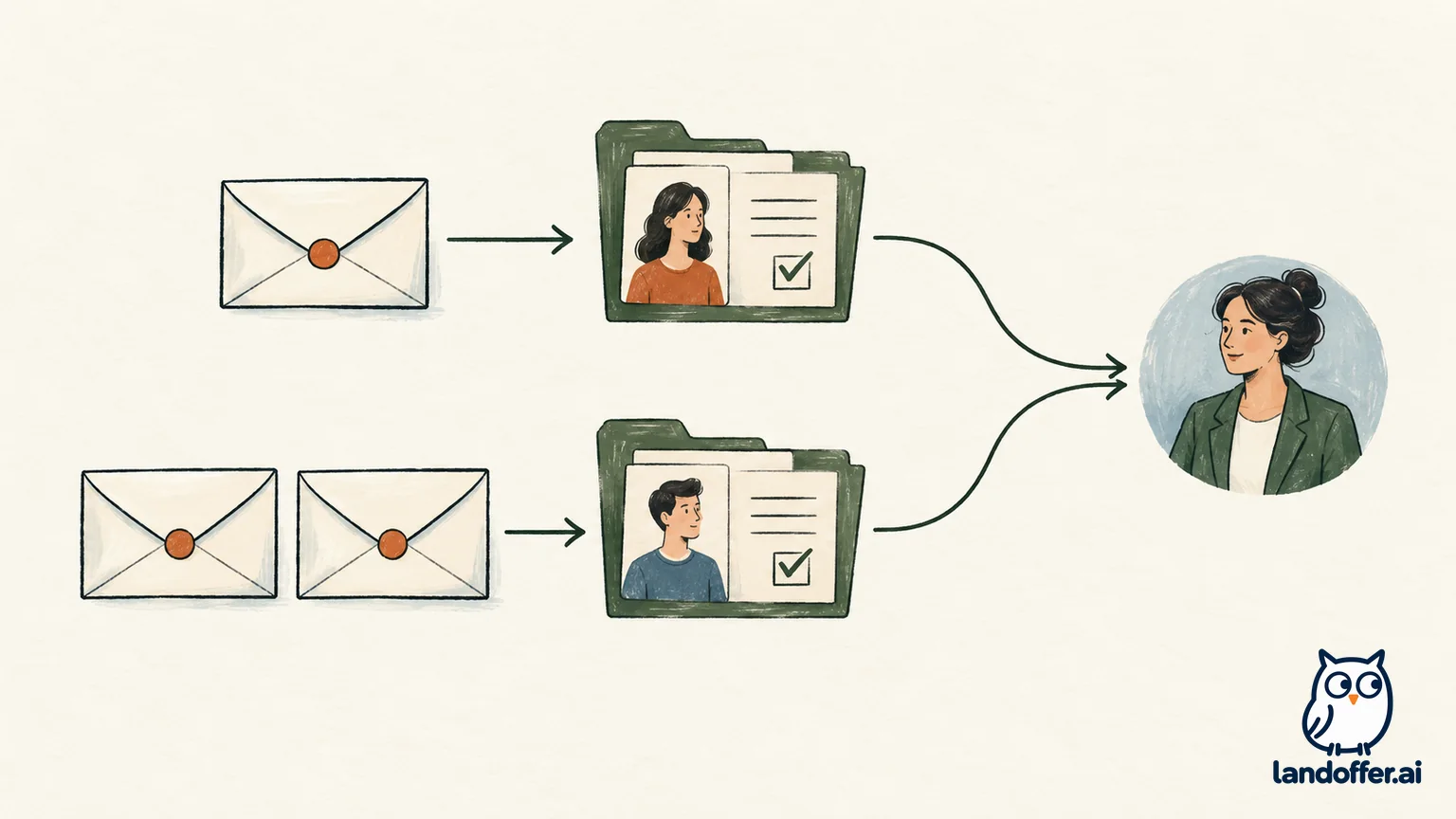
A completed example: practice result, employer assessment still outstanding
Imagine Maya takes a sample numerical test through SHL Direct on Sunday. She can sign into the practice site and sees a report. On Monday, a recruiter sends a separate assessment invitation for a data analyst role. Maya signs in to the practice site again, sees the earlier report, and assumes it has been attached to the application. The employer’s checklist still says “assessment pending.”
The evidence points to two different flows: the report is in SHL Direct, while the company’s invitation is a separate actual test. Maya records the invitation’s role and deadline, then opens its original link. If the link asks her to create a candidate account and later emails a username, she saves that username for the remaining tests. After completing the employer assessment, she returns to the company’s profile or the invitation’s route and checks for the platform’s completion indicator.
This example does not claim that every employer uses the same status page. It shows why “I have an SHL report” and “I completed the employer’s assessment” are different statements. If the application still shows pending after she finishes the invited test, Maya contacts the recruiter with the role, completion date, and the status shown in the employer assessment flow.
A completed example: two usernames after an employer test
Now imagine Jordan opens an employer invitation on a phone and enters personal details. SHL emails a username. A day later, Jordan searches for the test on a laptop, opens a different link, and registers again with a second username. Jordan completes one assessment in each account and then notices that the employer application lists only one task as complete.
Jordan should not try to merge the accounts or retake both tests without instruction. Jordan sends the recruiter a short factual note: “I completed the [assessment name] on [date] under username [first username], and [assessment name] on [date] under username [second username]. My application still shows [status]. Can you confirm which completion records you received and whether you need anything else from me?” The employer can check its candidate records and say whether another step is needed.
This is the situation where SHL’s instruction to notify the company is useful. The employer controls the application and access to its candidate results. SHL says its support team cannot provide employer assessment feedback unless the client authorizes it, and directs result questions to the organization that requested the test. Keep the note limited to the usernames and completion details needed to identify the records.
Confirm completion without relying on a confirmation email
SHL says its assessment platforms do not send completion emails. It also says that the way completion appears varies by platform. Depending on the flow, you may see a green check beside an assessment or a status labeled “Completed,” but those examples are not a universal screen design. Use the status visible in the assessment flow you entered through the employer’s link.
If you started from a company career site, SHL says to check the status in the company career profile or contact HR or the careers team. If the assessment flow shows completion but the application page does not update, take a screenshot of the status if permitted by the assessment instructions, note when you finished, and ask the employer to confirm the application record. Do not capture test questions or restricted content; a status-only screenshot or a written description is usually enough to explain the issue.
SHL says that after an assessment is completed, the company is notified that results are ready. The company’s designated results recipient can access them. That is not the same as a promise that the application checklist will refresh instantly or that a candidate will receive a separate email. Ask the employer what it can see and whether it needs you to do anything else. SHL support can help with technical questions, but it says result feedback and next-step questions belong with the hiring organization.
What to send the recruiter or careers team
Keep the message brief and specific so the employer can locate the right candidate record. Include:
- The job title or requisition number and the email address on the application.
- The date and approximate time you completed the assessment, plus its displayed name.
- Whether you entered through the employer’s original email link or the company career profile.
- Any different usernames SHL sent, and which assessment was completed under each.
- The status you can see now and the exact application status that appears missing.
- A direct question: “Can you confirm whether the assessment is attached to this application, and whether I should take any further action?”
Do not include your password, one-time code, Social Security number, or assessment answers. If the recruiter asks you to repeat a test, verify which invitation and account to use before restarting. A second attempt could be treated as a new or duplicate assessment, and the public guidance does not establish how every employer handles retakes.
When to contact SHL support
Contact SHL candidate support if the invitation link itself fails, the assessment page produces a technical error, or you cannot sign in to the account used for a practice report. Use the candidate-support contact form linked from the relevant SHL help page. For an employer-specific assessment that is missing from your application or a question about what the company received, contact the recruiter or careers team as well; SHL directs candidates to the organization that requested the assessment for those questions.
When you contact support, share the assessment platform or page address, the error text, the time it occurred, your browser and device, and the employer invitation context. Do not send credentials or answer content. If the employer’s deadline is close, tell the recruiter promptly that you are troubleshooting and ask whether the deadline or assessment link can be reviewed. SHL’s public pages do not guarantee a reset, extension, or response time, so do not rely on support to change an employer’s deadline.
The practical rule is straightforward: practice completion stays in the practice flow; the employer’s assessment starts from that employer’s invitation and the candidate identity SHL created for it. Check the route, use the first username when you are still working through remaining tests, and tell the employer if completed tasks sit under multiple usernames. Then ask that employer to confirm the application record. If you are moving on to another opening, browse recent roles on LandOffer.ai.