LandOffer
Job search
Resume Links Not Working in PDF? Check Export Settings and the File You Actually Send
Troubleshoot resume PDF links by checking the source link, export path, PDF viewer, destination access, and the exact file attached to an application.
A portfolio link that worked in your document can still fail in the PDF you send. The link may have been lost during export, may point to an old address, or may open a portfolio that requires permission. Sometimes the PDF is correct and the problem is that an older copy was attached to the application.
Troubleshoot one copy at a time. Check the address in the source document, export a fresh PDF, open that exact file in more than one viewer, and click every important link. Then confirm that the uploaded or attached file is the same one you tested. This process separates a broken hyperlink from a sharing or handoff problem.
For another practical way to keep your search moving, explore LandOffer.ai and compare each application’s file requirements before you upload.
Start with the source document
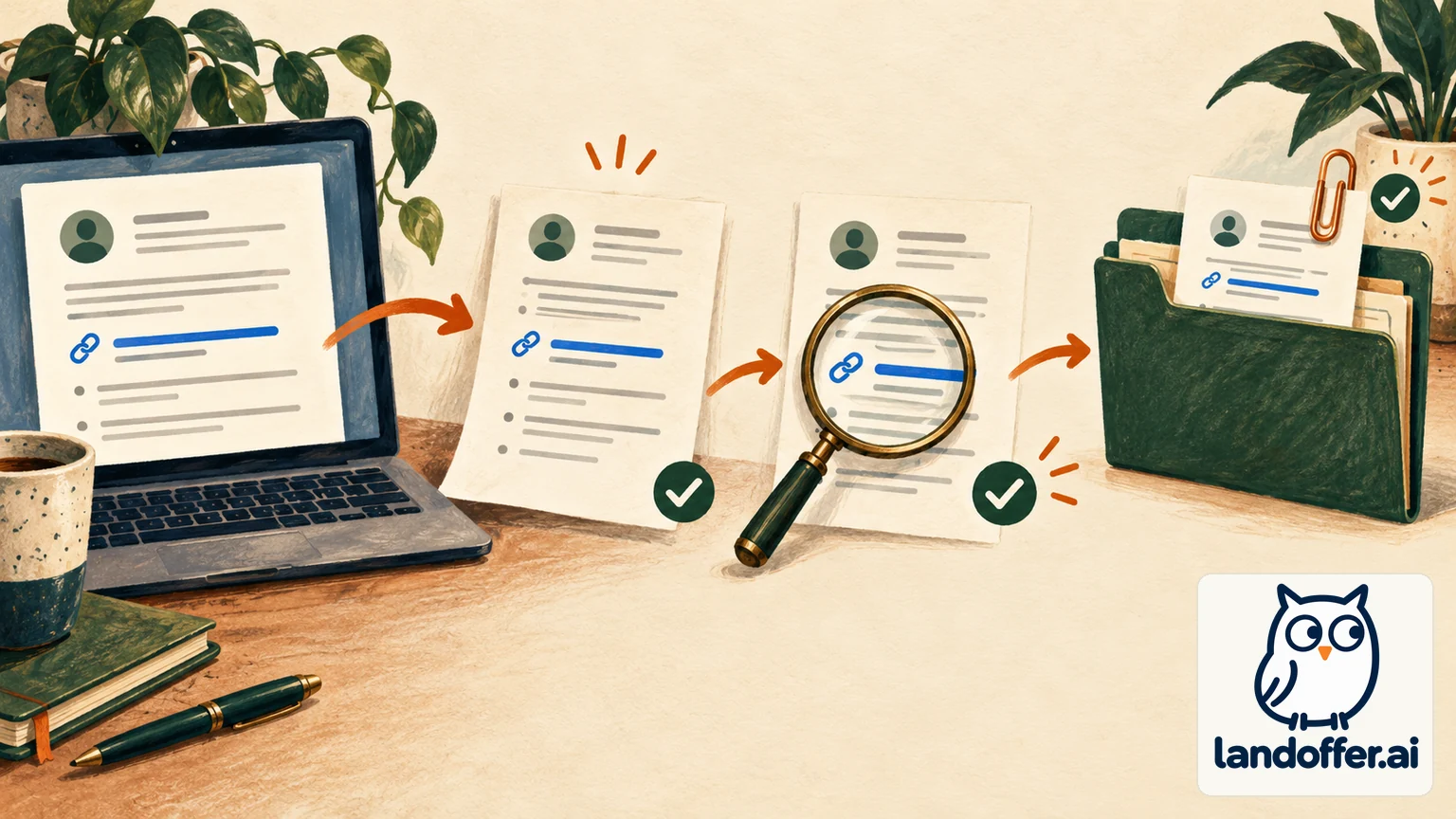
Open the editable file you used to create the PDF. Do not begin by adding a new link in Acrobat; first establish whether the source document has the right destination.
Choose one link that fails and inspect it. In Word, use the link editing controls to check both the text shown to the reader and the destination address. Microsoft’s instructions distinguish the displayed text from the actual web address. In Google Docs, select the linked text and use the link controls to confirm or change the URL. Menu wording may vary by version, but the test is the same: the target should be a complete web address, not merely underlined text that looks clickable.
For a public portfolio, a destination might be a personal site, a GitHub profile or a specific public project. Confirm that the URL uses the intended page and that it has no accidental punctuation at the end. A trailing period copied into a link can make the target invalid. Also check for an old profile name, a moved repository, or a link shortener you no longer control.
If the link text says “Portfolio” or “Selected work,” the address still needs to be correct. You can make the destination easier to recognize by using descriptive link text and including a short readable URL nearby, such as “Portfolio — yourname.example/work”; substitute your real domain. A visible URL gives the reader a fallback if the PDF link is inactive.
Avoid destinations that only work on your computer. A link to a local file path, network drive, private development environment or company-only document will not become public just because you place it in a PDF. Use a web address that you are comfortable sharing and that opens without your credentials. If the work is private, choose an approved public sample, a redacted explanation, or another safe fallback. Do not expose source code, customer information or internal dashboards to make a portfolio link work.
Confirm that the destination is accessible
A PDF can contain a perfectly functional link that leads to a page the recruiter cannot open. Test the destination separately from the PDF. Open a private or signed-out browser window, paste the address directly, and confirm that it reaches the intended page without relying on your own saved session.
For GitHub, check that the profile and repository are public if you intend to share them publicly. For a design portfolio or hosted document, test the viewer permissions from a signed-out session. If the page asks the viewer to request access, change its sharing setting only if you are comfortable making that specific work public. If you do not want to expose the page, link to a public landing page that explains what you can share and how to request access through an appropriate channel.
Look for redirects and authentication prompts. A company URL may send you to an internal login page when you are signed in, which can disguise a permission problem. A profile may have changed usernames while an older PDF still points to the previous address. Check the final page title or profile name after the destination loads.
If the portfolio is public but the link still fails from the PDF, save the destination address in a scratch note. This avoids guessing whether the fault sits in the resume file or at the destination.
Export a fresh PDF with links intact
Return to the source document and create a new export. Use the authoring program’s PDF export or download workflow, and follow the employer’s requested format. Google Docs documents both File > Download as PDF and, for large documents in Chrome, File > Print > Save as PDF.
Some conversion workflows expose a link setting. Adobe’s PDFMaker guidance for supported Microsoft Office workflows, for example, describes an “Add Links” conversion option. Treat that as a product-specific check: a similarly named control may not exist in a different application or export route. If you use an app that has link or hyperlink conversion settings, confirm they are enabled, export again, and then test the resulting PDF rather than trusting the checkbox.
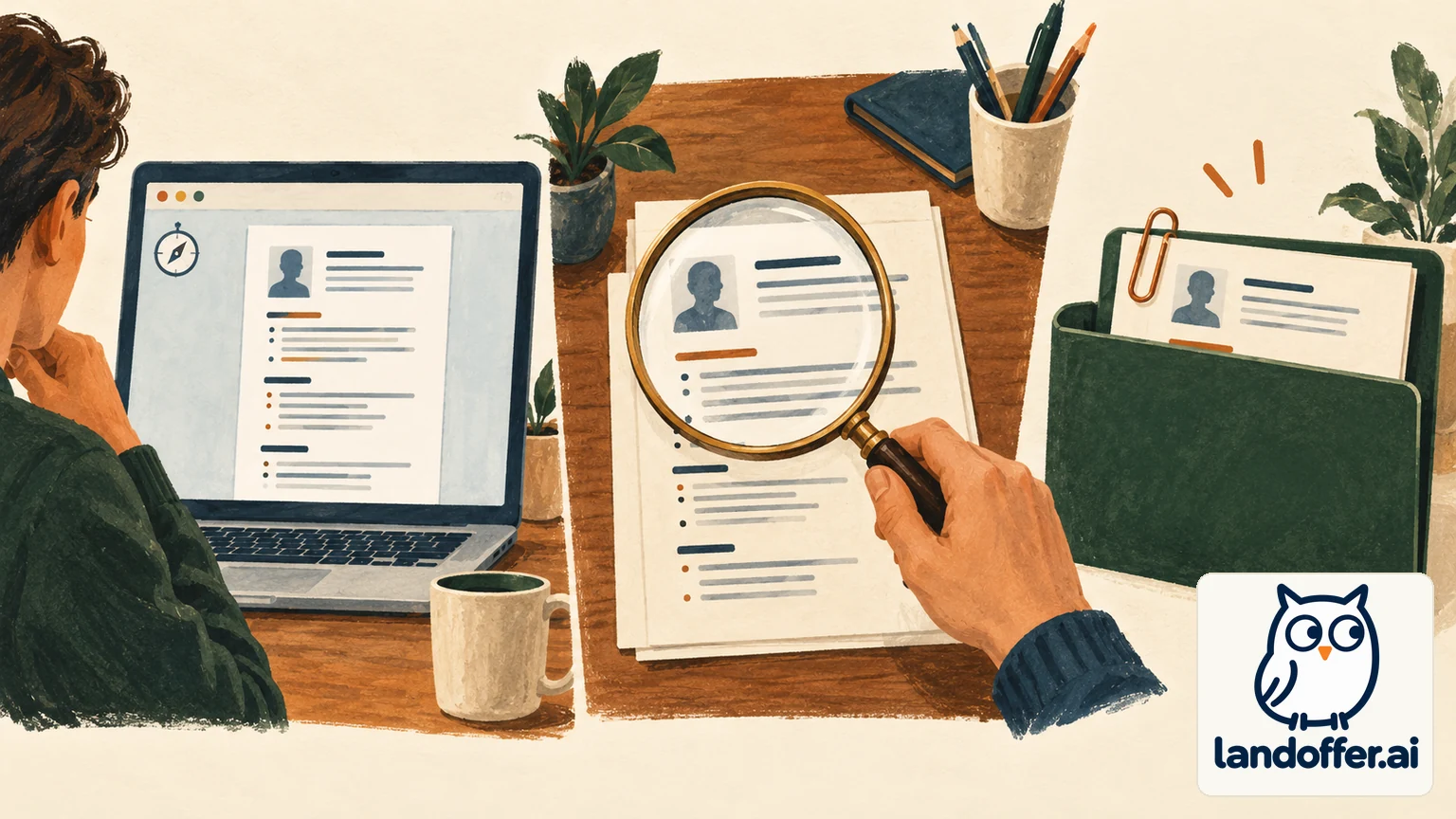
Avoid exporting a screenshot or flattened image of the resume when you need clickable links or selectable text. Printing to PDF can work, but the output depends on the application and print path. If a link disappears after printing, try the program’s direct export/download route, or add the correct link in a PDF editor after export. Adobe Acrobat’s current link tool can add or edit a link area and assign an action such as opening a web page.
Give the new PDF a clear filename and save it where you can identify it. For example, use a role or date suffix instead of overwriting several files named “Resume final.”
Test the exported file in two viewers
Open the fresh PDF from its saved location. Do not only inspect the document while it is still open in the editor. First test the viewer you normally use, such as the browser’s built-in PDF reader or Acrobat. Then open the same local file in a second viewer.
Check each portfolio, GitHub and contact link that matters. Hover or use the viewer’s link information to see whether the destination matches the address you inspected in the source. Then click it. If you prefer keyboard navigation, use Tab to move through interactive links and activate the selected link with the viewer’s documented key. Controls differ; if Tab moves the page instead, use the viewer’s link tool or test with a mouse.
When the PDF shows a link but it does not activate, inspect the target in a PDF editor’s link tool. Adobe’s “Add or edit a link” control shows the link region and action. If no link region exists, the PDF may contain only styled text. Go back to the source, select the text and insert the web address with the application’s link control, then export again. If a link region exists, compare its target against the scratch note. Correct the outdated or malformed URL in the source and create a new export.
Also check the file’s text, not just its links. Select and copy the email address, website and a few lines of resume text into a plain text editor. If the whole page pastes as one image or the text is missing, the PDF may have been flattened or exported incorrectly. Fix the export before sending it, because the same issue may affect readability or parsing.
Separate PDF problems from link and permissions problems
Use the failure pattern to narrow down the cause:
- The text looks linked but nothing happens in either viewer. The source may contain colored or underlined text without a hyperlink, or the export did not create a PDF link annotation. Insert the destination through the source application’s link command and export again.
- The PDF opens a different page. The hyperlink likely points to a stale, mistyped or redirected address. Edit the address in the source, export a new file, and compare the link target.
- The page opens for you but not in a signed-out window. The PDF link is working; the destination has a visibility or account-permission problem. Fix the share setting only for work you intend to show, or provide a safer public alternative.
- It works in one viewer but not another. Keep the PDF unchanged while you compare the same saved file in both readers. This points to a viewer or configuration difference, not necessarily a missing link. Use a broadly accessible web address and retain readable URL text as a fallback.
- The new PDF works but the submitted application does not. Check the uploaded filename, file size or timestamp and preview. You may have attached an older copy, selected the wrong resume version, or need to replace the file in the portal.
- The link activates but a reader or hiring system does not extract it. A clickable PDF link does not guarantee that a particular ATS will parse or display it. Keep the most useful destination visible in text, make the resume understandable without opening the link, and follow any employer instructions.
If you add a link inside Acrobat after export, re-open the saved, repaired PDF and test it. Then confirm the repaired file—not the pre-repair version—is the one selected for upload. Acrobat can edit the link area, but that repair will not update a separate Word or Docs source file.
Attach the file you actually tested
Before applying, close the PDF and locate the file you just verified. Check its filename and modified time, then reopen it. Confirm the links and resume content one final time.
When attaching through email, remove the old file from the draft before adding the corrected PDF. If the system adds a second copy with a suffix such as “(1),” check which version is attached. In an application portal, review the displayed filename or preview after upload. If the portal does not show a preview, confirm the upload completed and replace the attachment if you selected the wrong version. Do not assume a successful upload means you uploaded the intended file.
Keep one clearly named final PDF for that application and archive older copies somewhere separate. Before reusing a file, reopen it and click its links; a link can become stale after you change a profile name, move a repository or update your portfolio domain.
A short pre-send check
Run through this sequence when a resume link fails:
- Inspect the address attached to the text in the editable source document.
- Open the destination while signed out and confirm that the intended work is public or appropriately accessible.
- Export or download a fresh PDF using the employer-approved format and app-specific settings.
- Open that saved PDF in two viewers; click or keyboard-test each important link and verify its target.
- Check that the resume text is selectable and that the document is not a flattened image.
- Attach or upload the exact file you just tested, then check its filename or preview.
For links that should be accessible to keyboard and screen-reader users, use link text that identifies the destination and retain selectable text in the PDF. W3C’s PDF techniques describe link annotations with associated link text. This is a useful accessibility check alongside the visual click test, not a guarantee that every employer’s software behaves the same way.
If the address is correct, the PDF link activates, the destination is accessible and the right file is attached, the basic handoff is in place. You still cannot infer from a successful click that an ATS has extracted the link or that a recruiter has opened it. Keep a readable URL where it helps, follow the application’s file instructions, and use the confirmation or uploaded-file view to verify what you submitted.
If you are preparing another application, browse recent roles on LandOffer.ai and check the requested resume format before attaching your file.