LandOffer
Job search
Portfolio Demo Video for Job Applications: Show the Workflow in Five Minutes or Less
A complete fictional seven-shot four-minute recovery workflow and completed version/visibility disposition, supported by current first-party capture, portfolio, captions and access documentation.
A useful portfolio demo lets an employer see one complete workflow, understand your contribution, and inspect the evidence behind it. Aim for five minutes or less only when the application gives no different length or format instruction. That is this article’s editing ceiling, not a universal employer requirement or a promise that someone will watch the whole recording.
Start with the role you are targeting, then choose a project that demonstrates relevant work. You can browse recent roles on LandOffer.ai to identify the workflow worth explaining; LandOffer publishes this guide, and browsing does not establish an employer’s portfolio requirements. The example below is a completed fictional script and delivery decision. No video was recorded, hosted, or tested for this article.
Choose one question the video can answer
“Here are all my projects” gives a viewer too many starting points. Use a concrete question: “Can this person explain how an operator discovers and corrects a failed import?” That question determines what appears on screen and what belongs in the accompanying case study.
MIT’s career guidance describes portfolios as field-dependent and recognizes PDFs, websites, video, audio, and code as possible formats. It does not prescribe one video length for every profession. Follow the specific vacancy and application instructions first; a requested PDF remains required even if you have an excellent recording. MIT portfolio guidance supports choosing a format appropriate to the audience rather than treating video as a replacement for everything else.
Pick a workflow with a visible beginning, a meaningful decision, and a readable result. For a frontend role, that might be an accessible validation flow. For a data role, it could be tracing a rejected record to an explicit rule. For a platform role, explain a bounded recovery path without displaying real infrastructure credentials. Choose the version you can explain accurately, including its limits.
Prepare the evidence before opening the recorder
Write down what you personally implemented, what collaborators supplied, and which screenshots or data you can share. Use a self-contained demonstration dataset. Removing someone’s name while retaining their sensitive records or an employer’s proprietary workflow does not establish permission to publish it.
Prepare a clean capture environment: close unrelated tabs, hide notifications, remove account identifiers, and replace secrets or customer data before recording. Inspect the entire visible area, including terminal prompts, bookmarks, browser history suggestions, filenames, and error traces. Review later window changes as carefully as the opening frame, so an otherwise useful demonstration does not expose unrelated material.
OBS documents separate source types for screens, windows, images, audio, and other inputs; its guide also explains source order and cropping. Those controls can help construct a focused recording, but cropping is not a confidentiality guarantee. Select a suitable capture source for your operating system and inspect what it includes. This article did not install, run, or benchmark OBS. OBS sources guide
Use the script as a sequence of evidence, not a passage to read without looking at the application. Name the input, perform the relevant action, pause over the result, and explain why it matters. The viewer should be able to connect the result to your contribution without reconstructing the entire project. Remove routine navigation unless the navigation itself demonstrates a design or engineering decision.
Worked script: a four-minute import-recovery walkthrough
The following project, candidate, screens, and behavior are fictional. Maya built a personal CSV-import prototype called Queue Garden. She owns the demonstration material in this example. It is not a deployed employer system. Every screen outcome below is stipulated script content; the only executed check is the local arithmetic of the proposed segment durations.
Her target is an application-engineering role involving internal tools and validation. She selects one story: an operator imports three synthetic inventory rows, sees one validation failure, corrects the source, and retries without repeating previously accepted rows. She will explain the prototype’s intended retry rule without calling it proven production reliability.
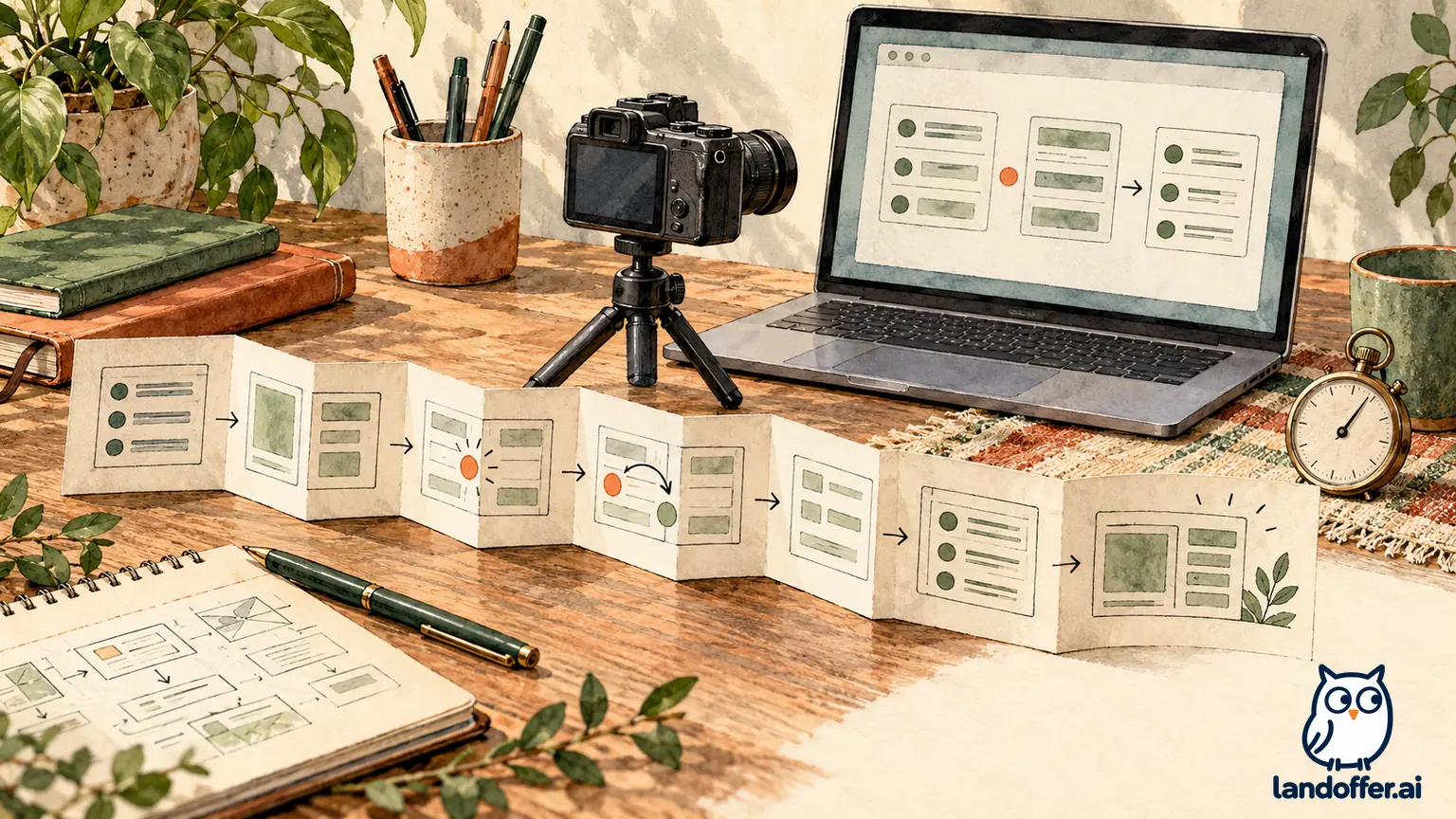
The finished shot plan allocates 240 seconds across seven contiguous segments. A local arithmetic check confirms the segments total four minutes; it does not measure narration speed, export duration, or whether the imagined prototype works.
| Time | Screen and action | Prepared narration and evidence |
|---|---|---|
| 0:00–0:20 | Opening view with prototype name and import panel | “This personal prototype explores recovery from a partially valid inventory import. I implemented the form, validation display, and retry-state logic. The records are synthetic.” |
| 0:20–0:50 | Show three-row input: item A12 quantity 4; B07 quantity minus 2; C21 quantity 6 | “The second row violates the nonnegative-quantity rule. I will show where that failure appears and how the operator gets back to it.” |
| 0:50–1:35 | Show the planned result: two accepted rows and one rejected row with its reason | “The error refers to row two and the quantity field. Successful rows remain visible separately, so the operator does not have to infer what happened.” |
| 1:35–2:15 | Follow the correction route; replace minus 2 with 2 | “The correction changes the source value, rather than hiding the error label. The recovery action is attached to the rejected record.” |
| 2:15–3:00 | Show the intended retry result and operation history | “This prototype is designed to retry the corrected row while preserving the earlier accepted rows. This display illustrates that intended behavior; it is not evidence of concurrent or distributed execution safety.” |
| 3:00–3:40 | Show one state diagram and a relevant implementation excerpt | “The interface separates pending, accepted, and rejected states. The next engineering check would cover interrupted retries and repeated requests; this demo does not establish those properties.” |
| 3:40–4:00 | Return to result summary and case-study reference | “The case study explains my implementation choices, collaboration boundaries, and known limitations. The repository contains the accompanying code where sharing is permitted.” |
Maya cuts installation, dependency updates, typing every import, and an unrelated dashboard tour. Those details would consume time without helping the viewer evaluate this recovery path. She keeps the invalid row because it reveals an important product decision that a successful import alone would conceal.
Her opening also avoids an inflated claim such as “I built a reliable inventory platform.” A personal prototype can demonstrate reasoning and implementation work while leaving scale, security, accessibility, and operational reliability unverified. The recording should make those boundaries easy to identify.
The table provides narration anchors rather than a fully timed spoken performance. If a rehearsal takes longer, shorten the explanation or remove a secondary visual. Do not speed up essential actions until error text becomes unreadable just to reach the target duration.
Make the workflow understandable without sound
A viewer should be able to identify the input and changed result while reading captions. Increase the size of the relevant interface area, keep the cursor deliberate, and avoid covering the error message with a webcam overlay. A face introduction is optional unless the employer asks for one; the project evidence deserves the available screen area.
W3C’s media-planning guidance distinguishes captions, descriptions of meaningful visual information, and transcripts. These serve different needs. For a software demo, narrate important visual changes and supply a useful text explanation alongside the video. That recommendation does not certify the player or entire portfolio as WCAG-conformant. W3C media accessibility planning
YouTube documents options to upload caption files, synchronize transcript text, or type captions manually. Review the resulting words and timing, especially project names, negative quantities, and technical vocabulary. An incorrect caption turning “does not retry” into “does retry” changes the claim. Availability of automatic captions is not a substitute for that review. YouTube caption options
For Maya’s case study, the text alternative states the synthetic input, the intended two-accepted/one-rejected result, the proposed correction, and the remaining retry limitations. It remains useful if the recording cannot play. It does not say that tests passed merely because the script describes a successful screen sequence.
Choose visibility for the actual hiring audience
YouTube documents that an unlisted video can be watched and reshared by anyone with its link, without a Google account. It is not normally listed on the channel’s Videos tab or in search, although inclusion in a public playlist can affect discoverability. Unlisted is therefore unsuitable as a safeguard for material that must remain confidential. Private videos use a selected-recipient sharing route instead. YouTube visibility settings
Loom’s current documentation distinguishes public-link, workspace, and restricted access. Public-link viewing does not require a Loom login, but workspace administrators can disable that option. Do not assume a work account can provide an outside recruiter with access. Loom privacy settings
An embedded player also needs a working access route. Loom explicitly says embedding continues to enforce video privacy; placing a restricted recording on an accessible portfolio page does not remove its restriction. Provide a descriptive direct link as well as any permitted embed. Loom sharing documentation
Worked delivery decision: retire the unsafe cut
Continue the fictional Maya example. Her preparation review has four candidate artifacts. The decisions below are completed editorial judgments about the stipulated material, not a record of uploaded files or an actual signed-out playback test.
| Candidate artifact | Stipulated finding | Completed decision |
|---|---|---|
| Earlier rehearsal cut | A browser tab exposes an employer’s internal issue title | Reject this cut entirely; prepare a new clean capture rather than rely on a thumbnail or obscure link |
| Clean prototype cut v2 | Contains only Maya’s own interface and synthetic records; narration still needs timing review | Select for the planned final recording; do not label it recorded or verified yet |
| Employer-only Loom workspace route | Outside viewers are not granted access under the stipulated workspace policy | Exclude from the application packet; do not ask reviewers to join the employer’s workspace |
| Written case study | Contains the same three-row example, contribution statement, and retry limitations | Keep as the accompanying text alternative and fallback |
Maya chooses a personal hosting route for the eventual clean recording, conditional on the employer accepting external video links. If she uses an unlisted YouTube link, she accepts that it can travel beyond the initial recipient and includes only material suitable for that exposure. She does not make the unsafe rehearsal acceptable by changing its visibility.
Her prepared delivery-record entry, linked to the seven-shot script, reads: “Queue Garden import recovery, v2. Planned four-minute demonstration; synthetic input only. Replaces the rejected rehearsal. Contribution: interface, validation display, retry-state logic. Remaining work: record, review captions, verify final playback, then insert the accepted link.” The word “planned” stays until an actual export has been checked.
For the eventual access review, she will use the exact link intended for the application, inspect the start and later segments, confirm the visible version, and check the captions and written fallback. These are outstanding actions. A creator’s signed-in view would not by itself establish external access, and a successful playback would not prove that a recruiter watched it.
Finish the packet without expanding the claim
Keep the label useful: project name, workflow, actual duration once known, and your role. Put the recording beside the relevant case study rather than making a reviewer search an unrelated channel. Follow the application’s permitted attachment and URL fields; a video link does not replace required documents or establish that an application was submitted.
Before recording, compare the script against one real vacancy and remove scenes that do not help demonstrate its work. Then check the completed export, not just the editing timeline. If the application does not accept an external recording, retain the script as preparation and submit the requested format instead. Use recent roles on LandOffer.ai to choose that target, and prepare one accurate, shareable workflow explanation before adding more projects.