LandOffer
Job search
A Job Application Keeps Logging You Out: Save Your Work and Diagnose the Session
Save visible answers and role details before refreshing or resetting site data. Use a completed recovery example to separate an expired session, restored draft and unfinished submission.
If a job application keeps logging you out, preserve your visible answers before refreshing, signing in again or clearing site data. Then identify the employer, account and step that failed. A login loop, an expired session and an unfinished application require different checks. Restored access does not prove that your answers survived or that an application was submitted.
LandOffer publishes this guide and offers recent job discovery, so we have a commercial interest in job-search tools. We reviewed official Chrome and Oracle Recruiting documentation on October 19, 2026. We did not test a private application, change browser settings or reproduce an outage. Evan's employer, records and recovery results below are fictional teaching examples.

Preserve the page you still have
If your own long answers remain visible, copy them into a private local document before taking an action that may replace the page. Include each question's wording so you can restore the answer to the right field. That avoids pasting a strong project example into an unrelated eligibility or availability question. Record the employer, role identifier, application stage and exact error or warning. Keep the selected resume filename and your original export separately.
A screenshot can preserve a warning and the step where it appeared, but it is a poor substitute for editable essay text. It may also expose other answers or an access-bearing URL. Keep the original privately and prepare a limited, redacted version only if an appropriate support channel needs it.
Treat the page's Save or Continue action according to the employer's instructions. If it reports a saved draft, retain that evidence. If you cannot establish whether the latest answer was saved, mark it unconfirmed. Leaving a form open, seeing your name in the header or uploading a file does not establish that every field reached the employer.
If the page is already blank, this workflow cannot recover text you no longer have. Check an existing draft and your own earlier copies before rewriting. Do not promise yourself that browser history, a Back action or another login will restore unsaved answers.
Identify the account and the action that failed
Start again through the employer's official careers entry point after preserving what you can. Match the organization, vacancy and original sign-in method. A social-account button, a direct employer login and a verification-code prompt can lead through different identity checks. Record which route you used without copying passwords or codes into your application notes.
Track one recovery attempt at a time for the affected role. Record whether the failure occurred immediately after login, after a period away, after an upload or after final Submit. “Returned to sign-in after opening the saved draft” gives support a more useful sequence than “the website is broken.” It does not assert a cause you have not established.
On Oracle Recruiting, identity verification may happen before a returning candidate enters a prefilled application, or at another point according to the candidate record and employer configuration. Accepting a code can restore access while required application work remains unfinished.
If you were at final Submit when the page changed, check for an application-specific confirmation before sending another application. If you were still editing, find the existing draft instead. Keep the receipt question separate from the access problem so an uncertain submission does not become an unnecessary duplicate.
Distinguish an inactivity warning from a browser problem
Oracle's Career Site Session documentation supplies one concrete example. With the described active access-code session, it documents a warning after 27 minutes of inactivity and closure after 30 minutes if the candidate takes no action. The warning offers a choice to extend the session and continue working or sign out. Recognized active use extends the session, while the access code has a maximum duration of four hours.
Those are Oracle-specific documented conditions, not default timers for Workday, iCIMS or every employer. The same page notes an exception when Keep Me Signed In is enabled. Do not use a timer from this guide to override a different message on your actual application.
Oracle's separate Keep Me Signed In guidance describes employer configuration, a validity period and use of the same browser. It also describes required verification after 180 days from initial verification. Remembered sign-in is therefore a configured capability with limits, not a permanent-access promise or a guarantee that an unfinished form is saved.
Use a visible session-extension control when it is offered and appropriate, then check the draft itself. Do not rely on an automatic refresh or a keep-alive script to preserve work. A session timer concerns access; a saved answer concerns application data. Neither can be inferred solely from the other.
The documented four-hour access-code duration concerns Oracle's authenticated session; it does not establish the lifetime of each emailed verification code. If the code itself is rejected, follow the actual prompt. For an Oracle challenge, identify whether the prompt concerns access to a draft or confirmation after submitting the form.
Evan preserves KW57 before returning to the draft
Consider fictional candidate Evan Rook applying to invented employer KestrelWorks, role KW57. For this exercise, assume an Oracle-style access-code session with Keep Me Signed In not enabled. Evan has two essay answers visible, a selected PDF and a partially completed application. The times are assumed teaching facts, not an account test.
Evan's last recognized site activity is 14:12 PDT on October 19. At 14:39, the page displays the inactivity warning. Evan preserves the visible essay text locally but does not use the session-extension action. At 14:42, the session closes in this example. The 27- and 30-minute intervals follow the documented Oracle conditions; they do not diagnose another employer's logout.
Before returning, Evan completes this inventory:
| KW57 item | Evidence preserved privately | What still needs checking |
|---|---|---|
| Essay A and Essay B | Each question and its visible answer copied into a local file | Whether the resumed draft contains the same text |
| Resume | EvanRook-KW57.pdf retained locally | Whether that export is attached to the draft |
| Application location | Employer entry point, KW57 and account label | Whether the resumed page is the same application |
| Session event | Warning at 14:39; sign-out at 14:42 PDT | No submission or application receipt established |
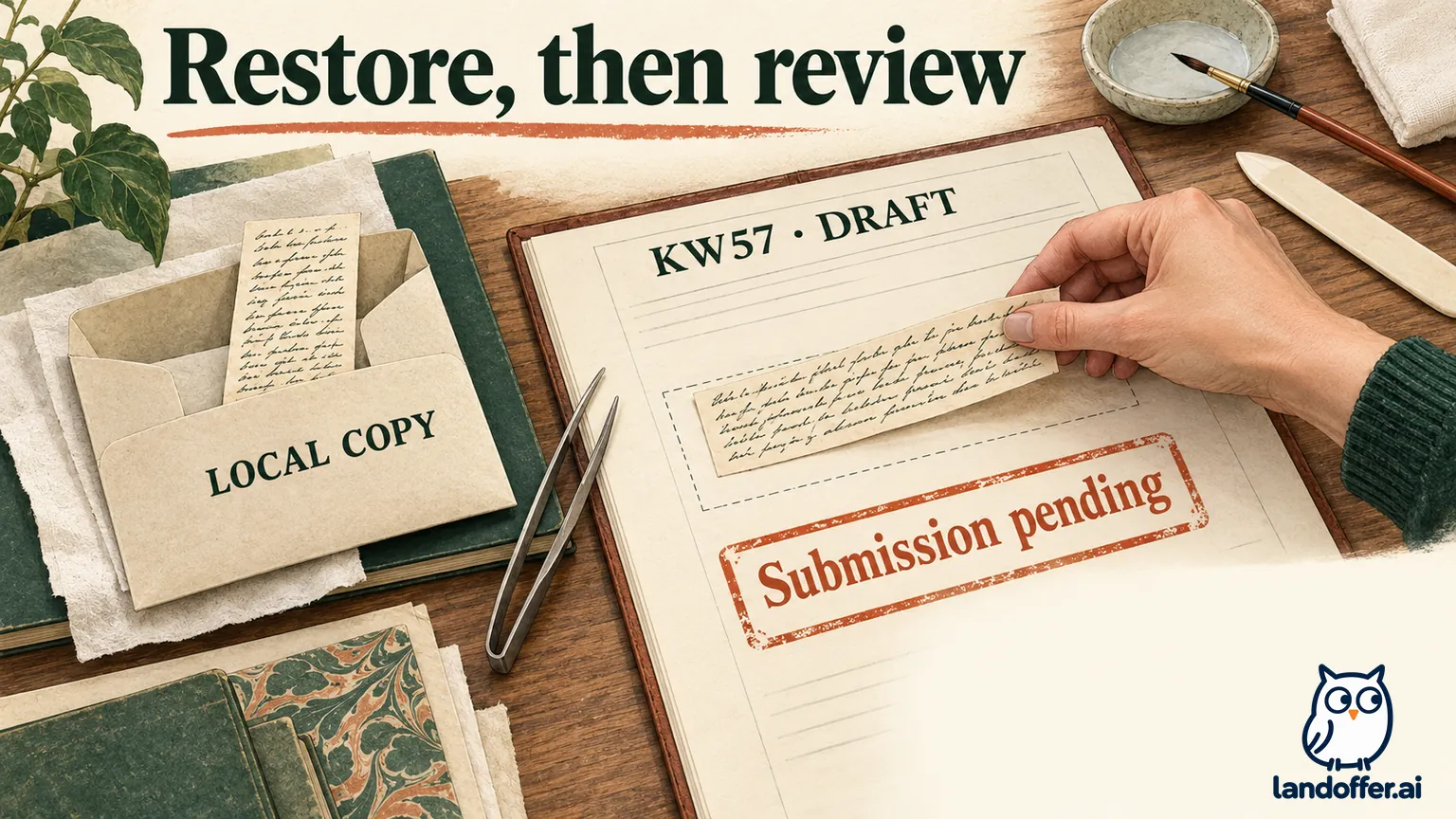
At 14:45, Evan follows the official route and completes the normal identity check. In this fictional outcome, KW57 reopens with the resume and Essay A present, while Essay B is absent. Evan restores Essay B from the local copy, checks both answers against their questions and verifies the selected resume. This demonstrates restoration from text Evan actually preserved, not recovery of unseen browser data.
The completed result is “KW57 draft reviewed; Essay B restored from local copy; submission pending.” Evan has enough information to continue accurately. The example does not establish that every draft resumes correctly, that the session problem has disappeared permanently or that the employer received an application.
Check browser storage after your content is protected
Chrome's cookie guidance explains that cookies can help sites keep you signed in. It also warns that deleting them can sign you out and remove saved preferences. Back up your answers before a site-data reset because the reset can remove the login context you are trying to use.
The same guide distinguishes first-party cookies from third-party cookies and says blocking the latter can affect sites that depend on them. It documents site-specific exceptions and deletion of a particular site's cookies. Those capabilities do not establish that blocked cookies caused your application error.
After backing up, inspect the relevant browser behavior and the employer's troubleshooting instructions. If a supported diagnostic step calls for a cookie exception, keep it limited to the verified site and review it afterward. Do not broaden an exception to unrelated domains merely because several pages share a vendor name. On a managed device, ask the administrator about controls you cannot change.
Chrome also documents that third-party cookies are blocked by default in Incognito mode. A private window is not a universal repair for a login handoff. It changes the browsing context and can introduce a different storage restriction. If comparing another supported browser or window, record that change and its result; do not assume it carries over the original session or draft.
Chrome's on-device site-data settings include deleting saved site data when all windows close. Google says sites are then less likely to remember you between visits. That is useful context if the symptom follows closing every window, but it is not proof of your current setting. We did not inspect or change anyone's browser configuration for this guide.
Change one condition and record the limited result
Use a short diagnostic record after preservation. Keep the account and role constant while comparing a specific change; otherwise a successful login to another profile can look like a repair to the original application. Recheck the draft after access returns: open the exact role, compare the long answers and inspect the selected attachment.
| Evan's completed recovery check | Fictional observation | Conclusion supported |
|---|---|---|
| Employer, KW57 and account matched | Normal sign-in reopened the intended draft | Correct record reached |
| Resume and both essays inspected | Essay B needed the preserved copy | Draft content required repair |
| Cookie and browser settings | No changes made in this exercise | No cookie-related cause or cure established |
| Final application step | Submit not performed | Application remains unfinished |
Evan does not clear cookies after reaching the correct draft merely to complete a checklist. The next useful action is reviewing the restored material and completing the actual application instructions. Additional experiments would change a working context without resolving an outstanding question in this example.
For repeated failures, retain the browser and operating-system versions, approximate times and time zone, exact warning, and the step that triggers the return to login. Use the employer's published applicant-support route. Ask about resuming that application and any required completion steps, rather than asserting a platform-wide outage.
A concise unsent example is: “I am trying to resume KestrelWorks KW57. After the inactivity warning at 14:39 PDT, I returned to sign-in at 14:42. I retained my answers locally and can identify the original account. Could you advise the supported way to resume this draft? I have not confirmed a submission.” Use your own actual sequence if it differs.
Keep passwords, verification codes, session cookies and personalized continuation links out of an ordinary support message. Provide further diagnostic material only through the verified process requested by support. A ticket acknowledgement confirms a help request. Keep application receipt, missing text and any deadline question open until you have evidence resolving each one. If a cutoff passes during the problem, use our technical-error deadline guide to preserve the timeline and ask about an authorized completion route.
Verify the draft before recording an application
Oracle's saved-draft documentation describes autosaving after the candidate identifier and legal-disclaimer consent are provided, with saves every ten seconds. It also describes ways to resume a saved application and warns that changes to an active application flow can affect saved data or later editing. This is a specific platform description, not evidence that your latest field was saved in every portal.
Inspect the actual resumed answers, required fields and attachment. If the site offers a saved-draft link, retain it privately. A local answer file, successful login or draft reminder is useful preparation evidence, but you still need the employer's final application and confirmation steps.
For Evan, the record remains submission pending until those steps are completed and checked. Preserve that state while you browse recent roles on LandOffer. For the affected application, finish the next required action from a verified draft rather than treating recovered access as a completed submission.