LandOffer
Job search
Why Workable Keeps Using an Old Resume or Cover Letter from LinkedIn
Identify the application route, clean the correct source, and verify new materials separately from earlier employer records.
If an old resume or cover letter appears when you apply to a Workable employer through LinkedIn Easy Apply, the source may be LinkedIn's saved application information. Workable's old-materials FAQ describes that reuse. First identify the application route, then correct the saved source and the material selected for this particular application. Changing a default does not establish that an earlier submission was repaired.
This guide reviews official Workable and LinkedIn documentation checked October 19, 2026; it does not report a private-account editing test. LandOffer publishes the guide and offers recent job discovery. The fictional examples distinguish a future application you can still review from information an employer already received. That distinction matters more than uploading another document and assuming the problem disappeared.
Identify whether you are still applying on LinkedIn
LinkedIn's resume-reuse instructions distinguish two entrances. Easy Apply lets you select a recent resume or upload one within the application. An Apply on company website button routes you elsewhere; the instructions say you cannot use a resume previously uploaded to LinkedIn through that route.
Consequently, finding a vacancy on LinkedIn does not prove LinkedIn supplied the attachment on a later Workable page. This conclusion follows from LinkedIn's documented route distinction, not an observed transfer test. Note the button you used, the site currently displaying the form and where the old filename or text appears. A LinkedIn listing followed by a company careers page is a different path from completing Easy Apply on LinkedIn.
Signing in with LinkedIn is also not sufficient evidence of the attachment's origin. Workable separately supports a Job Seeker profile and document imports. Check the source actually offered by the form before deciding which account needs attention. You may discover that the stale material is a Workable profile value or a file you chose from storage rather than LinkedIn's recent-resume list.
Seeing the old information again after you corrected it elsewhere can be confusing. The route check gives you a concrete way to investigate rather than repeating the same upload. The first change may have worked within its own scope while leaving the external source untouched. Identify which site or file supplied the old material before making another change.
Trace the material to the place that supplied it
Use this source map as a completed diagnostic guide. It separates documented sources from the evidence you should seek in your own application. It does not imply that we inspected these controls in an authenticated account.
| Where the old material appears | Source to investigate | Evidence for the next decision |
|---|---|---|
| Resume selected inside Easy Apply | LinkedIn's saved resumes | Selected file and its actual contents, if preview or download is available |
| File selected on an external Workable form | The import source or attachment field on that form | File name, source location and visible upload result |
| Experience or contact details prefilled on Workable | The Workable Job Seeker profile or imported document | Compare the populated fields with the source you chose |
| Resume displayed on your LinkedIn profile | A profile media attachment | The public profile item, separate from application settings |
| Old file already associated with a submitted application | The employer's existing application record | Application-specific readback or employer confirmation of a correction |
Workable's import instructions name your device, Dropbox and Google Drive as resume sources. They describe parsing the document to fill form fields, with manual entry as an alternative. That is a separate mechanism from selecting a resume saved in LinkedIn Easy Apply.
Workable's profile guidance describes profile information prefilling an application. It also says a change made on an application form can prompt an offer to update the profile. Neither direction establishes that a later profile edit changes every employer's previously submitted record.
If the file source is your own storage, use the separate guide to managing multiple resume versions. Naming and archiving files solves a different problem from finding which platform keeps selecting an old one.
Clean the future default, then review the current selection
LinkedIn's application-information guidance says saved answers and resumes can be used as defaults for future applications. It says the most recently used resume is preselected and that you can save up to four resumes. Review the selected resume before you submit; a default is only the starting choice.
“Most recently used” and “newest file on my computer” are different descriptions. Uploading or editing a local document does not demonstrate which resume the next application selected. For a candidate with several role-specific documents, the previously used file may be valid for another role while being wrong for this one.
The upload instructions describe Job Application Settings and the Resume section's Upload option. They also describe the navigation Jobs, then Preferences, then Resumes and application data. The reuse help says resumes can be uploaded or removed from that settings page. Use the controls your account actually displays; these are documented paths rather than buttons we tested in your account.
Keep a local copy of a resume you still need before removing a saved version. Remove obsolete choices from the application-settings area if that is your goal, and inspect the remaining files. Do not mistake deleting a resume from your public profile for cleaning the saved application list. Those are different locations with different purposes.
LinkedIn also documents opting out of saving application information. Choose that according to whether you want reusable defaults or prefer entering and selecting material each time. Disabling future saving does not verify the contents of a form already open. Return to that draft and inspect the selected document and answers again before submitting it.
The retention rule is separate from the preselection rule. LinkedIn's uploaded-resume guidance describes retaining the four most recently uploaded resumes. The first rule helps explain why an older upload might be missing from the saved list. The second tells you why the file you used last time can appear first. Neither is a reason to assume a particular attachment is correct without looking.
Treat an old cover letter as its own correction
Workable's FAQ explicitly attributes old resume and previous-cover-letter reuse to LinkedIn Easy Apply. However, the current LinkedIn application-information page's explicit list of saved items names screening answers and resumes; it does not describe a cover-letter management switch there. These sources do not justify promising that one resume setting will clear every old letter.
Locate the letter where it is visible in the application: a text answer, an attachment, or another employer-requested field. Read the actual content, including the employer name and role. A QA resume beside a letter naming a different employer can still leave the application inconsistent. Replace the visible letter using the form's available controls, then check that the revised text or file is the one being sent.
If you cannot find a letter field, do not add a random attachment merely to overwrite something you have not identified. Record the location where you saw the old material and check the application review or confirmation information available to you. An unexpected old employer name is useful evidence; an assumption that “the system must have saved it somewhere” is not a reliable diagnosis.
Mika separates a new draft from an earlier submission
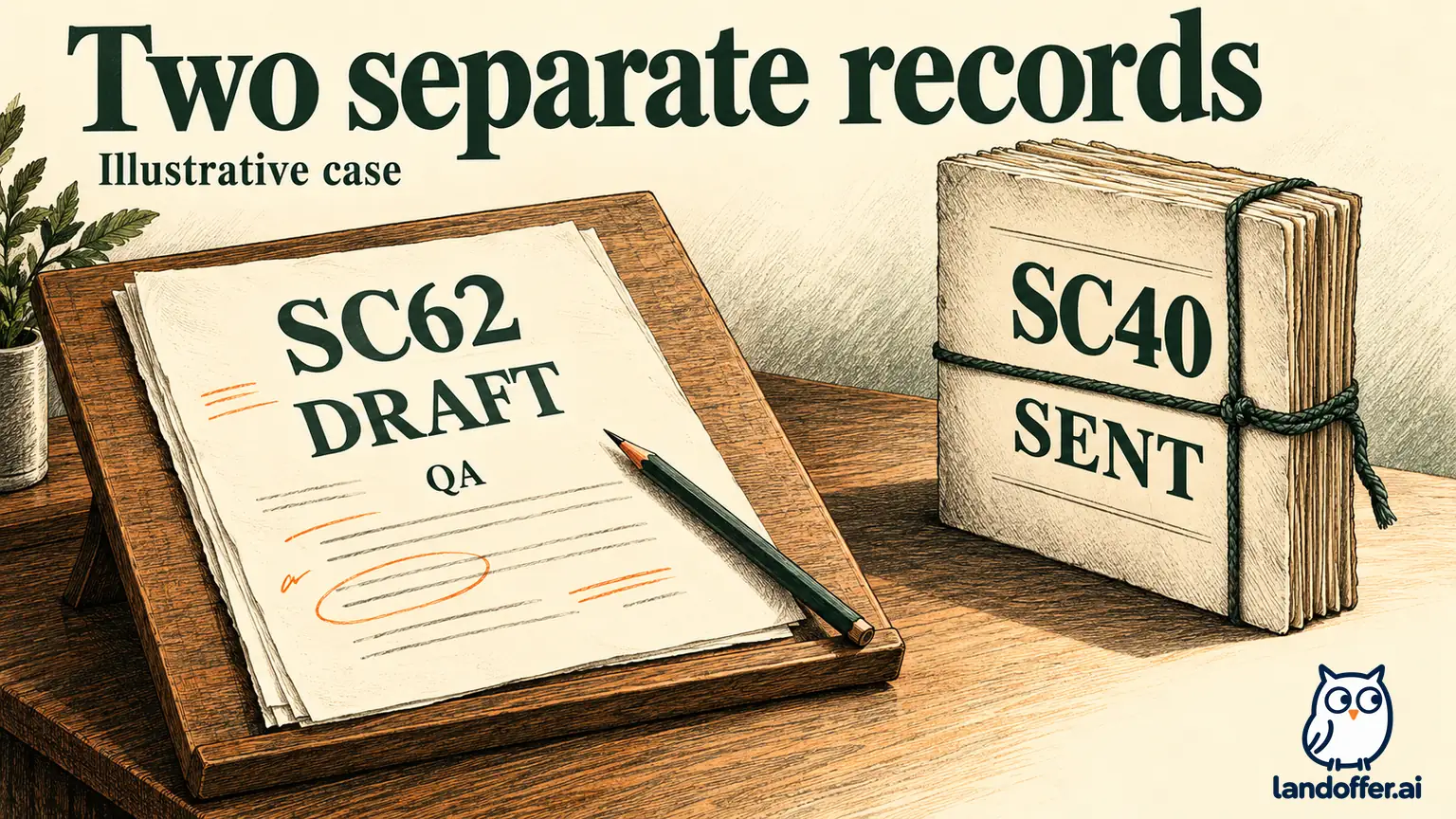
Consider a fictional candidate, Mika Owen, preparing an Easy Apply application for SableCloud's QA Automation Engineer role, SC62. The recent-resume choice shows Mika_Product_2025.pdf. Mika intends to use Mika_QA_SC62.pdf, which emphasizes verified Playwright regression work. The draft letter also names a previous target, Rooklane Marketing.
Mika has a second concern: an earlier SableCloud application, SC40, was already submitted with the older materials. These are two different records. Cleaning a future default and correcting the current SC62 draft do not prove that SC40 changed.
Here is the completed decision record for the example:
| Item | Prepared correction | What remains unconfirmed |
|---|---|---|
| Future LinkedIn resume choices | Retire the obsolete product resume from the saved list after keeping a local copy | Which file a future application will preselect |
| SC62 draft resume | Select the QA resume and check its Playwright content | Employer receipt, because the draft has not been submitted |
| SC62 draft cover letter | Replace the old employer reference and use the QA example below | What the final application will contain until its review is checked |
| Previously submitted SC40 materials | Prepare an application-specific correction request to SableCloud | Whether the employer accepts or applies that correction |
For the letter, the illustrative before-and-after text is concrete:
Before: I am interested in Rooklane Marketing's product role, where I could contribute to roadmap planning.
After: I am applying for SableCloud's QA Automation Engineer role, SC62. My Playwright regression work gives me a relevant example to discuss: maintaining automated checks for existing application behavior.
The example assumes Mika can substantiate that regression work. It does not add a leadership claim, a coverage percentage or an outcome Mika cannot support. Changing the employer name alone would have left the product-role pitch in place; the revised sentence makes the intended role and relevant evidence consistent.
This is a completed preparation example, not a report of files uploaded or records modified. Mika's next action is to verify the SC62 review before submitting. The SC40 correction remains a separate employer request. No settings deletion, application submission or message was performed for this guide.
Repairing a submitted application needs a separate route
Workable's old-materials FAQ suggests withdrawing from the confirmation email and resubmitting. Read that suggestion alongside its more specific update instructions and withdrawal guidance. Reapplication as an update depends on the employer not having reviewed the application yet; self-withdrawal can be unavailable after review, with a stated EEA exception.
Withdrawal also cancels existing events, video interviews and assessment invitations, according to Workable's update instructions. If you want those to remain active, the same guidance directs you to contact the company for an update. Do not turn a generic wrong-file suggestion into an automatic withdrawal step for someone already interviewing.
For SC40, Mika should identify the employer, role reference, application date, incorrect material and proposed replacement. If the review state is unknown or a next-step invitation is active, a focused employer request is the more cautious editorial choice. Ask how the company wants the correction delivered rather than creating a duplicate application to test what happens.
The result you need is evidence about the employer's record: an application-specific view showing the corrected material, or a response confirming what the employer updated. “I removed the saved file from LinkedIn” supports a different statement. Keep those outcomes separate in your records.
Check what this application will send
Before submitting a new application, review the selected resume, the letter and the populated fields together. Where a preview or download exists, inspect the document rather than relying only on its name. Where it does not, retain the exact local file and note what the page actually confirmed. A filename alone cannot reveal a stale sentence inside a PDF.
Read the role-specific parts first: employer name, job reference, summary and the experience used to support the application. Then review imported contact and experience fields for mismatches. Replacing the attachment does not by itself demonstrate that previously populated text changed to match it.
For the next role you find through LandOffer's recent jobs, establish the actual application route before using any default. Follow the source map, select the intended material and check the draft's review. If the wrong material was already sent, preserve the earlier receipt and pursue the employer's correction process separately. Record a repair as confirmed only when the application view or employer response supports it.
Sources and Further Reading
- Workable: Why old resumes or cover letters appear
- LinkedIn: How application information is used
- LinkedIn: Reusing a recently used resume
- LinkedIn: Uploading a resume
- LinkedIn: Visibility and usage of uploaded resumes
- Workable: Importing resume details
- Workable: Managing a Job Seeker profile
- Workable: Updating an application
- Workable: Withdrawing an application