LandOffer
Job search
Job Application CAPTCHA Errors: Safe Troubleshooting and Accessibility Options
Identify verification errors, preserve application work, and choose a supported browser or accessibility step. Includes a completed diagnostic log and an unsent support request.
If a job application's CAPTCHA fails, preserve your answers, identify the visible error, and try a small change supported by the verification provider's guidance. An expired challenge, a blocked verification frame, and an inaccessible visual task need different responses. If you already pressed Submit and the result is unclear, check receipt before submitting again.
LandOffer publishes this guide. You can browse recent roles on LandOffer.ai, then follow the employer's application route and security checks. The guidance below draws on public provider documentation reviewed October 12, 2026; the completed diagnostic example is fictional. We did not test an employer account or submit an application.
Identify what failed before refreshing
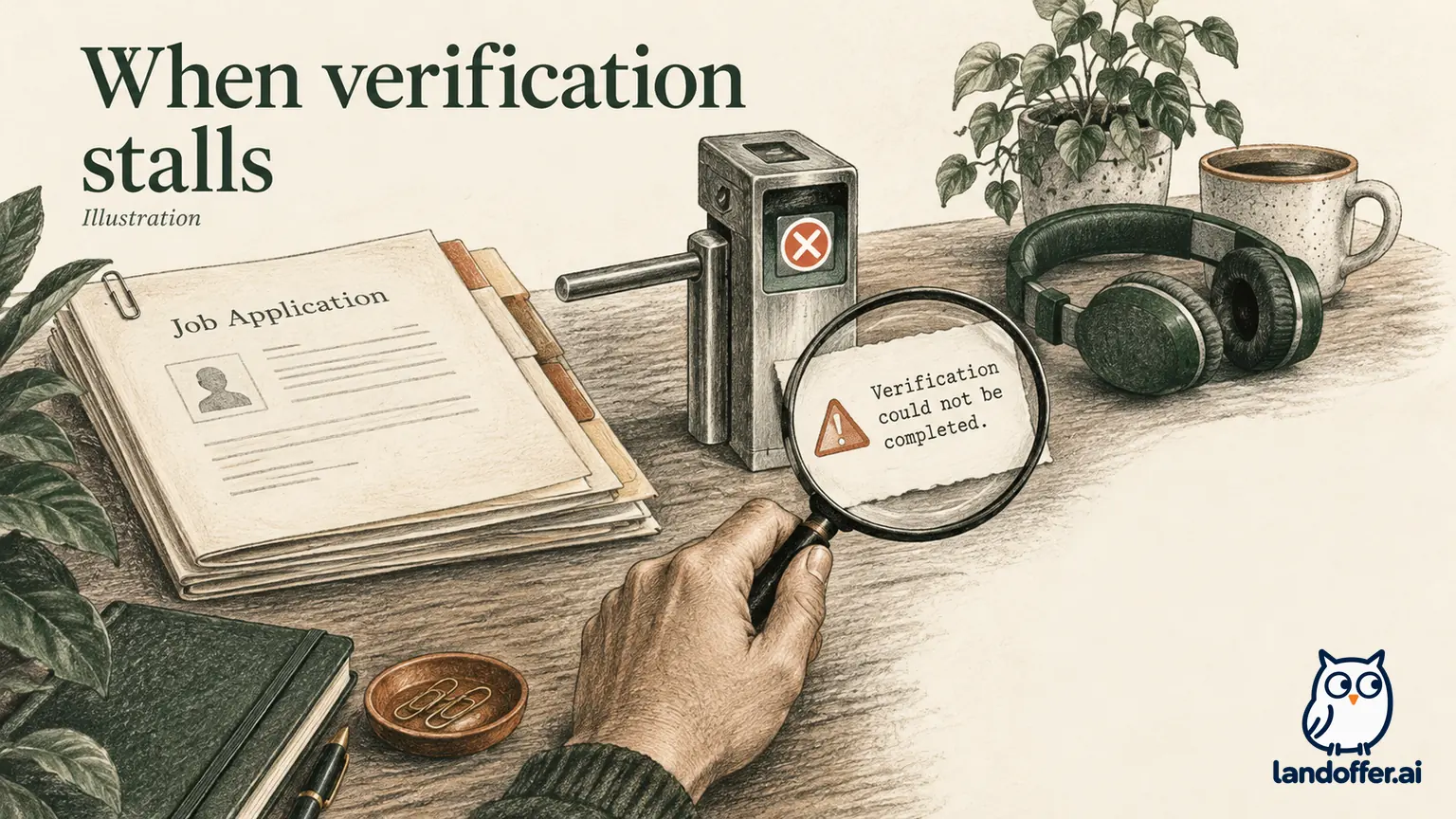
Start with the words on the page. “Verification expired” points to a different problem from an empty frame or a notice about an invalid site configuration. Record the provider name if visible, exact message, error number, job reference, time and time zone, browser version, and whether you pressed the final submission button. A screenshot can help, but crop unrelated personal information before sharing it.
Save your own answer text somewhere private if the form allows it. Use its Save control when available and record whether it actually reports a saved draft. A page that still displays your answers has not necessarily stored them. Refreshing, changing browsers, or clearing site data can remove the only visible copy.
Keep the application URL privately, including a referral route if one was supplied. Do not post a personalized invitation or signed link in a public help forum. Support usually needs the employer and job identifier first; use its secure process for anything more sensitive.
If the error concerns the attachment rather than human verification, use the separate resume upload troubleshooting guide. Re-exporting a resume will not repair a verification frame that cannot load. Likewise, solving a challenge will not correct a missing required answer elsewhere in the form.
Match the next action to the visible symptom
The following distinctions come from Cloudflare's Turnstile error documentation. They apply when the page actually uses Turnstile. Do not apply these numbers to another provider's widget.
| Visible Turnstile error | Documented meaning | Candidate's useful next action |
|---|---|---|
| 110600 | Challenge timed out | Check that the device clock is correct, then use the page's normal controls for a fresh challenge |
| 200500 | Verification iframe failed to load | Record the code; investigate a blocked verification resource using provider guidance |
| 110100 or 110110 | Invalid or missing sitekey | Report the configuration error to the employer or site support |
| 110200 | Domain is not authorized | Report the page address through official support; the site owner must investigate |
Cloudflare also recommends checking browser compatibility, JavaScript, extensions, and network conditions. These are troubleshooting possibilities, not a diagnosis of your particular device. A sitekey is part of the website's setup; applicants should not edit page code or substitute one.
A configuration message gives you a useful stopping point. Repeatedly changing your resume, password, or candidate email cannot establish that the employer's verification setup is correct. Capture the message and ask the operator to investigate. If a deadline is close, include it in the support request without assuming the deadline has moved.
Make one controlled change and retain a stopping rule
After preserving your work, check that you are using a current browser supported by the provider and the employer. If an update requires restarting the browser, save first. If the application opened inside an email or social app, consider its normal “open in browser” option, preserving the original link and checking the destination.
An extension that blocks page resources may interfere with verification. On a trusted application page, a temporary, narrowly scoped change can help test that possibility. Record the original setting and restore it afterward so the test does not leave unrelated browsing less protected. If your browser is managed by work or school, ask the administrator rather than changing controls you do not own.
A private window or another supported browser can help separate browser-state problems, but it creates a new session. You may need to sign in again, and your draft may not follow. Keep the first session's evidence until you know what the second session contains. Private browsing is also not a universal accessibility repair when an accommodation depends on a stored cookie.
Treat a network change similarly. If ordinary connectivity is unreliable, you can test on another trusted connection you are permitted to use. Do not install an unfamiliar proxy, conceal automated traffic, or rotate identities to force access. If an approved VPN is required by your organization, ask for help with the conflict instead of disabling its protection.
Let the result determine when to stop: after a limited test produces the same error, escalate with what you learned. There is no universal number of retries or waiting period that guarantees recovery. Respect any retry delay shown by the page; repeated clicks are not a substitute for identifying the next useful change.
Use the accessibility option offered by this provider
An accessibility barrier deserves its own route. A person who cannot use the visual challenge should not have to keep repeating an unsuitable task before asking for an alternative. Look for the widget's accessibility or help controls and the employer's application accommodation contact.
Google's reCAPTCHA accessibility guidance describes an audio option for its visual challenge, keyboard navigation, and screen-reader status announcements. Where that control is available, select the audio challenge, play it, enter the requested response, and use Verify. Check the announced status rather than relying only on the checkbox's appearance. Google also notes that verification expires, so complete it near the end of the form.
Audio is not an adequate alternative for everyone. If you cannot use either the image or audio task, or cannot reach the control with your assistive technology, describe that functional barrier to the employer. There is no need to invent a successful attempt to make the request sound stronger.
hCaptcha's accessibility page describes a text-based Accessibility Challenge when the site enables it. It also describes accessibility authorization using an encrypted cookie after registration and login. That authorization may lead to an automatic pass or an accessibility challenge depending on the deployment and other factors; it is not a promise that every site will admit you without further interaction.
Use the provider's official route if you choose that option. A missing menu item may reflect the site's configuration. Clearing cookies or switching to a private session may also change the availability of cookie-based authorization. Ask the employer for another supported way to complete the required application when the offered route remains unusable.
A completed error record that narrows the problem
Consider Maya, a fictional candidate applying to invented employer Alder Circuit for role AC-318. The form shows Turnstile error 200500 before she presses Submit. Her resume filename remains visible, but the verification frame does not load. All times, settings and results below are illustrative, not a real application test.
Maya saves her answer text, records the role and current page, and checks that her browser is up to date. She chooses one reversible test: temporarily allowing resources blocked by her content-filter extension on this trusted application page. After the page reloads, the same error remains. She restores the extension setting and stops.
| Record item | Maya's completed entry | What it establishes |
|---|---|---|
| First observation | October 12, 9:10 a.m. Pacific; AC-318; error 200500 | Specific role, time and verification symptom |
| Submission boundary | Final Submit not pressed | No submission attempt in this example |
| Preservation | Answer text saved privately; original URL retained | A recovery copy exists outside the page |
| Controlled test | Site-specific content-filter change; reload | One browser condition changed |
| Recheck | Same code at 9:14 a.m.; setting restored | The chosen test did not resolve the problem |
| Next action | Ask official application support to investigate | Cause remains unresolved |
This record supports a narrow conclusion: Maya's single test did not fix the load error. It does not prove that the extension was innocent, that the employer is experiencing a widespread outage, or that the application was rejected. The value of the record is that support can see the exact boundary of the investigation.
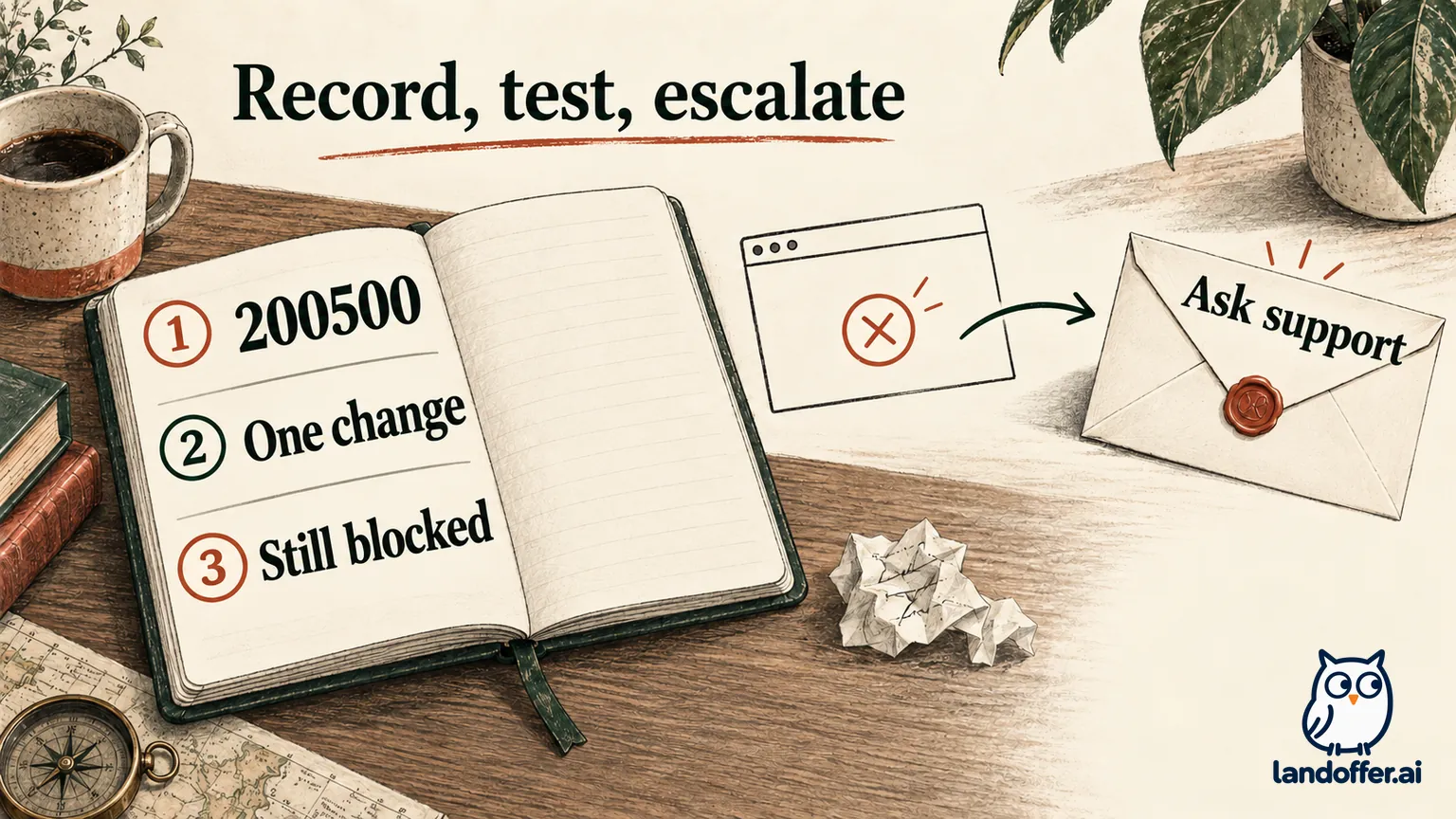
Maya does not need to keep testing every browser on every network before contacting support. You can ask for help while the cause remains unresolved. That leaves the operator room to inspect its own configuration and logs without having to untangle a long sequence of undocumented changes.
Send a support request that asks for a concrete next step
Use the contact route on the employer's verified careers page or application help page. A CAPTCHA provider can explain its component, while the employer controls the application record, deadline, and alternative submission process. Sending feedback to the widget alone does not establish that recruiting has received your request.
Here is Maya's completed, unsent example:
Hello, I am trying to complete the application for Alder Circuit role AC-318. On October 12 at 9:10 a.m. Pacific, the verification area displayed Turnstile error 200500. I had not pressed the final Submit button. After saving my answers, I tried one site-specific content-filter change in my current browser; the same error remained at 9:14 a.m., and I restored the setting. Could you advise how to complete verification or use your supported alternative application route? I can provide the browser version and a cropped screenshot through your support process.
For an accessibility request, replace the diagnostic middle with the actual barrier. For example: “Using my screen reader and keyboard, I cannot reach the challenge's answer control. Please advise on an accessible way to complete this application.” This is a functional description, not a request to remove every security check.
If a deadline is displayed, include the exact date and time zone and ask how to proceed before it. Do not assume that an unanswered email grants an extension, that support will respond within a particular period, or that an ordinary resume email counts as an accepted application. Use an alternative route only when the employer provides or confirms it.
Confirm the application separately from the challenge
Once verification works, inspect the rest of the form before submitting. A successful challenge is permission to continue through that part of the page; it is not an employer receipt. Required questions, attachment handling, or the final request may still need attention.
If you pressed Submit before the page stalled, record “submission result unknown.” Check the employer portal and the inbox associated with that application, including spam, for a matching role and receipt. If those do not resolve the state, ask support whether an application was received before trying again. A missing email by itself cannot establish failure.
When the employer confirms a supported next action, retain the instruction alongside your error record. After a successful submission, keep the actual confirmation rather than changing the earlier failure into a success retrospectively. Your history should show what was attempted, what remained uncertain, and what finally resolved it.
Once the blocked application has a recorded next step, browse recent jobs on LandOffer.ai and keep the verified employer link with your application notes. Use the browser and accessibility setup that suits you, preserve your work before troubleshooting, and contact the site's support team when you need its staff to investigate the error.