LandOffer
Job search
iCIMS Application Incomplete? How to Find and Finish the Missing Step
Resume an incomplete iCIMS application through the employer dashboard, find the pending step, and distinguish profile saves from submission confirmation.
If an iCIMS application is incomplete, return to the employer's career portal, sign in to the same candidate account, and find the exact role in your dashboard. Where available, use Continue Application in Past Job Submittals to resume the pending step. A profile-save or upload message confirms that intermediate action; look for role-specific submission confirmation before marking the application submitted.
This guide follows current public iCIMS documentation, checked October 12, 2026; employer configurations and button names vary. The worked cases are fictional, and we did not submit an application or test a private candidate account. LandOffer publishes job-search guidance and tools. You can browse recent roles on LandOffer, but finish checking an existing application's state before creating another record for the same opening.
Recover the correct employer, account and job first
The iCIMS candidate guide describes returning users signing in through a company's portal and checking their dashboard. It places the continuation action within past job submissions when that action is available. Required steps and available options depend on the employer. Treat those labels as guidance to locate the role, rather than a promise of an identical screen everywhere.
Begin from the employer's independently verified careers site or a saved link you have checked against it. Match the organization, title, location and requisition number. A similar title at another location may be a different application, and a general talent-community profile may not be attached to the job you intended to pursue.
Use the account identity you used when starting. If you previously signed in through an offered social account, switching to a different email can leave you looking at another profile. Do not create a second account just because the first dashboard looks unfamiliar. Check your saved records and use the portal's normal account-recovery route when needed.
Write a small recovery note before editing: employer, requisition, account email used, last step reached and the message currently displayed. Keep passwords and verification codes out of that note. This note helps you return to the same employer and requisition after a retry.
If the dashboard does not show the role, check whether you only joined a talent pool, uploaded a resume for general consideration, or started under another account. Those possibilities require different next steps. The empty view alone cannot tell you the employer's decision.
Find the pending step instead of repeating the whole form
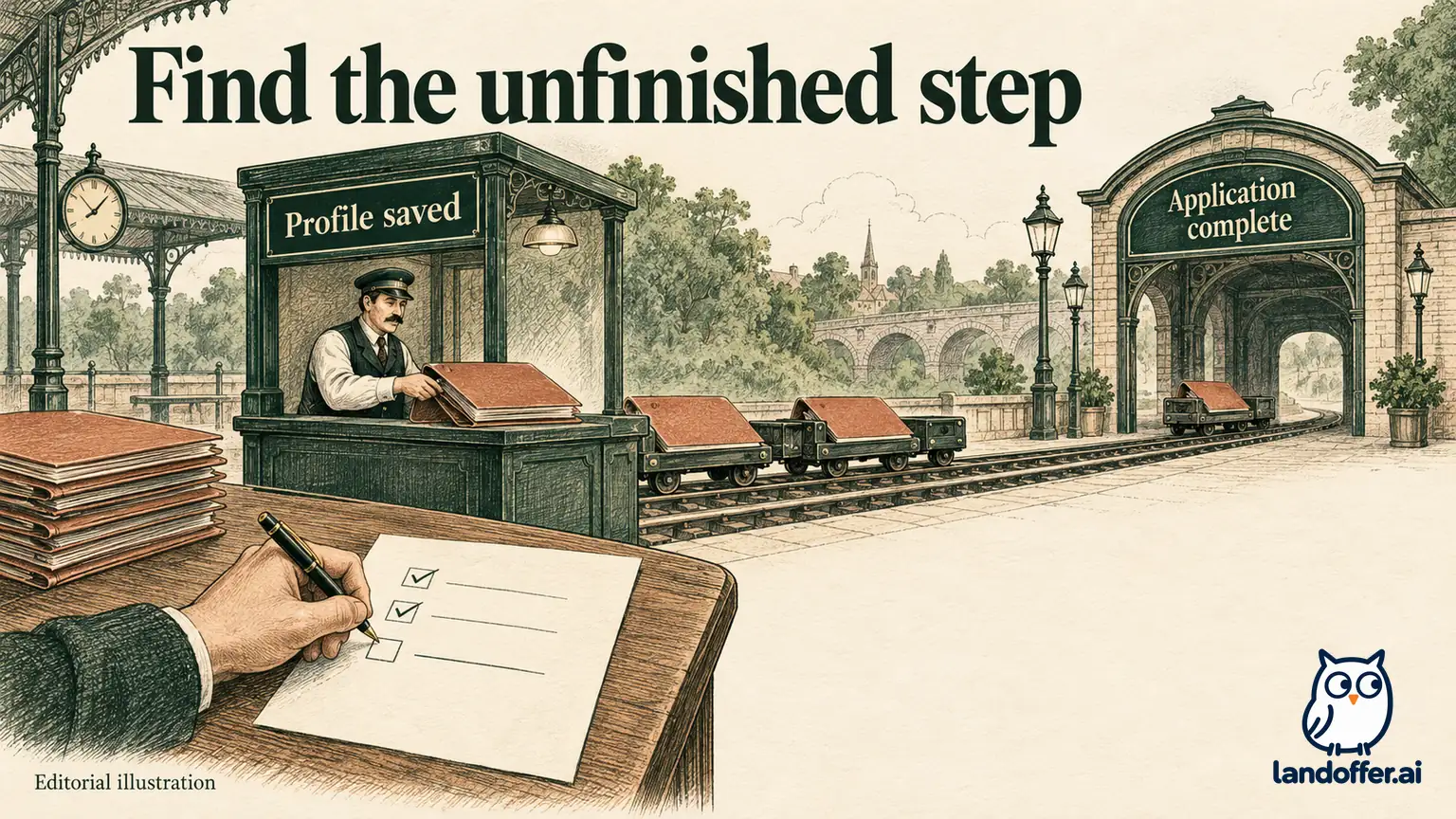
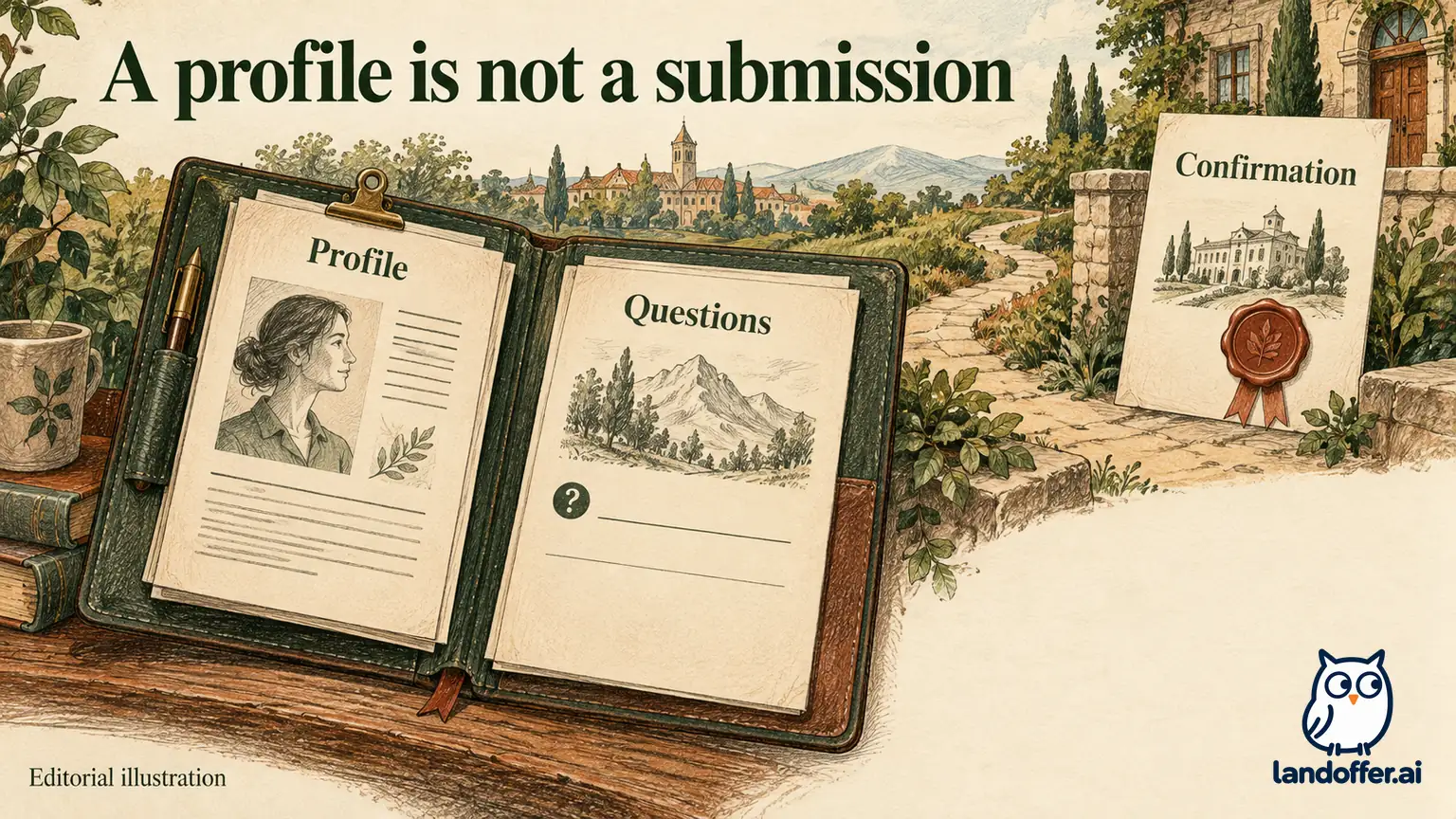
An application can have a saved profile while still needing role-specific questions or another employer-defined step. The candidate guide describes profile updates, subsequent questions and final submission as distinct parts of the process. It also documents a finish-later option at certain stages. A successful intermediate save therefore needs to be read in context.
Once you resume the exact role, look for the step indicator, error message or required-field prompt. Read the current page before pressing its next button. A missing selection might be visible near the top, inside an expanded section or beside a field farther down the page. Identify and record the exact prompt before retrying, so you can fix the named field or give support a reproducible description.
Check each required field for an actual selected value. A dropdown can display typed search text without a committed option. A date field can contain a value in an unacceptable format. A question that revealed a follow-up field can leave that field blank. These are general form-troubleshooting possibilities, not defects we observed across all iCIMS portals.
Keep your answers accurate while recovering. If a question asks about a credential, work authorization or willingness to relocate, do not choose a different answer merely to make the form advance. Review the wording and use the employer's help route when the available choices do not describe your situation.
If an optional item offers a decline-to-answer choice, use it only when it reflects your decision and the portal permits it. Do not assume all demographic, consent or screening fields are optional, and do not treat consent text as a routine checkbox to dismiss. Read what the employer is asking you to provide or agree to before continuing.
A completed recovery case: profile saved, questions unfinished
The following example is fictional. Erin started an application for support engineer NH-64 at North Harbor. She uploaded Erin_NH64_Resume.pdf, corrected an imported employment date and reached a profile-save message. She closed the browser before finishing the job-specific questions. Her personal spreadsheet said “submitted,” but she had no role-specific confirmation.
She returns to North Harbor's verified careers portal using the original account and finds NH-64 in the dashboard. The row offers a continuation action. She resumes it and finds one unfinished question about her availability for the role's stated support schedule. Her resume is already present, so she does not immediately upload a second copy.
| Point in the fictional recovery | Evidence Erin actually has | Completed action and record |
|---|---|---|
| Original profile save | A profile-save message and uploaded filename | Correct personal tracker from submitted to incomplete |
| Dashboard return | Matching employer, NH-64 and continuation option | Resume this record, avoiding a new account or duplicate role |
| Pending question | Availability choice was not selected | Read the schedule and enter her truthful availability |
| Final review | Resume filename, dates and answers visible | Review the role-specific material and submit once |
| Completion | Page explicitly confirms submission for this application | Save confirmation and update tracker to submitted with time and reference |
Erin's correction is not “apply again.” It is to finish the original record and replace an unsupported tracker label with evidence. The case ends with an explicit confirmation in the fictional scenario; it does not claim that we observed this sequence in North Harbor or any real employer's portal.
She also checks that the corrected date still agrees with the resume. A successful final click would not make contradictory history acceptable. Recovery should preserve both completion and accuracy, especially when a parsed field was edited earlier in the process.
If the resume, page transition or assessment is the problem
For a resume error, follow the file requirements displayed by that employer. Compare the actual file type and size with the displayed requirement, open it locally, and use a short filename such as Erin_NH64_Resume.pdf before retrying. Do not assume that changing the extension converts the document. After an upload succeeds, inspect the visible filename and any imported details before continuing.
If a page does not advance, save any available draft and copy your own long answers into a secure local document before refreshing. Then try a bounded recovery: sign out and return through the verified portal, or use an ordinary current browser with interfering autofill features temporarily off if you know they are involved. Change one thing at a time and preserve what happened.
These are practical diagnostic steps, not a statement that iCIMS requires a particular extension setting. Avoid clearing every browser credential or granting new permissions merely to see whether the application moves. If the same error persists, a concise record of the message and step is more useful to support than many undocumented retries.
If the employer's application directs you to an assessment, follow the stated instructions and distinguish its completion receipt from the application receipt. A separate assessment site may report its own status. Return to the employer portal to check the role record instead of assuming the two systems have synchronized immediately.
Do not repeatedly retake an assessment or create a new identity to force a different status. If the assessment reports completion while the employer portal still asks for it, retain both messages and request clarification. The evidence supports a status discrepancy; it does not identify which system is wrong or whether a recruiter has reviewed the result.
For accessibility barriers, use the employer's published assistance or accommodation route. Describe the blocked step and the assistance you need without sending unnecessary medical or identity information to an unverified address. A candidate should not have to invent an answer or alter eligibility facts to work around an inaccessible control.
Match the symptom to the next safe action
Here are four completed fictional troubleshooting decisions. None assumes that an incomplete label explains why the problem occurred.
| Current symptom | Completed decision | Evidence to keep | What the evidence does not establish |
|---|---|---|---|
| Matching role offers continuation | Resume it and complete the identified required question | Requisition, pending field and final confirmation if obtained | That profile save was a submission |
| Upload error names a size limit | Export an allowed smaller file, then verify filename and parsed details | Exact error, replacement file and resulting attachment | That every field imported accurately |
| Assessment says complete, portal still requests it | Stop retaking and ask the employer to reconcile status | Both messages and their times | Which system caused the discrepancy |
| Role no longer allows continuation | Check the current employer posting and contact its candidate-help route | Role reference and displayed closed/unavailable message | Whether rejection, hiring completion or another cause ended access |
The guide makes continuation conditional on availability; it does not explain every reason that an employer might omit the button. It does not justify withdrawing a role or starting again automatically. Check what the portal actually offers, then use the employer's route if the next action is unclear. Withdrawal is a separate choice and can remove you from consideration.
If the job posting has disappeared, keep the original role reference and the application evidence. A missing public advertisement does not by itself tell you what happened to your candidacy. Ask about the ability to complete the existing record, rather than asserting that the employer filled the role or rejected you.
What to send when you need employer help
iCIMS directs job seekers seeking application updates to the employer itself. Use the contact or technical-help route listed on the verified employer careers site. The software vendor's sales form is not a substitute for an employer's decision or candidate record.
A useful request names the role, reference, last completed step and exact blocker. Include a screenshot only after checking it for private information. You generally do not need to attach your password, authentication code or government identification to explain a missing form field.
Here is a completed, unsent message for the fictional assessment discrepancy:
I am completing the application for North Harbor support engineer NH-64 using my original candidate account. The assessment page shows completion from October 12, but the application still asks me to complete that step. Could you confirm whether my existing application needs another action? I have kept both messages and can provide redacted screenshots through your approved support channel.
The request gives support enough context to investigate without asking them to assess Erin's hiring chances. Keep the reply and follow the employer's specific instructions. If it provides a deadline or asks for a different route, update the existing record so that your next action is clear.
Record submitted only with the available role-specific confirmation; otherwise keep the application incomplete with a next step or unresolved with an employer-help request. A help request is not a submission receipt. Our confirmation-email guide covers missing receipts more broadly. When you return to LandOffer's recent roles, keep this existing application separate from new discoveries so that a recovery attempt does not become an accidental duplicate.