LandOffer
Job search
Google Docs Resume Looks Different as a PDF: Check Pages, Breaks, and Paper Size
Troubleshoot a Google Docs resume export by checking Pages, paper size, margins and breaks, with a bounded local PDF comparison and a completed repair log.
If your Google Docs resume looks different as a PDF, first check whether the source is in Pages or Pageless format. Then check paper size, margins and explicit breaks before changing the wording or shrinking the font. A continuous editing view does not show where a fixed-page file will break. Open the exact PDF you plan to send and inspect every page, including the final section.
LandOffer publishes this guide and offers a place to browse recent roles before checking an employer's attachment instructions. We reviewed current Google documentation on October 23, 2026. We also generated and inspected two local synthetic PDFs to demonstrate page-size effects. Those files were produced with ReportLab, not exported from Google Docs; no Google account, private resume or live application was used. The candidate repair log below is explicitly fictional.
Check Pages before treating the PDF as a broken export
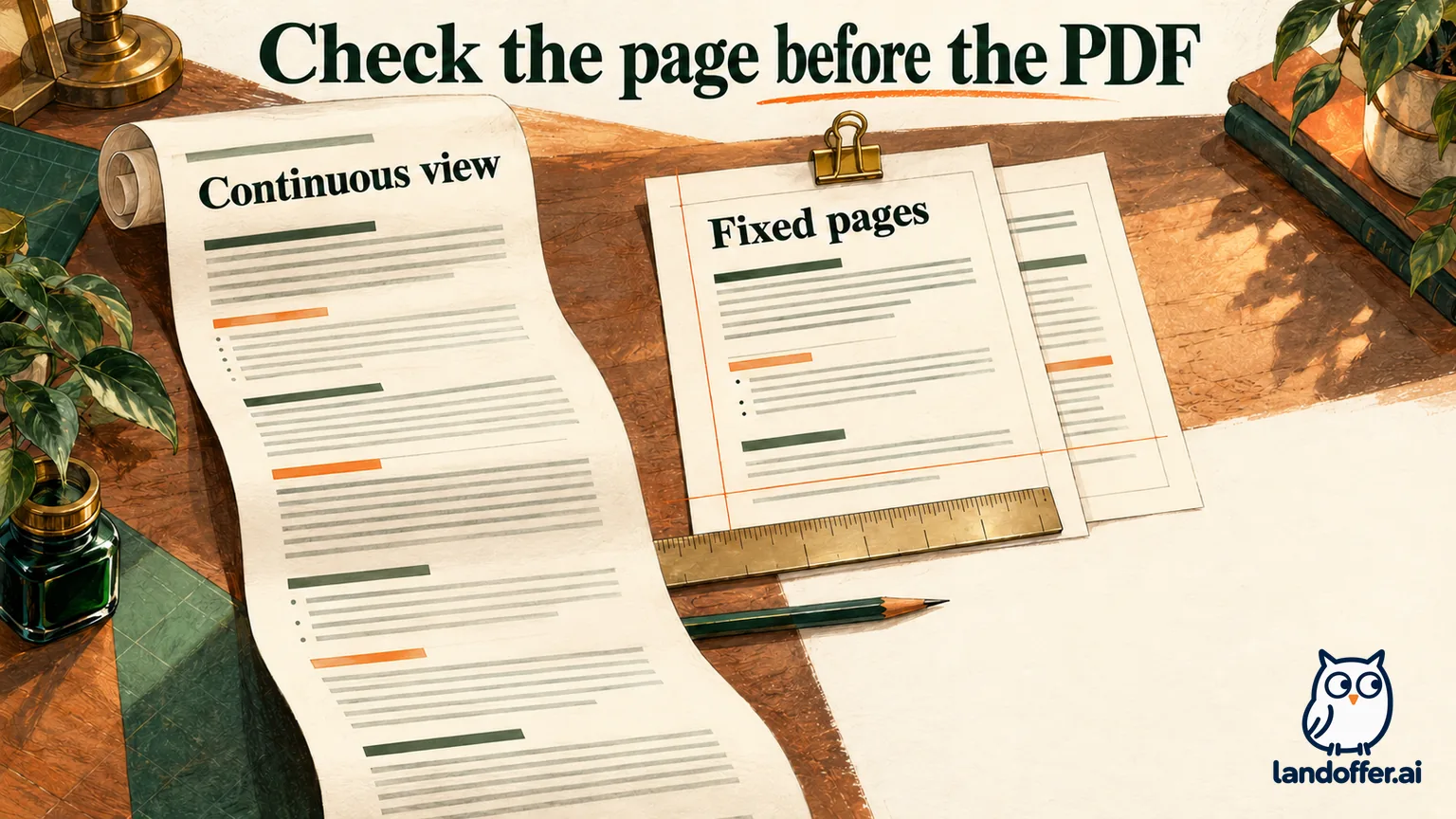
Google's Pages and Pageless guide describes Pages as a document with pages and breaks. Pageless scrolls continuously, with line breaks and images adapting to the screen or zoom. Pageless text-width preferences also do not determine how collaborators view the document.
For a resume you intend to deliver as a paginated file, use File → Page setup → Pages on a computer, then confirm the change. This is a documented menu route, not a claim that we operated a Google account for this article. Look at the resulting page boundaries before deciding that a missing heading or new second page requires rewriting.
A narrow laptop window, a wide monitor and a continuous canvas can make the same text look comfortably arranged in different ways. That does not establish which fixed-page version will be sent. Keep your editable source, but evaluate the exported artifact as its own deliverable.
If switching formats reveals material you did not expect, investigate rather than deleting it immediately. A change in the editing canvas can conceal something that still matters when printed or exported.
Match paper size and margins to the intended file
Google's page-settings instructions put orientation, paper size and margins under File → Page setup with Pages selected. The same documentation explains section-specific orientation settings and an Apply to choice. Check which part of the document a change will affect when sections are present.
Record the paper size and four margins before changing them. If the application specifies a format or page requirement, follow it. If it does not, choose an intentional setup and keep it consistent while you troubleshoot. A page-count target should not justify making the text difficult to read.
Change one setting at a time and export a new, clearly named copy so you can associate a layout change with that setting. If you change paper size, font size, spacing and content together, you may get a shorter file without knowing which change solved the problem. That makes later updates harder to maintain.
Look at the right edge as well as the bottom. A narrower sheet can change line wrapping, while a taller sheet can fit more vertical content. The combined result is specific to the document. Do not assume one paper size always produces fewer pages.
Worked comparison: identical content on Letter and A4
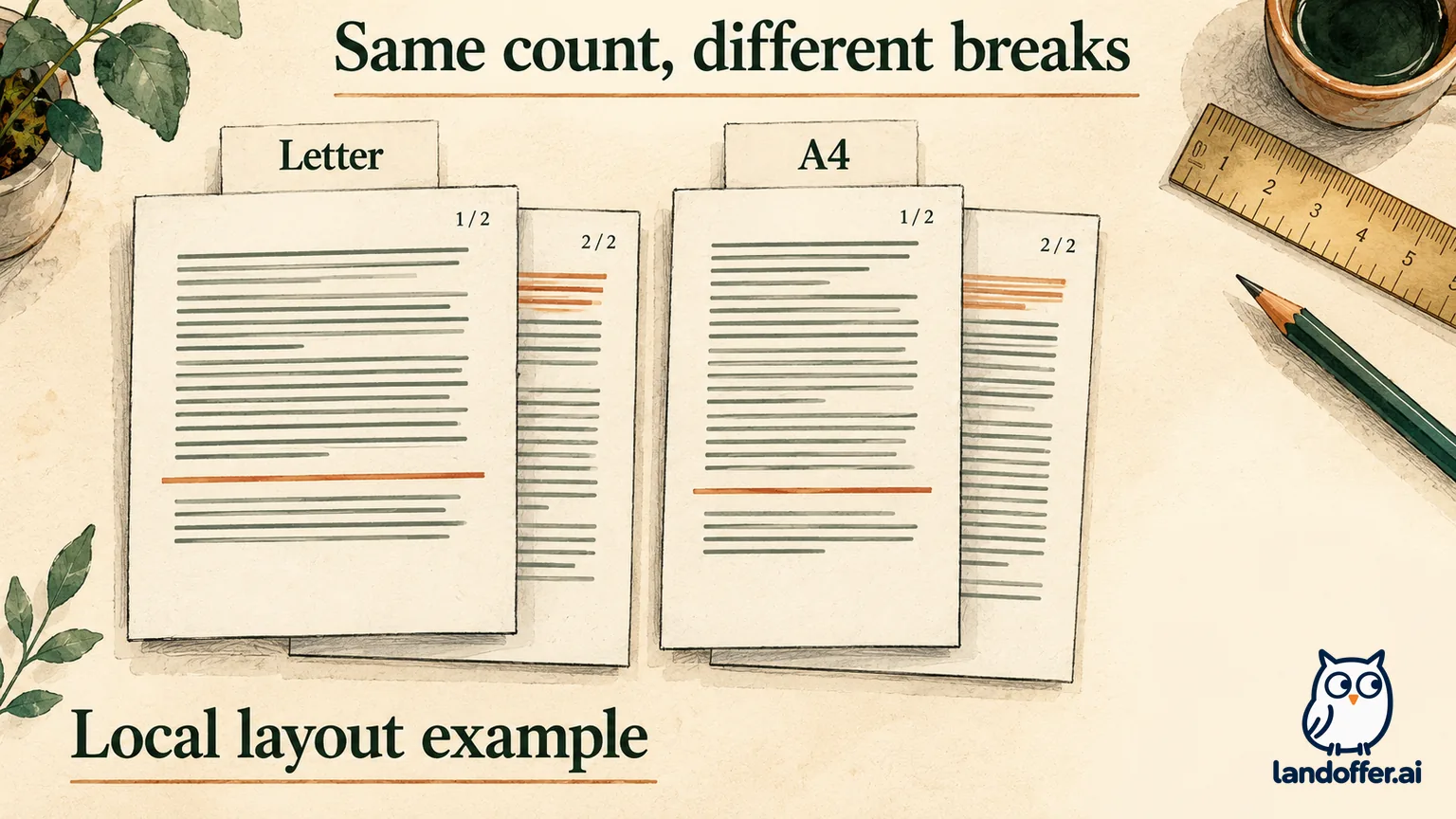
Observed local layout demonstration, not a Google Docs export: We built a synthetic Jordan Vale resume using the same 22 fictional evidence paragraphs, headings and education line. Both versions used Helvetica 10.5pt, 13.5pt line spacing, 5pt paragraph spacing, 54pt side margins and 36pt top/bottom margins. Only paper size changed.
We rendered all four output pages and inspected them. The observed comparison in this local ReportLab model was:
| Check | Letter output | A4 output |
|---|---|---|
| Physical page size in the generated PDF | 612 × 792 points | About 595.28 × 841.89 points |
| Page count | Two | Two |
| Last paragraph on page one | The paragraph explaining a fictional README and its limits | The following paragraph about checking an exported file |
| Education section | Present on page two | Present on page two |
| Practical result | Two pages did not locate the same break as A4 | Same page count, different distribution of content |
We also compared the extracted text after normalizing whitespace. The two generated files contained the same text in the same order, including the education line. That check complements the page images: it helps distinguish a changed boundary from missing content in this particular experiment. Text extraction alone would not show whether a heading was stranded or whether the visible spacing was readable, which is why we inspected the rendered pages as well.
The demonstration proves a narrow point about these generated files: an unchanged page count does not establish identical layout. It does not prove Google Docs will produce those same line breaks, diagnose a real resume or recommend this deliberately long synthetic document as a template.
For your own file, use the same comparison method with actual exports from the source. Record the settings, the bottom of page one, the first content on page two and the final section. A checklist saying only “PDF opens; two pages” would miss the difference observed in this local example.
Inspect explicit breaks before editing away good content
Google's breaks documentation distinguishes page breaks, section breaks and a page break before a paragraph. On a computer, Insert → Break provides break options. View → Show section breaks reveals section boundaries; the paragraph-spacing menu can apply Add page break before. These controls require Pages format.
If a heading begins on a new page with a large gap above it, inspect the preceding boundary and the paragraph's settings. A deliberate break may be doing exactly what it was configured to do. Removing accomplishments to compensate for that break can discard useful evidence without addressing the cause.
Keep intentional structure intact when it helps the reader. A two-page resume may need a considered section boundary. The goal is to locate accidental or unsuitable breaks, not remove every break until the document becomes one uninterrupted block.
Avoid filling a page with repeated blank lines to push a section down. That creates another spacing decision you must maintain when preceding content changes. Use the relevant document controls and verify the output after each change.
Check paragraph controls and hidden page elements
Google's paragraph-formatting help documents Keep with next, Keep lines together and Prevent single lines, available in Pages format. These settings address different relationships: a heading with the next paragraph, all lines of one paragraph, or isolated lines at a page edge.
Inspect the paragraphs near an unexpected gap. If several adjacent paragraphs are set to remain with what follows, the resulting group may need more space than you intended. Review the settings deliberately rather than applying every keep option to the entire resume as a universal fix.
Google's headers and footers guidance says those elements are not visible in Pageless, but return when you switch back to Pages. Its printing help also warns that prior page elements can print even while hidden in the pageless view, and that images and wide tables can change in print preview.
Next, inspect the header, footer and page-number area after switching back. A contact line unexpectedly repeated at the top is a different issue from a body paragraph wrapping onto the next page. Treat the visible symptom specifically instead of changing unrelated typography.
Completed repair log: separate source changes from viewer differences
Fictional teaching case: Priya has a two-page technical resume and a PDF whose Projects heading starts farther down page two than expected. The following observations and outcomes are invented to demonstrate a disciplined repair record. They are not results from our local PDF model or a Google account test.
| Attempt | Priya's stipulated observation and change | Completed decision |
|---|---|---|
| Baseline | Source is Pageless; only an older PDF was open for comparison | Preserve the source and identify the exact export revision |
| Page setup | Switch to Pages and record the intended paper size and margins | Use this setup for subsequent comparisons |
| Break review | Find a page-break-before setting on the Projects heading | Remove that break only after deciding it was unintended |
| Typography | Keep the existing font and size unchanged during the break test | Do not claim a font problem from the gap alone |
| Fresh export | Open the newly named PDF and inspect both pages | Confirm Projects and the final education line are present |
| Second viewer | Open that same file elsewhere; page placement matches, apparent zoom differs | Keep the file; do not re-edit for a zoom-only difference |
Priya's final note is precise: “Unintended break removed in the source; fresh two-page export inspected; final section present; same file shows matching page placement in the second viewer.” It records a completed repair in the fictional scenario without claiming all Google Docs differences have the same cause.
If the two viewers actually showed different content, the note would need a different conclusion. She would first verify the file identity and whether both viewers had loaded the current version. She would not label the problem font substitution merely because one display looked smaller.
Re-export one controlled revision and inspect the artifact
Google's printing guidance also describes downloading through File → Download and selecting a format, then finding and opening the downloaded file. Keep the selected route consistent while troubleshooting. A screenshot of the editor cannot substitute for inspection of the resulting PDF.
Name the copy so you can distinguish it from earlier exports. Record the name with the source revision or a short change note. Then close the older comparison copy before inspecting the new one. This reduces the chance of repeatedly fixing the source while judging an unchanged older PDF.
Read the first and last lines of every page. Check headings, job dates, bullet wrapping and contact details. Look for missing content, repeated elements or an isolated heading. The PDF should make sense as a continuous professional record, not merely fit inside the intended number of pages.
Inspect the same PDF in another viewer or on another available device if the difference appears display-related. Compare page boundaries and text placement, not zoom percentages alone. If you change the file afterward, repeat the check on the new artifact; the earlier inspection applies only to the copy you examined.
Keep the checked PDF through the application handoff
Before attaching the resume, compare the selected filename with the file you inspected. If the application offers an attachment preview or a downloaded copy, inspect that specific representation too. A correct export can still be undermined by selecting an older file with a similar name.
A cross-viewer check does not establish how an employer's parser will interpret the document. Follow the application's actual file instructions and review any imported fields it shows. This guide addresses layout differences; it does not certify ATS compatibility or decide every employer's preferred resume length.
Keep the editable source and a short final-settings note so future updates start from a known setup. Record Pages, paper size, margins and any intentional section break. When a new accomplishment changes the layout, check the newly exported file rather than assuming the earlier proof still applies.
Before attaching the file, open that exact PDF and confirm its page boundaries, final section and filename. Then browse recent roles on LandOffer.ai and apply according to each employer's instructions. LandOffer does not alter Google Docs settings or guarantee how an uploaded document will be rendered.