LandOffer
Job search
Spark Hire Live Interview: Use the Correct Room, Invitation, and Connection Check
Confirm the scheduled live invitation and timezone, separate setup from the lobby and conversation, and use the same assigned link after disconnection.
For a Spark Hire Live Interview, start from the invitation for that scheduled conversation, confirm its date, time and timezone, and complete the camera, microphone and connection checks before entering the room. Keep the local device check, lobby arrival and two-way conversation separate in your notes.
This guide reviews current public Spark Hire candidate and employer documentation checked October 23, 2026. The two completed workflow records below are fictional; we did not open an employer invitation, activate devices, join a real interview or test recording permissions. LandOffer publishes this guide and provides recent job listings, but does not host Spark Hire rooms or control interview admission.
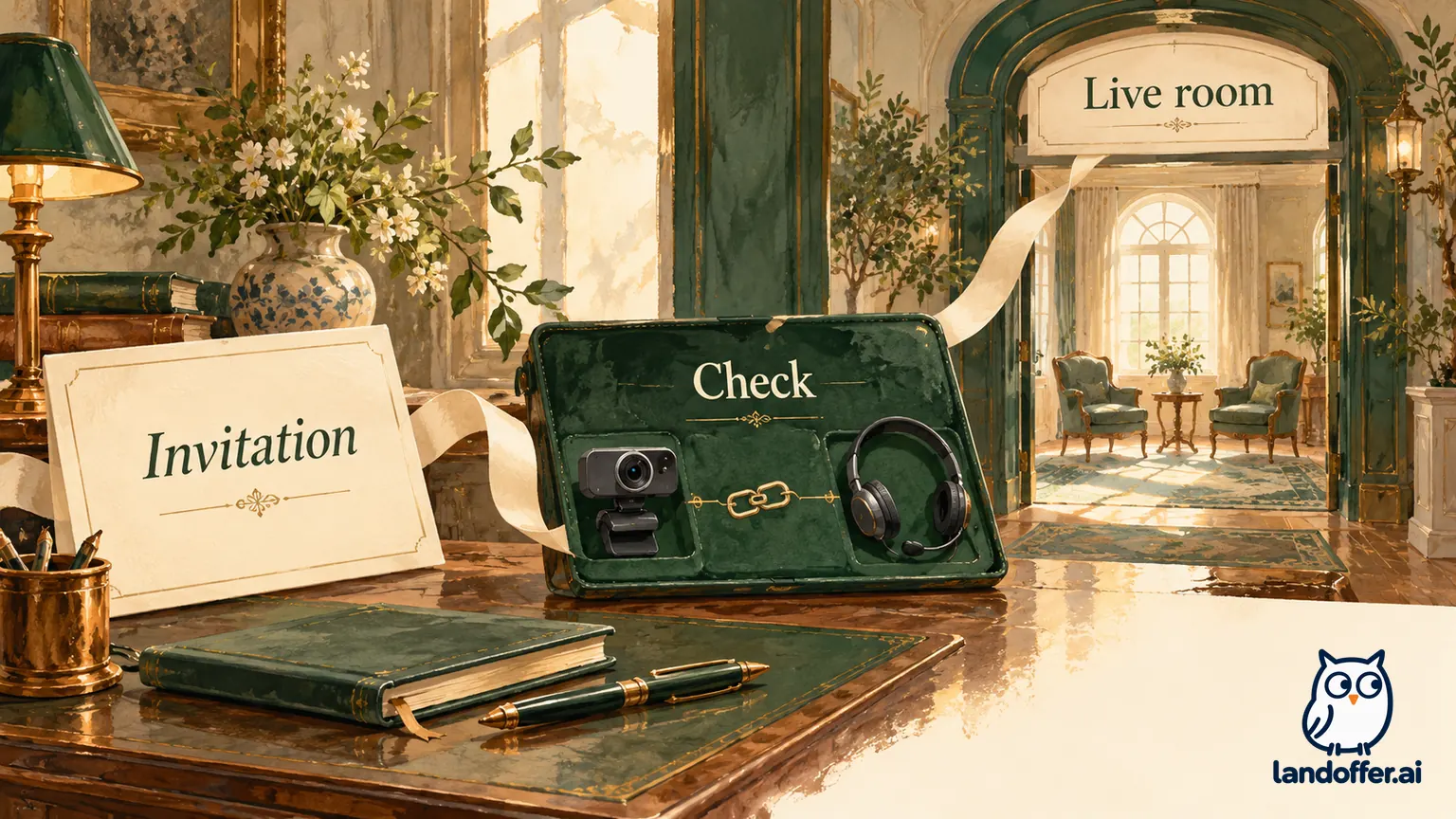
Confirm the format and use the matching invitation
A live interview is a scheduled real-time conversation. It differs from a one-way interview in which you record answers for later review. Do not apply a previous one-way invitation’s recording attempts, response limits or completion deadline to a newly scheduled live call.
The current candidate access guide directs candidates to the invitation’s Join Interview button or its alternative link, then the interview-information page and Go to your interview. Check the job information before continuing. Keep that invitation private and available for returning to the same session.
If an updated calendar entry and an older email disagree, resolve which invitation governs with the coordinator. Do not choose solely by message timestamp: a reminder may refer to an earlier schedule, while a reschedule may supply different details. Record the confirmed appointment with its source so a reminder cannot silently replace the agreed schedule.
Also distinguish Spark Hire products. Its separate Recruit video-interview documentation describes Zoom-powered invitations. That does not mean every Spark Hire Meet interview launches Zoom. Follow the platform and link in your actual invitation instead of installing software or entering an unrelated meeting from a different guide.
Check the selected devices and the connection separately
Spark Hire’s live-interview preparation guide recommends arriving about ten minutes early for setup, closing competing camera or microphone applications and using a quiet, well-lit space. It currently says virtual backgrounds are not supported for live interviews. Arrange the actual space rather than relying on a feature from a one-way recording experience.
On the preparation screen, check which camera is selected and whether its preview shows the intended view. For audio, confirm the selected microphone and the meter response when you speak. A laptop can have an available built-in microphone while the input selector is still pointing at a disconnected headset.
Then complete the connection check shown in the flow. The device and internet guide lists 2 Mbps upload and download as minimum and 5 Mbps each or higher as recommended. It permits mobile devices with supported browsers and cautions that hotspots can be less stable. A speed reading is one preparation result, not a guarantee that a later conversation cannot disconnect.
Use the actual invitation and device requirements when planning a fallback. A device being technically supported does not establish that switching midway is appropriate for every employer’s interview arrangement. Keep the coordinator’s contact route available for a specific issue rather than opening several sessions as an experiment.
Read the lobby as a waiting state, not a host control
The candidate access guide describes Start my interview after successful checks leading to a lobby, where you wait for the interviewer to start. The broader candidate live-interview walkthrough says the call begins when everyone is ready and a lobby may appear while others arrive. Both distinguish preparation from the conversation; the wording does not justify a universal button sequence beyond your displayed flow.
Remain on the interview page and follow the current instructions. If you can see only your preview or a waiting message, describe that state accurately. Do not conclude that the employer has received your audio, that the meeting has begun or that the interviewer is absent merely from your local view.
Employer documentation includes host-only actions. The host live-interview guide describes company-user controls for starting the interview, transferring host status and finishing the session. Those are not instructions for a candidate to take over the room. Candidate access does not establish permission to operate host recording or moderation features.
Worked entry record: an engineer reaches the right waiting room
This is an invented appointment, not a live interview observation. Iris has an invitation for a platform-engineer discussion with fictional Cedar Labs on October 28, 2026 at 10:00 a.m. America/Los_Angeles time. She will join from New York. Her preparation record converts that appointment to 1:00 p.m. America/New_York time for that date, while preserving the invitation’s original timezone.
Iris also has an older one-way interview email for another role. She completes this entry record before the fictional live appointment:
| Check | Completed record in the example | Decision |
|---|---|---|
| Interview identity | Cedar Labs platform-engineer live discussion, October 28 | Use this invitation, not the older recorded-interview email |
| Timezone | 10:00 a.m. Los Angeles equals 1:00 p.m. New York on that date | Reserve the correct local appointment and preparation period |
| Invitation route | Its job-information page matches the live discussion | Continue through that invitation’s setup |
| Camera | Selected built-in camera shows the intended view | Local video check completed, not remote visibility confirmed |
| Microphone | Headset microphone selected; meter responds while speaking | Local input check completed, not two-way audio confirmed |
| Connection | The displayed preparation check completes without an error | Record that check only; no uninterrupted-call promise |
| Arrival state | The example displays a waiting/lobby message | Remain in that room awaiting the interview flow |
Iris’s completed status note reads: “Correct live invitation confirmed, local appointment converted for this date, selected devices checked, connection check complete, waiting in the lobby. The real-time conversation has not yet been observed in this exercise.”
The sequence catches two different errors. The wrong invitation could lead to a genuine but unrelated interview workflow. The wrong local time could make the correct link appear unhelpful because Iris is arriving at the wrong appointment. Neither problem is solved by repeatedly testing the microphone.
The timezone conversion is specific to the named date and zones. Do not preserve a three-hour difference as a universal scheduling rule for every pair of locations or future date. For a real appointment, compare the actual invitation, date and calendar display; ask the coordinator if they still conflict.
Return through the same link after a disconnect
The candidate walkthrough explicitly says to reopen the same invitation link after disconnection. It also recommends rejoining, checking the network and closing competing device applications when troubleshooting. This is a return to the assigned room, not permission to create a replacement meeting or send the interviewer to your personal room.
Before taking another step, identify what changed: frozen picture, lost sound, a disconnected message or complete browser closure. A visible local preview alone does not confirm that the other party is still receiving your feed. Keep the original link and an accurate description of the symptom together.
If you reconnect, confirm that you are back with the intended participants and that audio works in both directions before resuming the conversation. If recovery fails or the displayed state is unclear, use the official coordinator or support route. Do not assume a restart preserves the remaining interview time or automatically reschedules the appointment.
Worked recovery record: one return attempt and an unsent update
Theo’s fictional data-engineer interview was already connected when the picture froze. He then saw a disconnected message. The invented invitation identifies the Harbor Analytics data-engineer live interview and supplies the coordinator’s email. No actual email address or private meeting URL is included in this teaching example.
Theo completes this recovery record:
| Point in the fictional sequence | Observation or action | Result retained |
|---|---|---|
| Before interruption | A real-time exchange had begun in the example | Connection had existed; no recording outcome inferred |
| Interruption | Frozen picture followed by a disconnected message | Call continuity lost; cause not yet established |
| Return route | Original invitation link reopened once | Same assigned interview route used |
| Device check | Camera preview and microphone meter respond again | Local equipment appears responsive |
| Current state | Lobby/waiting message remains | Conversation has not been confirmed restored |
| Coordinator update | One factual note drafted | No message sent or reply obtained |
The completed draft says: “I was connected to the Harbor Analytics data-engineer interview when the picture froze and a disconnected message appeared. I reopened the original invitation link and completed the device checks again. I am now seeing the waiting screen and have not confirmed two-way audio with the interviewer. Please advise whether to remain here or follow another approved step.”
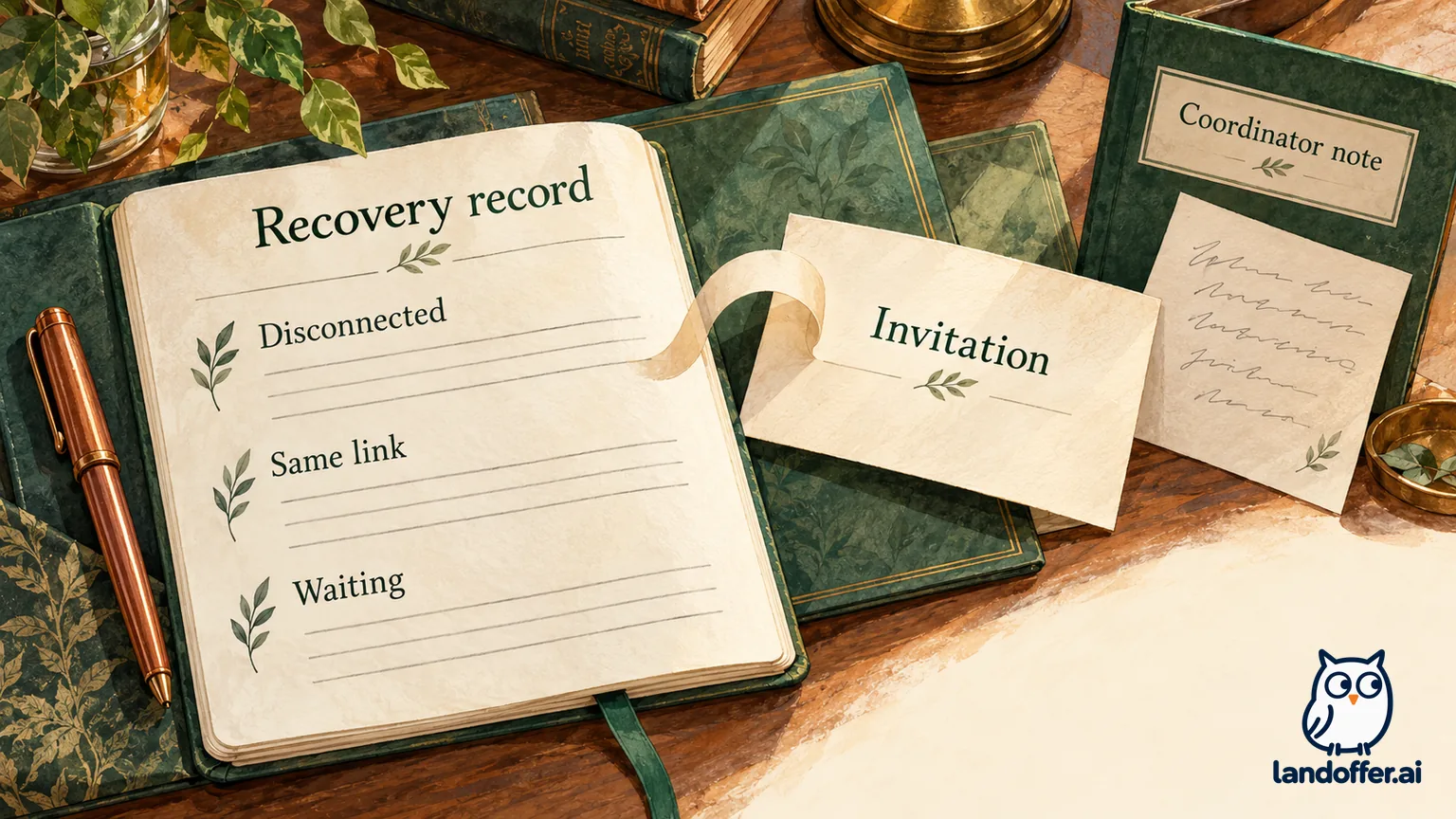
This note is useful because it gives the coordinator the last confirmed state without diagnosing an unproven cause. Theo does not say “the server failed,” “the interview was recorded” or “I have rejoined successfully.” He also does not promise that the interviewer has received the draft.
If the room instead reconnects and both parties confirm audibility, the record changes to “conversation restored” with the observed time. If the coordinator authorizes a different route, record that instruction before changing rooms. These are alternative next states, not outcomes we observed in a candidate account.
Keep browser troubleshooting specific to the live format
The supported-browser guide for live interviews recommends current Chrome on Windows or Mac, Chrome on Android and current Safari on iOS. It also explains that an invitation may open in an incompatible default browser. Confirm the browser that actually opened the link rather than the browser you intended to use.
When requesting help, describe the device, browser, selected input and visible message. “Camera preview works, microphone meter does not respond” is more actionable than “Spark Hire is broken.” Avoid publishing a private invitation, unrelated personal information or recordings of the interviewer to demonstrate a technical symptom.
Do not apply one-way interview remedies to a live call automatically. An extra recording take, an asynchronous deadline extension and returning to a real-time room are different workflows. Device or network changes can also interrupt the call, so follow the current instructions and coordinate when the next action could change your availability.
End with the participants and preserve only the status you know
Confirm the conversation has finished before leaving. Read any recording notice or consent request and ask the interviewer about an unclear requirement before proceeding. The existence of recording controls in an employer help article does not tell you whether this interview is recorded, whether you may record it yourself or whether a copy will be available.
Keep a private completion note limited to facts you know: the correct appointment, whether the conversation connected, whether recovery was needed and any agreed next step. A technical check passed, a lobby reached and an interview completed are distinct states. None establishes a hiring decision.
When planning other applications, browse recent roles on LandOffer.ai. For the scheduled conversation already in your calendar, keep the matching invitation and timezone beside your device-check result, then record whether you are waiting, connected or recovering.
Sources and Further Reading
- Spark Hire: Accessing a live interview — candidate invitation, checks and lobby; checked October 23, 2026.
- Spark Hire: How a live interview works — candidate flow and same-link recovery.
- Spark Hire: Preparing for a live interview — environment and setup preparation.
- Spark Hire: Device and internet requirements — connection recommendations.
- Spark Hire: Supported live-interview browsers — device-specific browser guidance.
- Spark Hire: Host live-interview guide — employer controls, not candidate permissions.
- Spark Hire Recruit: Video interviews — separate Zoom-powered workflow.