LandOffer
Job search
Job Application Autofill Not Working? Isolate Browser Autofill, Extensions, and ATS Fields
Troubleshoot job application autofill by separating browser suggestions, extensions, resume imports, and saved profiles before reviewing the final form.
When job application autofill stops working, first identify which system is writing the field: your browser, an extension, a saved applicant profile, or the resume upload. Then change one source at a time on an unsubmitted application. A missing extension button, an incorrect city, and a degree selection that disappears need different fixes. Repeatedly running autofill can hide the cause and overwrite correct answers.
LandOffer publishes this guide and offers job search tools, so we have an interest in this category. You can use recent tech job listings to build a shortlist, then open the employer's application to check its requirements. The troubleshooting examples below are fictional demonstrations, not tests of an employer's ATS or promises that an extension supports every form.

Identify the system before changing settings
“Autofill” describes several actions that can happen on the same page. A browser may offer a saved address when you click a contact field. A job application extension may fill employment history after you press its button. Uploading a resume may populate dates and titles. An applicant account may restore answers from a previous visit before either tool runs.
Different sources can supply different values to the same field; that does not mean the whole form is broken. A current resume can coexist with an old browser address. A saved applicant profile can contain a former job title even when the extension profile is correct. Treat the moment the value appears as a clue, not a diagnosis.
| When the problem appears | First source to investigate | Useful comparison |
|---|---|---|
| A suggestion appears when you focus a contact field | Browser saved information | Decline the suggestion and type manually |
| Several fields change after an extension action | Extension profile or field mapping | Repeat with that extension disabled |
| Dates and employers appear immediately after upload | Resume parsing | Compare the imported values with the uploaded file |
| Old answers return after signing in or revisiting | Applicant profile or saved draft | Compare the portal's saved profile with the form |
| A chosen option disappears after leaving the field | Form selection or validation behavior | Select a listed option manually and check persistence |
If the problem starts after a resume upload, our resume parsing repair guide covers document structure and imported dates. Here, the priority is separating competing writers before editing the document.
Preserve the application before testing
Start with a record of the role, employer, requisition ID, application URL, browser, and approximate time. Note whether the page shows a saved draft or a submission confirmation. If submission may already have occurred, investigate that state before reopening the process as a fresh application.
Save long answers in your own working document before refreshing, signing out, changing profiles, or opening another browser. Keep the filename of the intended resume beside the role record. A screenshot of the affected field can help, but exclude information you do not need to share, especially identification numbers and private demographic answers.
Use a low-risk field, such as city, to establish the sequence. Do not test by repeatedly changing work authorization, disability disclosures, salary commitments, or consent selections. Those answers need deliberate review, and a diagnostic run should stop before submission.
Write down the expected result so the next action can confirm or rule out one cause: “City should remain Portland after I leave the field.” Otherwise, you may remember that the page changed without remembering which action changed it. A useful test has one changed condition and one observable result. Do not clear all browsing data as an opening move; you may lose sessions and drafts without learning which source caused the error.
Check browser autofill separately from extensions
Chrome lets users manage saved contact information and whether contact autofill is enabled. It also acknowledges that some form fields may not be detected. A browser failing to fill a custom application field does not establish that the ATS, your resume, or your extension is defective. See Chrome's form autofill documentation.
For a browser-only comparison, turn off the relevant job application extension for the test, decline any portal import, and observe what appears when you focus the field. If Chrome offers the old city, inspect that saved address entry. Correct the stored source rather than accepting the suggestion and repairing the application every time.
For an extension-only comparison, avoid selecting the browser's suggestion and trigger the extension deliberately. Check its saved profile first. If that profile has the correct city but the wrong value lands in the form, record the exact field label, the expected city, the city entered, and the extension action that produced it. That is different evidence from a stale profile.
An incognito window is not automatically a clean comparison. Chrome allows individual extensions to run there when enabled. Check the actual extension state, and remember that signing out of an applicant account also changes another condition. A different browser can be a useful workaround, but it is a less precise experiment when several settings change together.
Worked example: trace an old city to its source
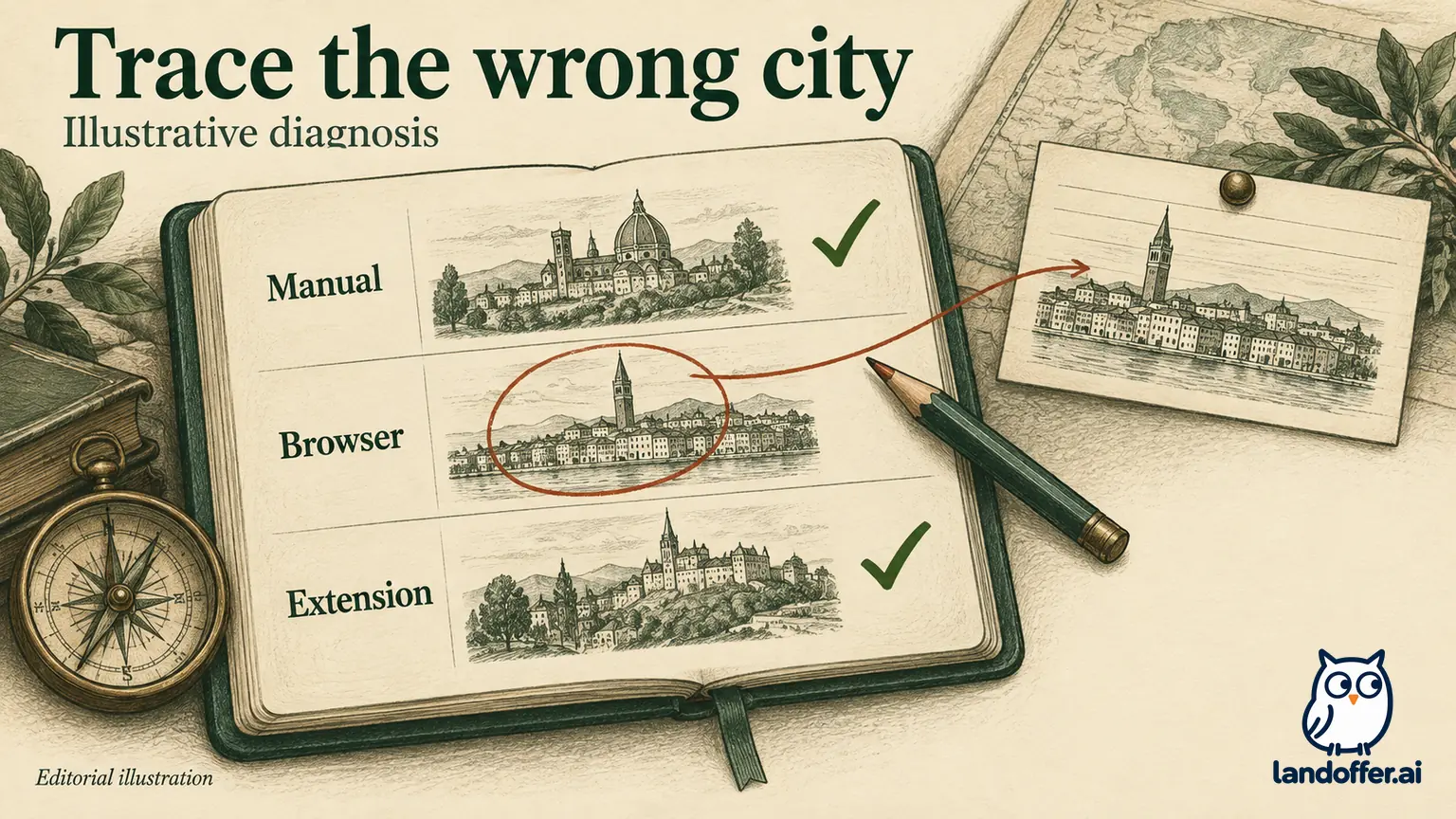
Consider Maya, a fictional engineer whose application keeps showing Austin even though she now lives in Portland. Her resume and extension profile both say Portland. She has saved her draft and has not submitted it. She uses one city field for the following comparison, returning it to blank between runs when the form permits.
| Run | Active action | Result after leaving the field | What Maya can conclude |
|---|---|---|---|
| 1 | Manual entry; browser suggestion declined; extension off | Portland stays | Manual entry works in this field |
| 2 | Browser address suggestion; extension off | Austin appears | The browser suggestion contains the stale city |
| 3 | Extension action; browser suggestion declined | Portland stays | This extension action supplies the expected city here |
| 4 | Corrected browser address suggestion; extension off | Portland stays | Updating that saved address resolves this example |
This is enough evidence to fix Maya's browser address. It does not prove that every extension field is correct or that the employer has received Portland. She still checks the final application summary before submitting.
If Austin appeared only after a page reload, the next comparison would instead examine the portal's saved profile or draft. If both browser and extension supplied Austin, she would repair both sources separately. The value alone cannot tell her which source wrote it.
Check extension access without granting everything
A missing button can have a different cause from incorrect answers. Check whether the extension is enabled, whether its account is signed in if required, and whether it has access to the specific application site. Chrome documents controls for access when selected, on particular sites, or more broadly; an extension's own permissions still constrain what it can do. Use the narrowest access that supports the intended action. Chrome extension controls
Do not install a second autofill extension as the first repair. Two active tools make it harder to attribute a change. Temporarily disabling one is more informative than uninstalling several tools, removing all saved profiles, and starting over.
Also separate an unavailable feature from a malfunction. Simplify's help page offers copying information from its Profile tab and requesting support when autofill is unsupported. That is a documented fallback, not evidence of universal ATS coverage. A manually completed form may be the practical choice for an unsupported page. Simplify's unsupported-autofill guidance
Before granting broader access, read what the extension needs and why. Our extension permissions guide explains that decision in more detail. Troubleshooting should not require disabling browser security protections or sharing account credentials with an unverified support contact.
Worked example: a degree field that will not stay selected
Now consider Omar, another fictional applicant. His extension enters “Computer Science” into a school-related search box, but the value disappears when he clicks elsewhere. His resume is readable, and his browser has no relevant saved education entry. Re-uploading the same file has not helped.
Omar stops rerunning the extension. With it disabled, he types the institution name, waits for the form's options, selects the matching institution, and leaves the field. In this fictional example, that selection remains. He then selects the degree separately and reviews the displayed result. His completed diagnostic note reads: “Typed text disappeared; manually selected listed institution persisted; degree saved after separate selection.”
The defensible conclusion is narrow: this form accepted a listed selection during his manual attempt. He cannot conclude that all disappearing fields use the same mechanism. Nor should he select a different institution merely because it is easier to save.
MyGreenhouse's candidate FAQ specifically advises trying a fresh sign-in or another browser when a manually entered school clears or will not save, then contacting support if the problem persists. It also says candidates should review parsed information before saving a profile and before each application. Those are MyGreenhouse instructions, not a guarantee about other portals. MyGreenhouse candidate FAQ
If Omar's school genuinely is absent, he checks whether the form permits a manual entry. If no truthful answer can be saved, he records the blockage and contacts the appropriate support channel. Guessing a different degree creates an accuracy problem larger than the original inconvenience.
Fix the source, then check whether the correction persists
Once you identify the likely writer, make the smallest relevant correction. Update the browser address, extension profile, applicant profile, or resume as appropriate. Return to the application and verify the field after moving away from it. Where the portal supports saved drafts, check that the saved version retains the change.
Be especially careful with resume versions. MyGreenhouse says its most recently uploaded resume becomes the default and that it does not currently store multiple resume versions. A previously correct profile can therefore be paired with the wrong file for a new role. Confirm both the visible imported information and the actual uploaded filename. MyGreenhouse candidate FAQ
If a problem persists during manual entry with the relevant extension disabled, stop describing it simply as an extension failure. It may involve form validation, account state, or another condition you have not isolated. A support report should contain the exact field label, expected value category, observed behavior, browser version, and steps already attempted. Share a minimal reproduction rather than your entire application history.
Correcting your reusable profile also does not necessarily change an application already sent to an employer. For a submitted mistake, check that employer's correction options and contact instructions. Keep the original submission record so a repair attempt does not become an accidental duplicate application.
Finish with a manual review, not another test run
Once the form is stable, review the entire application as one document. Compare contact details, employment dates, degree selections, work authorization, custom answers, and uploaded files with your source materials. Look for fields a test may have cleared as well as fields it populated incorrectly.
You can stop once a manual path works and you have enough evidence to correct the source; one stubborn field need not consume your entire application session. You do not need to solve every integration issue to submit one accurate application. Record unresolved behavior separately so the next role does not restart the same investigation.
For your next shortlist, browse recent tech roles on LandOffer, then use the employer's actual form requirements to choose your application method. Use that shortlist for research while the extension issue is unresolved. Opening a listing does not submit an application; finish the field and file review before sending.