LandOffer
Job search
Coderbyte Assessment Submission: Check the Timer, Challenge Buttons, and Final Handoff
Separate Coderbyte challenge-level submission from the final assessment handoff, and check how the invite window and timer apply to your session.
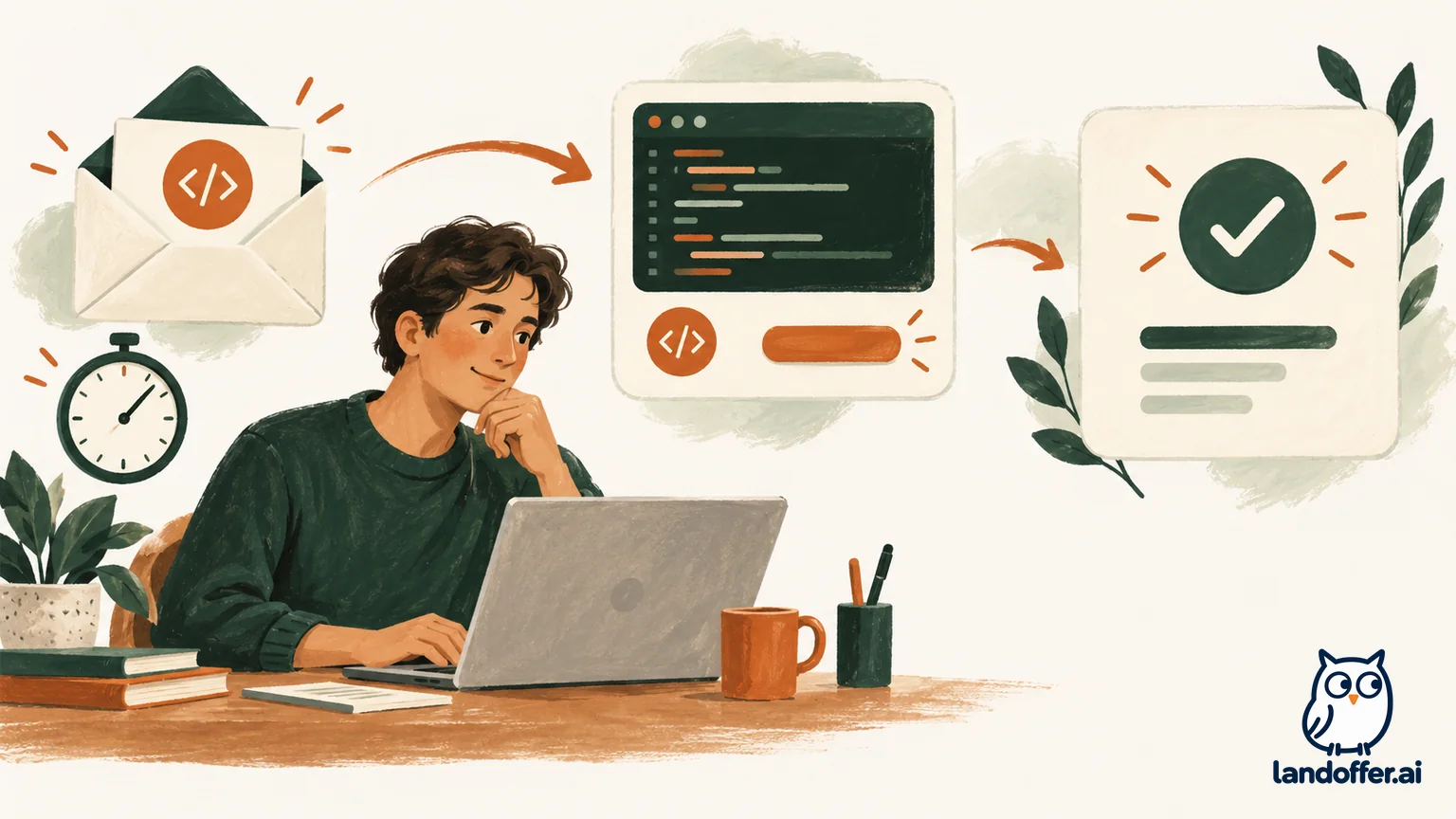
A Coderbyte assessment can contain several challenge-level submissions and one separate final handoff. The coding challenge’s Submit button sends that solution for grading; it does not, by itself, mark the whole assessment complete. At the end, use Submit Assessment, then check that the assessment status says Submitted before choosing Leave Assessment. Coderbyte’s candidate guide describes this sequence, while the exact tasks, timer, results, and redo options depend on the employer’s setup.
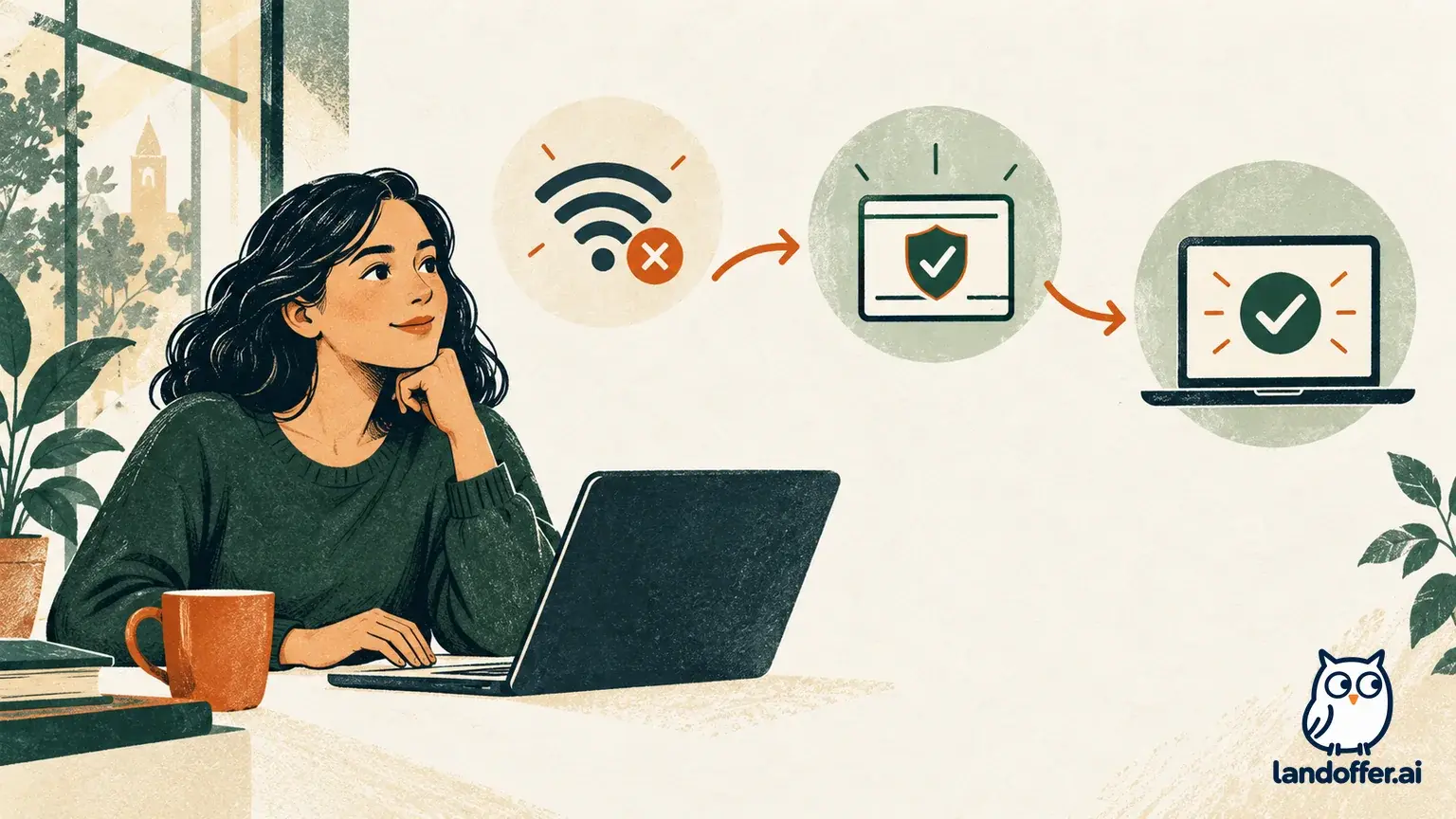
Before you begin, read the invitation’s deadline and instructions. Keep its begin-by window separate from the assessment timer: a private invite can expire before you start, while a configured session timer begins after Begin Assessment. If enabled, Coderbyte says the timer cannot be paused. Start only when your connection and workspace are ready.
Browse recent roles on LandOffer.ai while you keep your application steps organized.
Check the invitation before opening the timer
An invitation may tell you when its link expires, when the assessment must be completed, or both. Those are different clocks. Coderbyte’s employer documentation describes private-link expiration as the period in which the candidate must begin. Once the candidate begins, the configured assessment duration applies. The assessment may also have no time limit at all. The employer decides which settings apply, so use the wording and deadline in your actual invitation rather than assuming every Coderbyte test is timed.
Before you press Begin Assessment, do a short readiness check:
- Confirm that the invitation is for the right employer and assessment, and note any begin-by deadline.
- Read the employer’s instructions for allowed tools, language, identity checks, or video. Do not assume a tool is permitted just because the editor makes it available.
- Check that your device and browser meet the invitation’s instructions. Close unrelated work and keep only materials the employer allows.
- Make sure your connection and power are stable. If you have an accommodation or scheduling issue, contact the employer before starting if possible.
- If the welcome page displays the duration or instructions, read them before selecting Begin Assessment.
The candidate guide says a welcome screen can show organization instructions and the time limit, and that the timer begins when you start the assessment. It also says a timed assessment cannot be paused. Therefore, opening the invitation to inspect its welcome page and beginning the timed session should be treated as separate decisions. If the page’s wording is unclear about whether a button starts the timer, do not guess; check the current instructions or ask the recruiter.
Separate the invitation deadline from the session timer
Think of the invitation as the door and the assessment timer as the clock inside the room. An expiring private link can limit how long you have to enter. It does not necessarily tell you how many minutes you will have once the assessment starts. The assessment duration, if one is set, is configured by the employer and is shown during the candidate flow according to Coderbyte’s help documentation.
This distinction matters if you received an invite early but plan to complete the test later. You may be able to open the link and read the welcome information without starting, but the invitation’s own expiration rules still matter. Conversely, once you select Begin Assessment, a configured time limit may start immediately and keep running. Don’t use a second invite, refresh repeatedly, or begin a test just to inspect the deadline if you are not ready. If you need a new window, ask the employer to clarify or issue an extension before the link expires.
During the session, use the displayed timer as your reference and reserve a few minutes for review and handoff. A missing display alone does not prove the test is untimed; follow the on-screen instructions or contact the employer.
Know which Submit button you are using
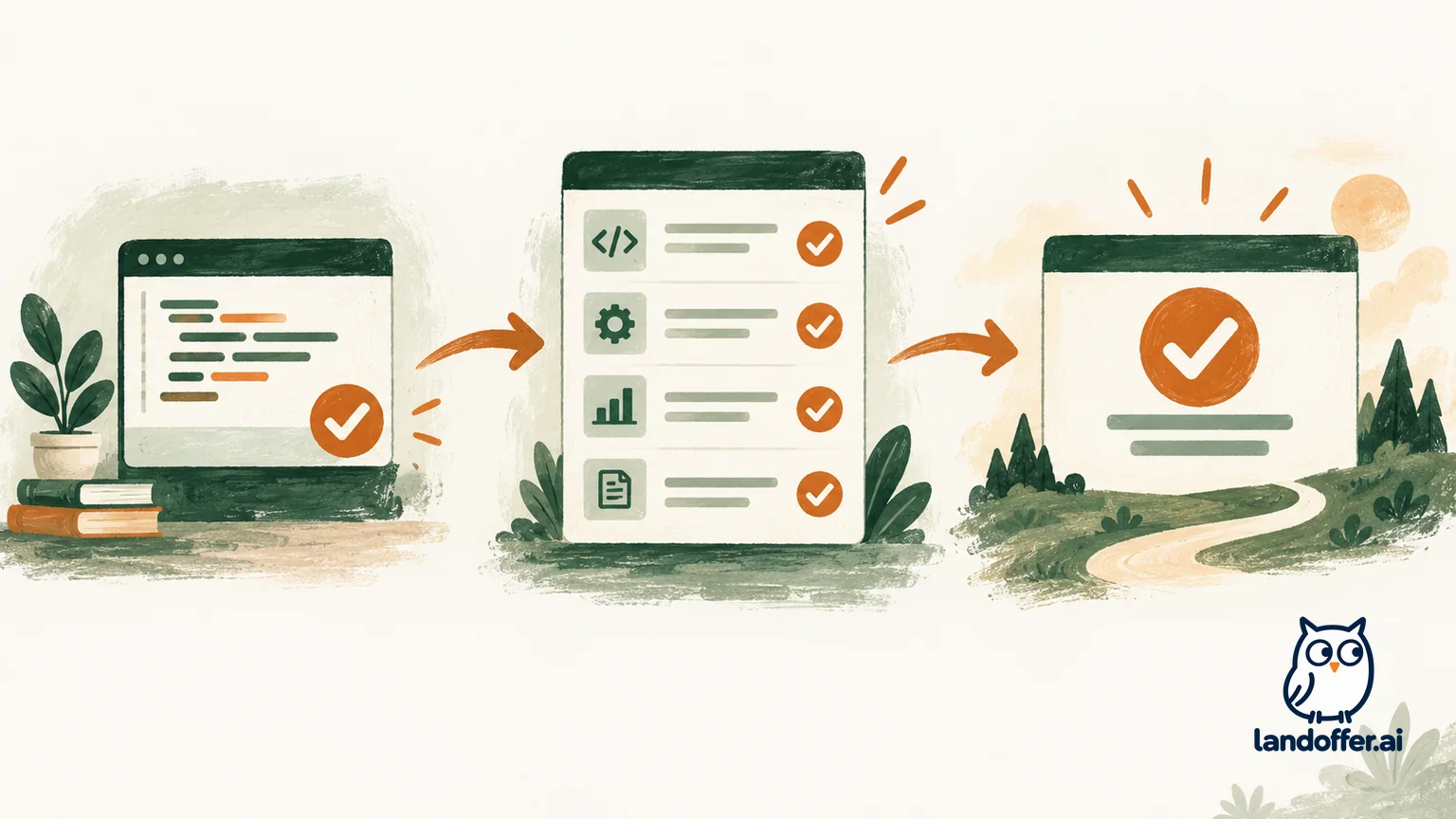
The word Submit can appear at two different levels. On an individual coding challenge, Submit sends that challenge’s solution for grading. The assessment-level Submit Assessment action submits the overall assessment. Coderbyte’s candidate guide describes these as distinct steps, followed by a submitted-status screen and then Leave Assessment. A task’s confirmation is useful, but it is not the final handoff for the full assessment.
A typical challenge flow may look like this, although the labels and task types can vary by employer:
- Open a challenge and read its full instructions, examples, constraints, and required function or input format.
- Write or edit the solution in the provided editor. If sample tests are available, run them and review failures. Sample tests are helpful checks, not proof that every hidden case passes.
- Use the challenge’s Submit control when you are ready to send that solution. Read the result or confirmation message that appears.
- If the assessment contains more sections, return to its task list or follow its navigation and continue with the required items.
- When all required work is complete, use the overall Submit Assessment action and verify the resulting assessment status.
The exact challenge interface can include coding problems, custom tasks, open-ended questions, or multiple-choice questions. Some assessments load questions progressively, and some distinguish required from optional work. Read each page’s instructions instead of assuming that every visible challenge is required or that every assessment uses the same sequence. On an algorithm challenge, the candidate guide specifically warns against changing the provided function call. Preserve required scaffolding unless the instructions tell you otherwise.
Review before submitting a challenge
Before sending a code challenge, compare the solution with the prompt, not just the sample output. Check the required function name and signature, return type, input assumptions, edge cases, and any limits on runtime or memory. Run the available sample tests, then inspect the code for accidental debug output, an unfinished branch, or a stale version in the editor. A green sample result is evidence about those examples only; it is not a guarantee of the employer’s full evaluation.
After selecting challenge-level Submit, read the message. The employer controls whether you see results and can redo a submitted challenge. You might see a score, a saved confirmation, or a notice that the submission cannot be changed. Do not assume every challenge can be reopened.
If the challenge submission can be redone, use that option only when the assessment’s controls clearly permit it. A redo may replace or change the submitted response, so check what the interface says before acting. If it is disabled, treat the submission as final for that challenge and continue with the remaining required work. If the message is ambiguous or the page appears stuck, record what you can see and use the employer’s contact path instead of clicking repeatedly.
A worked example: one task is not the whole assessment
Imagine an employer creates a fictional assessment with one algorithm challenge, one short written response, and one optional question. This example illustrates the distinction between controls; it does not describe a standard Coderbyte assessment or a guarantee about any employer’s setup.
You read the algorithm prompt, keep the provided function signature, and run the displayed sample cases. You select the challenge’s Submit button and receive a confirmation. That tells you the solution was sent through the challenge flow. You then follow the assessment’s navigation to the written response and complete the required items. The interface indicates that the final question is optional, so you use the employer’s instructions to decide whether to answer it.
At this point, the challenge confirmation still does not prove that the whole assessment has been handed in. You review the overall page for remaining required tasks, select Submit Assessment, and wait for the assessment status screen. When it displays Submitted, you have the confirmation described in the candidate guide. Only then do you choose Leave Assessment. If instead the timer ends, the browser closes, or no submitted status appears, do not infer that everything was received; preserve the visible state and contact the employer.
This simple sequence prevents two common errors: stopping after a coding challenge’s Submit button, and leaving the assessment before confirming the assessment-level status. It also avoids the opposite mistake of repeatedly submitting a challenge because the whole-assessment status has not yet changed.
Finish with a deliberate handoff
When the remaining required sections are complete, take a final pass through the assessment. Check for a required response that is blank, an unfinished editor, or a section marked incomplete. If time permits, review your work in the order that matters most to the prompt. Then choose Submit Assessment once and wait for the interface to respond. The candidate guide says this action marks the assessment as Submitted and displays a status screen; Leave Assessment comes afterward.
Use the visible confirmation as your record. Keep any receipt or confirmation number with the invite. Follow the employer’s rules about screenshots and assessment content; a note of the time, status, and any error message can help explain a technical issue.
If the timer reaches zero, the page stops responding, or the final status does not appear, do not claim success based on an earlier challenge confirmation. Take a screenshot if the rules allow it, note the time and exact message, and contact the employer promptly using the invitation’s support details. Coderbyte’s public candidate guide does not establish that unfinished work is automatically saved or submitted when time expires, so do not depend on either behavior. Ask the employer to verify receipt before accepting a replacement invite or trying to create another attempt.
If something goes wrong
The invitation says the link expired. Check whether the message refers to the private invitation’s begin-by window or a deadline set by the employer. Contact the recruiter or assessment owner and request a valid link or clarification. Do not try to reuse a stale link through another account.
I can see a timer but need to stop. Coderbyte says a configured assessment timer cannot be paused. If an interruption is unavoidable, preserve the message and contact the employer about the next step. Do not assume closing the tab pauses the clock.
I clicked Submit on a challenge, but I am still on the assessment. That can be expected: challenge submission and final assessment submission are separate. Read the confirmation, complete other required sections, and use Submit Assessment when you are finished.
I cannot change an answer after submission. Redo availability is controlled by the employer. If the interface says the challenge cannot be changed, avoid workarounds or duplicate attempts and ask the employer whether a reset is appropriate.
I do not know whether the overall assessment went through. Look for the assessment-level Submitted status screen or another explicit receipt. If it is missing, record the current page and contact the employer. Do not treat a challenge-level result as proof of final handoff.
Frequently asked questions
Does the Coderbyte timer start when I open the invitation?
The candidate guide says the timer starts after you choose Begin Assessment from the welcome screen. A private invite may separately have an expiration window that determines when you must begin. Follow the wording on your own invitation because employer settings can differ.
Can I pause a timed Coderbyte assessment?
Coderbyte’s candidate guide says a time-limited assessment cannot be paused. Prepare before you start. If something unexpected happens, contact the employer rather than assuming the timer stopped.
Does Submit on a coding challenge submit my full assessment?
No. The candidate guide distinguishes the challenge’s Submit action from the overall Submit Assessment button. Finish the required sections, submit the assessment, and confirm its overall status.
Will I see my score after submitting a challenge?
Not necessarily. Coderbyte documents that result visibility is an employer setting. You may receive a result or only a saved confirmation, and redo availability can also depend on the employer’s configuration.
Is my work automatically saved or submitted when time runs out?
The public candidate material reviewed for this guide does not establish that. Do not rely on automatic saving or timeout submission. Check the visible status and ask the employer to verify receipt if you are unsure.
Keep your job search organized alongside the assessment. Browse recent roles on LandOffer.ai and track applications and next steps while you wait for an update.
Sources and Further Reading
- Coderbyte Candidate Guide
- Set a Time Limit for Code Assessments
- Expiring Private Invite Links
- Allow Candidates to View Results and Redo Challenges
- Understanding the Code Editor and Video Recording
These sources explain the documented flow and configurable settings; your employer’s invitation and live assessment instructions control your specific session.