LandOffer
Job search
Canva Resume Builder Review: Templates, PDF Exports, and Application Trade-Offs
A public-source review of Canva’s visual resume editing, free versus paid assets, PDF reading order and document-type export limits.
Canva Resume Builder is worth considering when you want direct control over a resume’s typography, spacing and visual arrangement, and can inspect the file you will send. Its free templates are a useful starting point, but premium elements and advanced download options can change the cost. Word export is documented for Canva Docs; an ordinary visual resume design is a different document type. This review examines public pages and official help checked October 19, 2026; we did not create a resume, buy access, export a file or test an employer’s parser.
LandOffer publishes this review and also offers job-search tools. Start with one opening, such as a role from LandOffer’s recent jobs, and identify the requested attachment format. Canva’s flexibility is useful when you want to arrange a page yourself. A required Word template, frequent text revisions or a need for closely controlled reading order can favor another editing workflow.
What Canva gives you control over
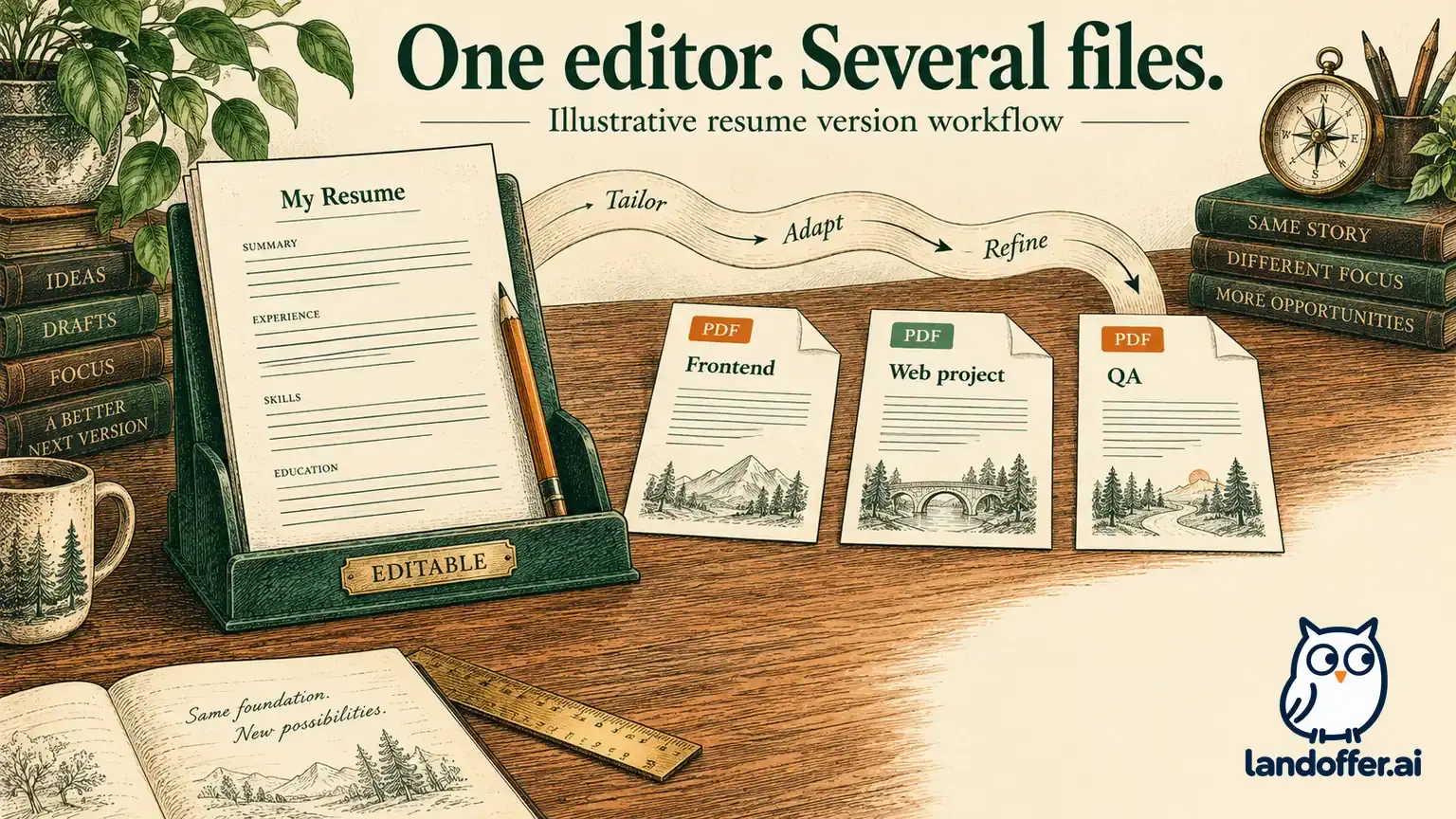
The official resume page describes drag-and-drop editing, customizable templates, fonts, graphics and your own uploaded assets. It advertises PDF, JPEG and PNG downloads, viewable links and portfolio-site options. These are different delivery routes, so choose the one the application accepts before spending time on decoration.
We observed public gallery labels offering a free “Science and Engineering Resume in White Black Simple Style” and a free two-page corporate resume. Their links led toward creating a design in the editor. We read the labels without creating copies. That establishes a visible template offer, not a completed free download or a test of every element you might later add. The two-page label is also a reminder to check the page count rather than assume every preview represents one page.
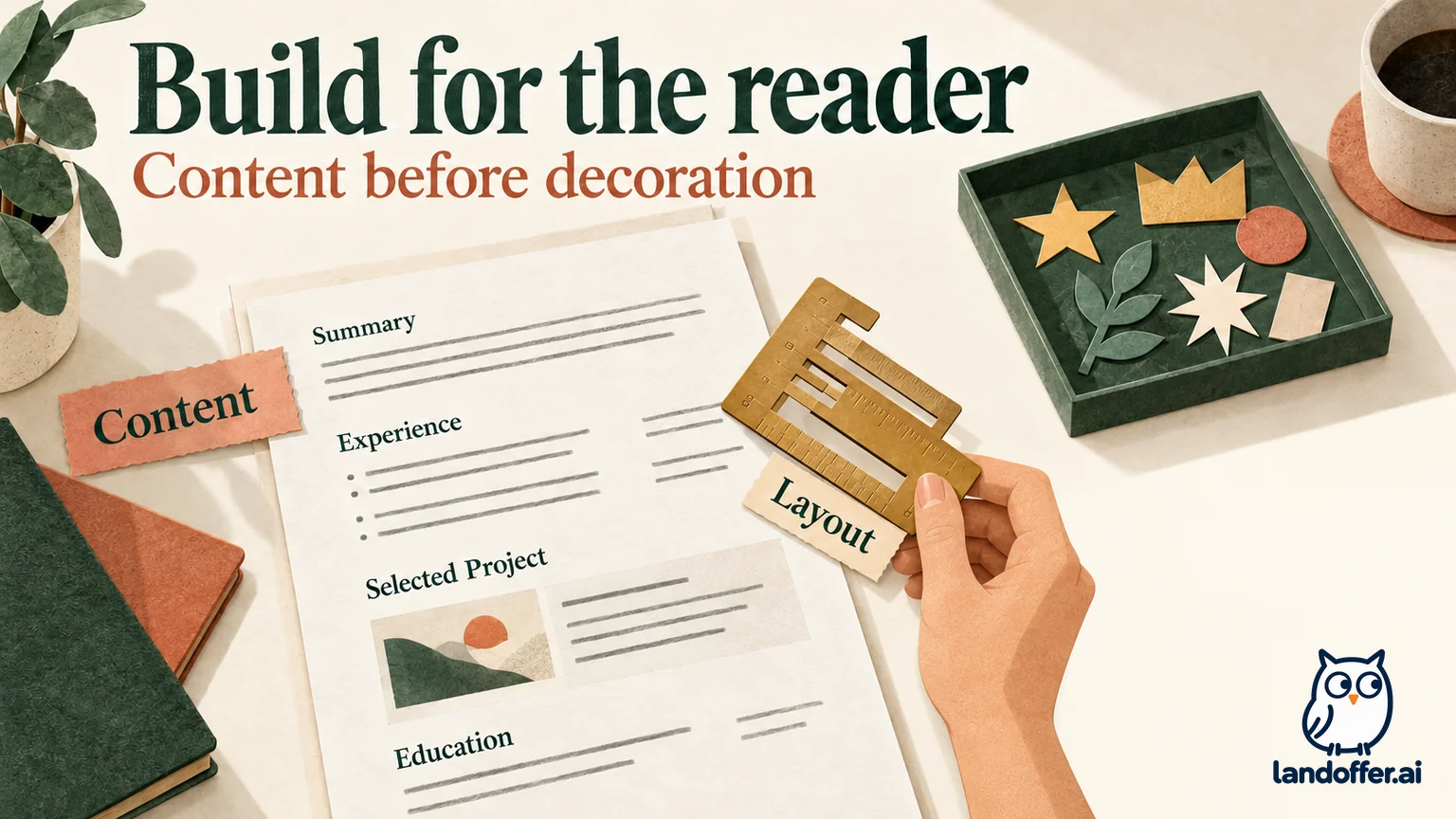
The design approach suits someone who wants to move a project section, change the amount of space around headings or prepare a visually coordinated portfolio. It also gives you more layout decisions to maintain. Moving one text box can affect what belongs beside it, and a longer bullet may need more room even when the template looked balanced with sample text.
Evaluate the template after replacing its sample wording with your own experience. A sample’s neat page length is not evidence that your dates, project titles and descriptions will fit. Prefer an arrangement that can accommodate the content you need without shrinking everything to preserve the original appearance.
Free templates and paid elements are separate decisions
Canva’s premium-element guidance says paid elements carry watermarks until purchased or licensed through an eligible plan. It describes both purchase and upgrade routes. A design that started from a free template can therefore introduce a payment decision after you add different content.
For a resume, the relevant question is which element or feature requires payment and whether it serves the application. A decorative icon may be easy to remove. A paid capability that you use across an established design workflow could have a different value. We have not verified an account-specific offer or checkout price, so this review does not assign a subscription cost to every candidate.
Marisol’s completed element review
Marisol is a fictional front-end graduate. Her facts are a January–May 2026 internship and a course booking app in which she implemented keyboard navigation and form validation. The inventory below is independently authored; it is not a Canva design we edited or downloaded.
| Design item | Marisol’s decision | Final content or arrangement |
|---|---|---|
| Internship text | Keep her verified facts | Internship title, employer and January–May 2026 dates |
| Decorative premium icon | Remove | A plain heading with enough surrounding space |
| “React 4/5” skill meter | Replace | “React: implemented keyboard navigation and form validation in a course booking app.” |
| Narrow project text box | Widen and reduce decoration | Room for the project description without reducing the body text size |
Her completed choice is to spend the available space on an explanation of her React work. Removing the icon also removes her reason for buying that decorative asset. It does not prove that every remaining element in an actual design is free; she would still review the download panel for paid content.
The skill-meter change has a separate purpose. Four filled circles do not explain what she built or how independently she worked. Her replacement names a technology and concrete actions without adding a proficiency score or a measured result she has not established.
Word export depends on the Canva document type
The resume hub includes broad wording about saving in PDF or Word. The more specific download file-type guide limits DOCX to Canva Docs and says other design types do not support that download. The Canva Docs guide separately describes PDF and DOCX downloads.
Those distinctions matter if a recruiter asks for an editable Word resume. Do not choose an ordinary visual template on the assumption that it will later become a matching DOCX. A Canva Doc is a different starting workflow, and the file-type guide warns that downloaded Word documents may look different when opened in Word.
If you already maintain a suitable Word source, keeping it can be the direct route. If you want to use Canva Docs, prepare the document in that format deliberately and inspect the exported DOCX. Neither option requires pretending that a graphic resume layout has a verified Word-export route.
This is a documentation-based boundary. We did not test conversion between the workflows or compare a DOCX with a Canva preview. For a prescribed employer template, work in the required editable file so its fields remain part of the source you review.
Choose PDF settings for the actual delivery purpose
Canva’s file-type guide distinguishes PDF Standard for text and graphics from PDF Print for professional printing, including print-related options. Other current help pages describe a PDF choice followed by Digital or Print presets. The labels can vary across the documented download experience; follow the purpose and controls visible in your own panel.
For a digital resume attachment, print-production options are not a measure of application compatibility. Higher print resolution does not establish better field recognition. First meet the employer’s accepted format and size, then check the actual document’s page layout and readable content.
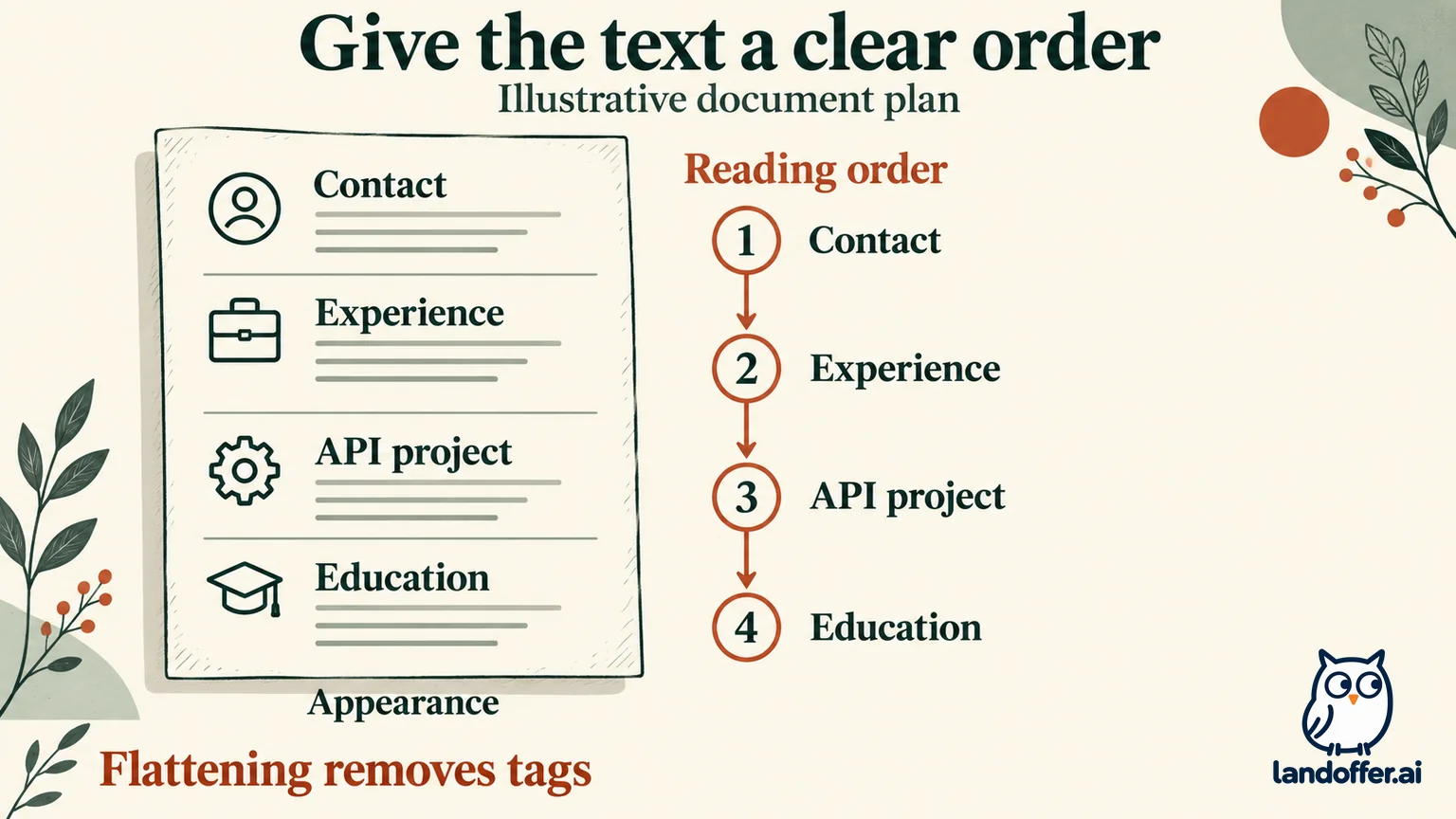
Flattening deserves particular care. Canva’s flattened-PDF guide describes merging design elements into a static image and notes that the file can become larger. Its PDF accessibility guide says flattening removes accessibility tags. The documented tagged-PDF route uses the Digital preset with Flatten PDF unchecked.
That is a reason to leave flattening off when you want to preserve those tags. Accessibility tags describe document structure; they are not a vendor-independent hiring-system score. It is not evidence that every unflattened resume will be read correctly by every employer system. We did not export either variant or run a screen-reader or recruiting-system comparison.
Similarly, some size, compression and color controls are plan-dependent. Do not buy an advanced setting merely because it appears near the Download button. If your file already meets the application’s requirements, a printing-oriented control may not solve a problem you have.
Dorian’s delivery map: one fact set, different outputs
Dorian is a second fictional reader, a technical writer. His relevant project involved writing an API quickstart, testing its sample requests and adding a version note. One employer accepts PDF; a separate reviewer asks for Word. He also wants a small visual preview for his portfolio.
His completed delivery map is:
| Destination | Chosen route | What stays in the document |
|---|---|---|
| Employer accepting PDF | A simple resume page, digital PDF settings, flattening off | Contact details, experience, API project and education in a clear sequence |
| Reviewer requesting Word | His existing editable document, or a deliberately prepared Canva Doc with DOCX output | The same factual wording in an editable structure |
| Portfolio preview | A separate PNG preview alongside the full portfolio destination | A visual summary that points readers toward the actual documentation sample |
The PNG serves a different task from the application PDF. Dorian does not substitute an image for a requested resume attachment or treat the preview as the API sample itself. A portfolio reader needs a way to reach the writing, while the application needs the requested document.
For his resume, the final project sentence is: “Wrote an API quickstart, tested its sample requests and documented the version used.” It preserves all three source facts. Adding a screenshot beside it would not establish better documentation quality; the actual linked sample and its explanation carry that evidence.
His intended reading sequence is contact information, experience, the API project and education. Decorative rules and background shapes should not interrupt those groups. He keeps the same sequence in the editable source so the Word request does not require reconstructing the content from a picture.
These are completed editorial choices, not files exported by Canva during our review. They resolve what each deliverable is supposed to accomplish before an actual file inspection.
Check reading order as well as appearance
Canva documents automatic reading-order calculation and says it works best with simple linear layouts. Its PDF accessibility guidance also describes manual control through Position and Layers, followed by Match reading order to layers at download. In that workflow, the bottom layer is read first.
Dorian’s planned bottom-to-top order for the four text groups is Contact, Experience, API project, then Education. That follows the documented bottom-layer-first control; it is a plan he still needs to inspect in the exported file. Two blocks placed side by side can look understandable to him while still requiring an explicit order for another reader. He can simplify the arrangement rather than maintain a complex set of relationships between decorative and meaningful objects.
The official guidance also distinguishes visual checks from document structure. Design Accessibility Checker covers visual issues; text semantics and reading order still need manual review. A satisfactory visual check is therefore one part of preparing the PDF, not a complete accessibility or application-parser certificate.
Open the actual exported file and inspect its content in a suitable reader. Selecting or copying relevant text can be a useful diagnostic, but it is not a universal employer-system test. If the application shows parsed fields, inspect and correct them there as well. Record the limitation if the employer provides only an upload confirmation.
When Canva fits, and when to keep another editor
Choose Canva when its visual controls solve a real layout need and you can maintain a readable document. Start with the necessary content, remove decorative paid elements you do not need, and establish the final format before committing to a design. The public free-template library is a strength; it does not eliminate the final asset and export review.
Keep your current editor when a required Word template, ongoing textual collaboration or a well-maintained source already meets the task. A resume-focused builder can also reduce the number of layout decisions you manage. None of these choices makes the content automatically accurate or proves compatibility with every employer.
Before downloading, use the official download guidance to review the selected file type and pages. Resolve any blocking issue and examine warnings or paid-content prompts. Open the resulting file, check dates and links, and make sure no sample text or unintended page remains.
Choose one role from LandOffer’s recent jobs, note its attachment requirements, and decide whether your existing source or a Canva design is the easier document to keep accurate. Prepare that file, inspect its selected pages and readable text, then attach the reviewed version to the application. Keep the editable source for later corrections.
Sources and Further Reading
- Canva: Resume builder and public template gallery
- Canva: Premium elements and watermarks
- Canva: Download file types and the Canva Docs-only DOCX boundary
- Canva: Sharing and downloading Canva Docs
- Canva: Download designs as flattened PDF
- Canva: PDF accessibility, tags and reading order
- Canva: Download or save designs to your device